© The Author(s), under exclusive license to APress Media, LLC, part of Springer Nature 2022
P. HimschootMicrosoft Blazorhttps://doi.org/10.1007/978-1-4842-7845-1_3

3. Components and Structure for Blazor Applications

Peter Himschoot1  
(1)
Melle, Belgium
 

In the previous chapter on data binding, you have built a single monolithic application called PizzaPlace with Blazor. After a while, this will become harder and harder to maintain because everything is in one place, resulting in one big razor file.

In modern web development, we build applications by constructing them from components, which typically are again built from smaller components. A Blazor component is a self-contained chunk of user interface. Blazor components are classes built from razor and C# with one specific purpose (also known as single responsibility principle ) and are easier to understand, debug, and maintain. And of course, you can reuse the same component in different pages, which can be a huge advantage.

In this chapter, we will explore how to build Blazor components.

What Is a Blazor Component?

To put it in a simple manner, each razor file in Blazor is a component. It’s that simple! A razor file in Blazor contains markup and has code in the @code section. Each page we have been using from the MyFirstBlazor project is a component! And components can be built by adding other components as children.

Any class that derives from the ComponentBase class becomes a Blazor component; a little later, we will build an example of this. When you use a razor file, the generated class will also derive from ComponentBase.

Remember the MyFirstBlazor project from the previous chapter? Create a new one just like it in Visual Studio (or Code), and let’s have a look at some of the components in there.

Open Index.razor as in Listing 3-1. See SurveyPrompt? That is one of the components that are part of the Blazor template. It takes one parameter Title which we can set where we want to use the component. Let us have a good look at the SurveyPrompt component.
@page "/"
<h1>Hello, world!</h1>
Welcome to your new app.
<SurveyPrompt Title="How is Blazor working for you?" />
Listing 3-1

The Index Page

Examining the SurveyPrompt Component

Open SurveyPrompt.razor as in Listing 3-2, which can be found in the Shared folder of the client project. The component is called SurveyPrompt because a component gets named after the razor file it is in.
<div class="alert alert-secondary mt-4" role="alert">
  <span class="oi oi-pencil mr-2" aria-hidden="true"></span>
  <strong>@Title</strong>
  <span class="text-nowrap">
    Please take our
    <a target="_blank" class="font-weight-bold"
       href="https://go.microsoft.com/fwlink/?linkid=2148851">
      brief survey
    </a>
  </span>
  and tell us what you think.
</div>
@code {
  // Demonstrates how a parent component can supply parameters
  [Parameter]
  public string Title { get; set; }
}
Listing 3-2

The SurveyPrompt Component

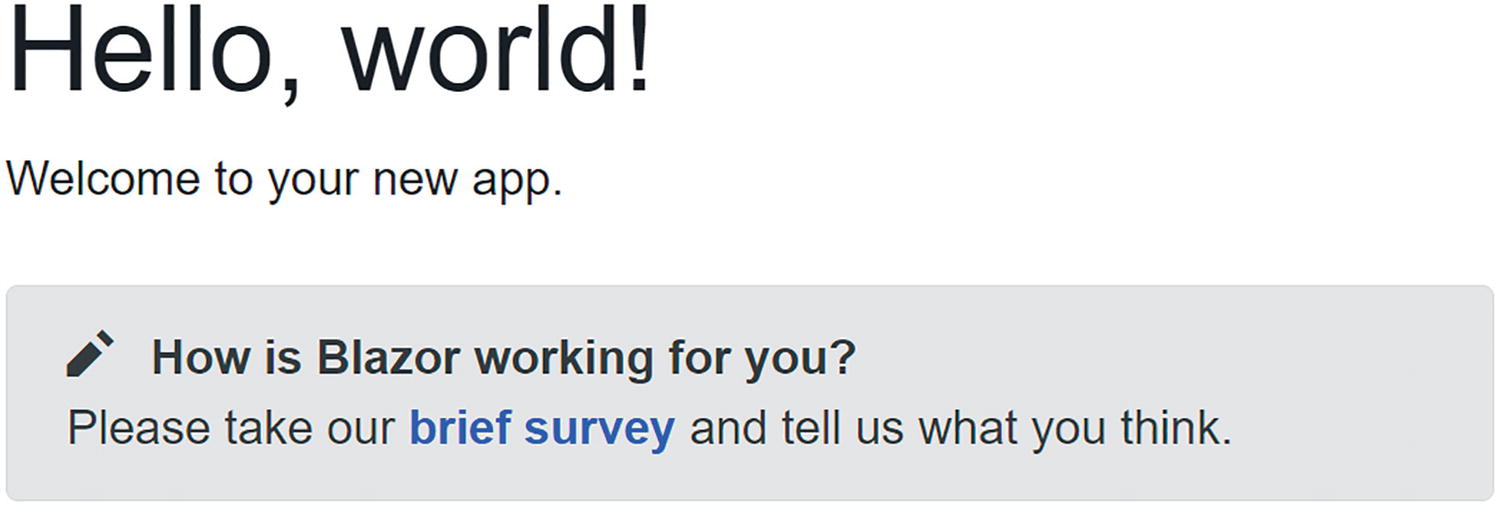
Look at the Razor markup. This is a simple Blazor component that displays an icon in front of the Title as shown in Figure 3-1 and then displays a link to the survey (a real survey which you should take ../images/469993_3_En_3_Chapter/469993_3_En_3_Figa_HTML.gif – this will show Microsoft that you’re interested in Blazor).
../images/469993_3_En_3_Chapter/469993_3_En_3_Fig1_HTML.jpg
Figure 3-1

The SurveyPrompt Component

The @code section simply contains a property Title that uses one-way data binding for rendering in the component. Do note the [Parameter] attribute on the Title property. This is required for components that want to expose their public properties to the parent component. This way, we can pass data to nested components, for example, how the Index component passes the Title to the SurveyPrompt component.

Building a Simple Alert Component with Razor

Let us build our own Blazor component that will show a simple alert. Alerts are used to draw the attention of the user to some message, for example, a warning.

Creating a New Component with Visual Studio
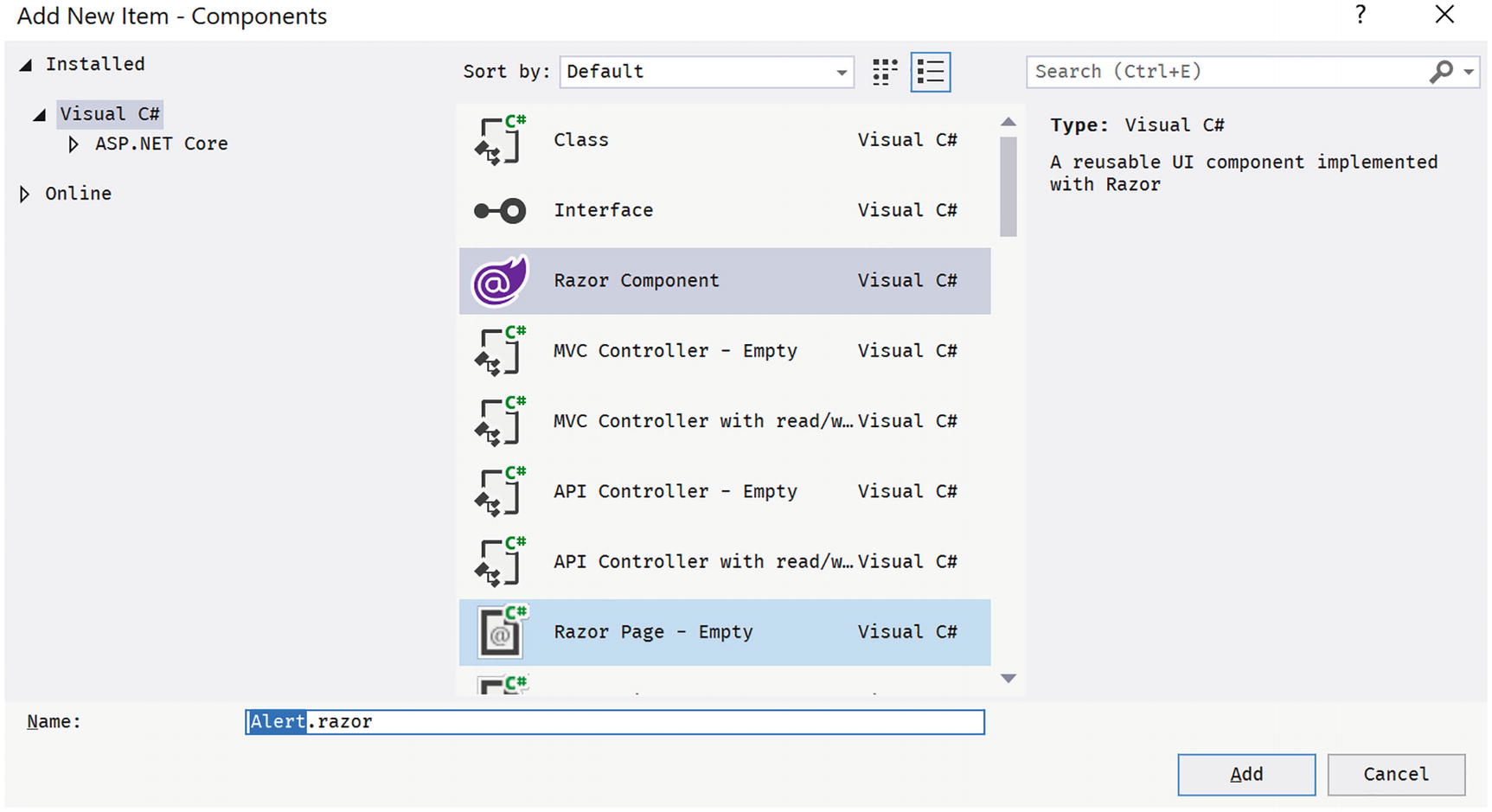
Open the MyFirstBlazor solution. Right-click the Pages folder and select Add ➤ New Item…. The Add New Item window should open as in Figure 3-2.
../images/469993_3_En_3_Chapter/469993_3_En_3_Fig2_HTML.jpg
Figure 3-2

The Add New Item Window

Select Razor Component and name it Alert.razor. Click Add.

Creating a New Component with Code

Right-click the Pages folder of the client project and select New File. Name it Alert.razor. Unlike Visual Studio, this will not generate any code in this file. There are extensions available for creating Blazor components. I will let you explore which one you like best (e.g., https://visualstudiomagazine.com/articles/2020/04/08/vs-code-blazor.aspx).

Implementing the Alert Component

Remove all existing content from Alert.razor and replace it with Listing 3-3. Let us have a look at this component.

The first line in the Alert component uses an @if to hide or show its inner content. This is a common technique if you want to conditionally display content. So, if the Show public property (actually parameter) is false, the whole component is not shown. This allows us to “hide” the component until needed.

Our Alert component will show some content in a <div> element as an alert (using bootstrap styles), so how do we pass this content to the Alert component? Inside the @if, there is a <div> element with @ChildContent as its child. You use @ChildContent if you want to access the nested element in the Alert component, as you’ll see when we use the Alert component in Listing 3-4.

Blazor dictates that this property/parameter should be named @ChildContent and it needs to be of type RenderFragment because this is the way the Blazor engine passes it (we will look at this later in this chapter).
@if (Show)
{
  <div class="alert alert-secondary mt-4" role="alert">
    @ChildContent
  </div>
}
@code {
  [Parameter]
  public bool Show { get; set; }
  [Parameter]
  public RenderFragment ChildContent { get; set; } = default!;
}
Listing 3-3

The Alert Component

Note

The default Blazor templates use Bootstrap 4 for styling. Bootstrap (http://getbootstrap.com) is a very popular CSS framework, originally built for Twitter, giving an easy layout for web pages. However, Blazor does not require you to use bootstrap, so you can use whatever styling you prefer. In that case, you would have to update all the razor files in the solution using the other styles, just like in regular web development. In this book, we will use bootstrap, simply because it is there.

Go back to Index.razor to add the element.
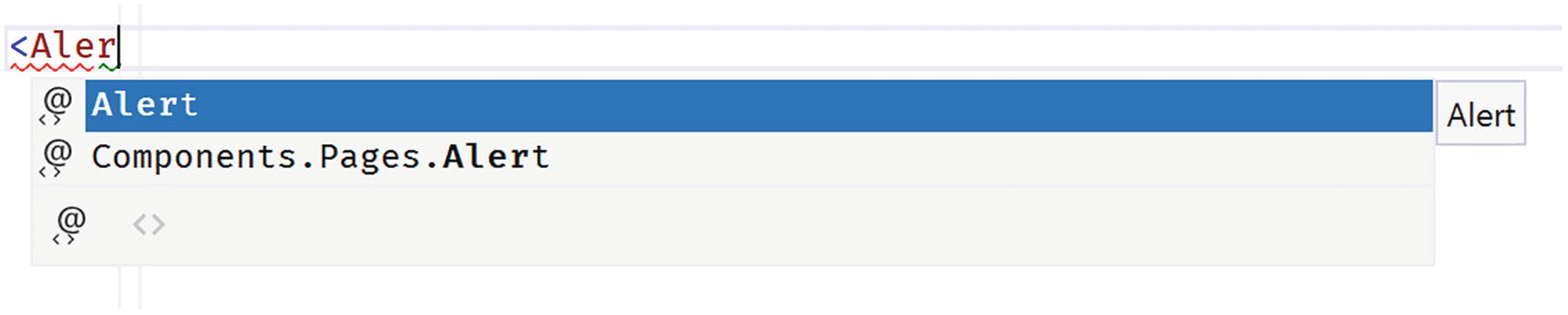
As you start to type, Visual Studio and Code are smart enough to provide you with IntelliSense, as illustrated in Figure 3-3, for the Alert component and its parameters!
../images/469993_3_En_3_Chapter/469993_3_En_3_Fig3_HTML.jpg
Figure 3-3

Visual Studio IntelliSense Support for Custom Blazor Components

Complete the Alert and add a button as in Listing 3-4.
@page "/"
<h1>Hello, world!</h1>
<Alert Show="@ShowAlert">
  <span class="oi oi-check mr-2" aria-hidden="true"></span>
  <strong>Blazor is so cool!</strong>
</Alert>
<button @onclick="ToggleAlert" class="btn btn-success">Toggle</button>
@code {
  public bool ShowAlert { get; set; } = true;
  public void ToggleAlert() => ShowAlert = !ShowAlert;
}
Listing 3-4

Using Our Alert Component in Index.razor

Inside the <Alert> tag, there is a <span> displaying a checkmark icon using the open-iconic font and a <strong> element displaying a simple message. These will be set as the @ChildContent property of the Alert component.
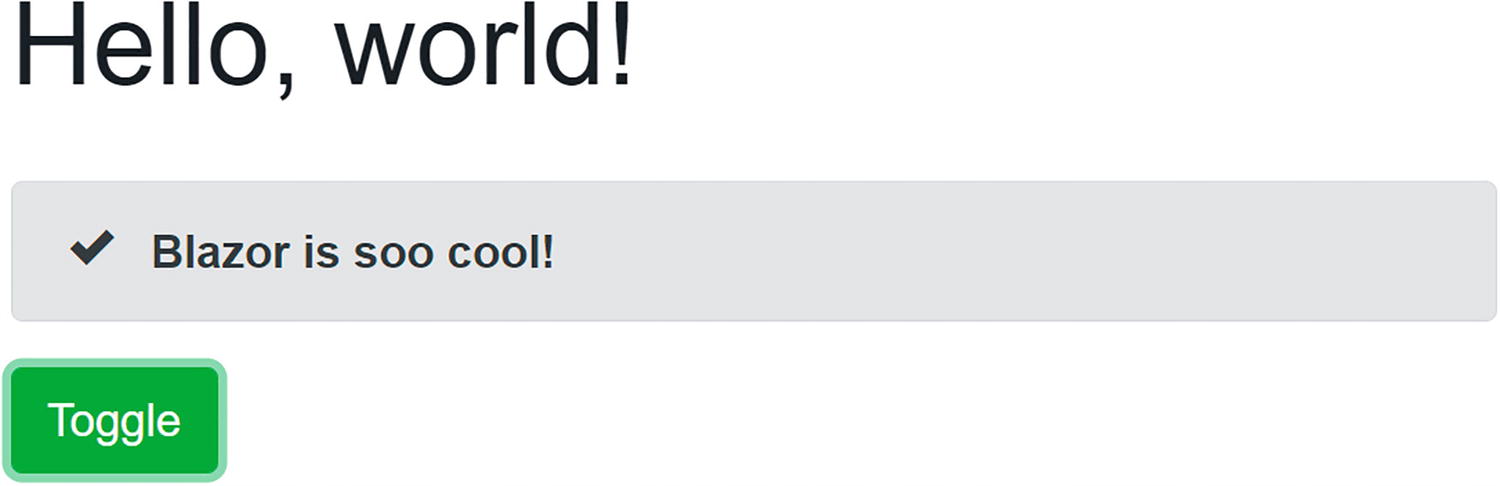
Build and run your project. When you click the <button>, it calls the ToggleAlert method which will hide and show the Alert as in Figure 3-4.
../images/469993_3_En_3_Chapter/469993_3_En_3_Fig4_HTML.jpg
Figure 3-4

Our Simple Alert Component Before Clicking the Toggle Button

Separating View and View Model

You might not like this mixing of markup (view) and code (view model). If you like, you can use two separate files, one for the view using razor and another for the view model using C#. The view will display the data from the view model, and event handlers in the view will invoke methods from the view model.

Some people prefer this way of working because it’s more like the MVVM pattern.

Each Blazor razor file gets generated into a C# partial class. If you want to separate the code from the razor file, put the code in a partial class with the same name as the component. The C# compiler will merge code from both files into a single class. Let’s try this!

Creating a DismissibleAlert Component

If you haven’t done so yet, open the MyFirstBlazor solution. With Visual Studio, right-click the Pages folder and select Add ➤ New Item…. The Add New Item dialog should open as shown in Figure 3-2. This time, select Razor Component and name it DismissibleAlert.razor. Also, add a new C# class, and call the file DismissibleAlert.razor.cs.

With Visual Studio Code, right-click the Pages folder, select New File, and name it DismissibleAlert.razor. Do this again to create a new file called Dismissible.razor.cs.

A Dismissible is an alert with a little x button, which the user can click to dismiss the alert. It is quite similar to the previous Alert component. Replace the markup in the razor file with Listing 3-5.
@if (Show)
{
  <div class="alert alert-secondary alert-dismissible fade show mt-4" role="alert">
    @ChildContent
    <button type="button" class="close" data-dismiss="alert"
            aria-label="Close" @onclick="Dismiss">
      <span aria-hidden="true">&​times;</span>
    </button>
  </div>
}
Listing 3-5

The Markup for Dismissible.razor

There is no @code section, because you will write this in the .cs file.

Replace the C# code in Dismissible.razor.cs with Listing 3-6.
using Microsoft.AspNetCore.Components;
namespace Components.Pages
{
  public partial class Dismissible
  {
    [Parameter]
    public bool Show { get; set; }
    [Parameter]
    public RenderFragment ChildContent { get; set; } = default!;
    public void Dismiss()
      => Show = false;
  }
}
Listing 3-6

The Code for Dismissible.razor.cs

Do note that this is a partial class with the same name as the Blazor component! So instead of putting your code in the @code section of a razor file, you can put the code in a partial class.

Which model is best? I don’t think either one is better than the other; it is more a matter of taste. Choose the one you like. I do like the code separation model a little more (my personal opinion) because I think the C# editor has better features for keeping my code maintainable and clean.

Understanding Parent-Child Communication

Parent and child components typically communicate through data binding. For example, in Listing 3-7, we are using our Dismissible , which communicates with the parent component through the parent’s ShowAlert property. Clicking the Toggle button will hide and show the alert. You can try this by replacing the contents of Index.razor (simply replace Alert with Dismissible) with Listing 3-7.
@page "/"
<h1>Hello, world!</h1>
<Dismissible Show="@ShowAlert">
  <span class="oi oi-check mr-2" aria-hidden="true"></span>
  <strong>Blazor is so cool!</strong>
</Dismissible>
<button @onclick="ToggleAlert" class="btn btn-success">Toggle</button>
@code {
  public bool ShowAlert { get; set; } = true;
  public void ToggleAlert() => ShowAlert = !ShowAlert;
}
Listing 3-7

Using Dismissible

Adding a Timer Component

Start by adding a new class called Timer to the Pages folder as shown in Listing 3-8. The timer will not have any visual part, so we don’t even need a .razor file to build the view.

A Blazor component is a class that inherits the ComponentBase class. Since we want to use the Timer class as a Blazor component, we need to inherit from ComponentBase .

This Timer class will invoke a delegate (Tick) after a certain number of seconds (TimeInSeconds) have expired. The Tick parameter is of type Action, which is one of the built-in delegate types of .NET. An Action is simply a method returning a void with no parameters. There are other generic Action types, such as Action<T> which is a method returning void with one parameter of type T. This allows the parent component to set the Action, so the child will execute the Action (in this case, after TimeInSeconds has expired).
using Microsoft.AspNetCore.Components;
using System;
using System.Threading;
namespace Components.Pages
{
  public class Timer : ComponentBase
  {
    [Parameter]
    public double TimeInSeconds { get; set; }
    [Parameter]
    public Action Tick { get; set; } = default!;
    protected override void OnInitialized()
    {
      var timer = new System.Threading.Timer(
        callback: (_) => InvokeAsync(() => Tick?.Invoke()),
        state: null,
        dueTime: TimeSpan.FromSeconds(TimeInSeconds),
        period: Timeout.InfiniteTimeSpan);
    }
  }
}
Listing 3-8

The Timer Class

Now add the Timer component to the Index page as in Listing 3-9. With this change, the Timer component will invoke the ToggleAlert method after 5 seconds.
@page "/"
<h1>Hello, world!</h1>
<Dismissible Show="@ShowAlert">
  <span class="oi oi-check mr-2" aria-hidden="true"></span>
  <strong>Blazor is so cool!</strong>
</Dismissible>
<button @onclick="ToggleAlert" class="btn btn-success">Toggle</button>
<Timer TimeInSeconds="5" Tick="ToggleAlert"/>
@code {
  public bool ShowAlert { get; set; } = true;
  public void ToggleAlert()
  {
    Console.WriteLine("*** Toggle ***");
    ShowAlert = !ShowAlert;
  }
}
Listing 3-9

Adding the Timer Component to Dismiss the Alert

Run the application and wait at least 5 seconds. The alert does not hide! Why?!

Look at the markup, which is in Listing 3-9, for Dismissible. It shows the component based on the Show parameter, and this one gets set through data binding. Does the ToggleAlert method get called? Run the Blazor website again, and immediately open the browser’s debugger on the console tab. After a little while, you should see the Console.WriteLine output appear. So the ToggleAlert method does get called.

Think about this. We invoke a method asynchronously using a Timer. When the timer fires, we set the Index component ShowAlert property to false. But we still need to update the UI. You can manually trigger the UI to update by calling the StateHasChanged method .

This is very important! The Blazor runtime updates the UI automatically when an event triggers, like the button click. The Blazor runtime also updates the UI for its own asynchronous methods, but not for other asynchronous methods like Timer.

Time to fix our application. Add a call to StateHasChanged in the ToggleAlert method as in Listing 3-10.
public void ToggleAlert()
{
  ShowAlert = !ShowAlert;
  StateHasChanged();
}
Listing 3-10

Adding StateHasChanged

Run again and wait, and after 5 seconds, the alert disappears!

To be honest, I don’t like the previous solution to our problem. Because a child component calls the ToggleAlert method , we manually need to call StateHasChanged . Is there no better way? And we haven’t even solved another problem. When the user dismissed the alert before the timer triggered the Tick method, it should reappear after 5 seconds because it will set ShowAlert back to true!

We will fix both problems, but first, we need to understand two-way data binding between components.

Using Two-Way Data Binding Between Components

When the user clicks the Dismissible component’s close button, it sets its own Show property to false, as intended. The problem is that the parent Index component’s ShowAlert stays true. Changing the value of the Dismissible local Show property will not update the Index component’s ShowAlert property. What we need is two-way data binding between components, and Blazor has that.

With two-way data binding, changing the value of the Show parameter will update the value of the ShowAlert property of the parent and vice versa.

You can use the @bind-<<NameOfProperty>> syntax (which we already used with the InputTitle component in the previous chapter) to data bind any property of a child component. This will use two-way data binding. So update the Index page to use two-way data binding as in Listing 3-11.
<Dismissible @bind-Show="ShowAlert">
  <span class="oi oi-check mr-2" aria-hidden="true"></span>
  <strong>Blazor is so cool!</strong>
</Dismissible>
Listing 3-11

Using Two-Way Data Binding

Run the website. However, you will not see any valid page. The Blazor runtime encountered a problem. You can discover the problem by opening the browser’s debugger. Check the console. You will see a bunch of red messages, one of which is stating:
Object of type 'Components.Pages.Dismissible' does not have a property matching the name 'ShowChanged'.

Properties that support two-way data binding need a way to tell the parent that the property has changed. The child component uses for that a delegate, so the parent component through the Blazor runtime can install its own change handler (just like an event) when the property has changed. This change handler will then update the parent component’s data bound property. The child component is responsible for invoking the Changed delegate when the property changes.

Open the Dismissible class and its implementation to match Listing 3-12. There are two changes. First of all, the Show property now uses the “full” implementation of a property, because we need to implement the setter that it will call the ShowChanged delegate when its value changes.

Second we add an extra parameter which should be called <<yourproperty>>Changed of type Action<<typeofyourproperty>>. For example, the property is named Show of type bool, so we add ShowChanged of type Action<bool>.
using Microsoft.AspNetCore.Components;
using System;
namespace Components.Pages
{
  public partial class Dismissible
  {
    private bool show;
    [Parameter]
    public bool Show
    {
      get => show;
      set
      {
        if (value != show)
        {
          show = value;
          ShowChanged?.Invoke(show);
        }
      }
    }
    [Parameter]
    public Action<bool>? ShowChanged { get; set; }
    [Parameter]
    public RenderFragment ChildContent { get; set; } = default!;
    public void Dismiss()
      => Show = false;
  }
}
Listing 3-12

The Dismissible Class with Two-Way Binding Support

Whenever someone or something changes the Show property’s value, the property’s setter triggers the ShowChanged delegate. This means the parent component can inject some code (which it does for you when you use two-way data binding) into the ShowChanged delegate property which will invoke when the property is changed (internally or externally).

Note

The property setter checks if the value has changed. Only trigger the Changed delegate when there is an actual change. This will avoid a possible endless loop of Changed handling.

Now, when the Dismissible Show property changes, Blazor will update the parent's ShowAlert property because we are using two-way data binding.

We still need to fix the problem when the Timer fires.

One way (but there is a better way) is in Listing 3-13. Here, we call StateHasChanged whenever the ShowAlert property gets a new value. This is better because anywhere we update the ShowAlert property, we update the UI.
@page "/"
<h1>Hello, world!</h1>
<DismissibleAlert @bind-Show="ShowAlert">
  <span class="oi oi-check mr-2" aria-hidden="true"></span>
  <strong>Blazor is so cool!</strong>
</DismissibleAlert>
<button @onclick="ToggleAlert" class="btn btn-success">Toggle</button>
<Timer TimeInSeconds="5" Tick="ToggleAlert" />
@code {
  private bool showAlert = true;
  public bool ShowAlert
  {
    get => showAlert; set
    {
      if (value != showAlert)
      {
        showAlert = value;
        StateHasChanged();
      }
    }
  }
  public void ToggleAlert()
  {
    ShowAlert = !ShowAlert;
  }
}
Listing 3-13

Update the UI when ShowAlert Changes the Value

Run. Wait 5 seconds.
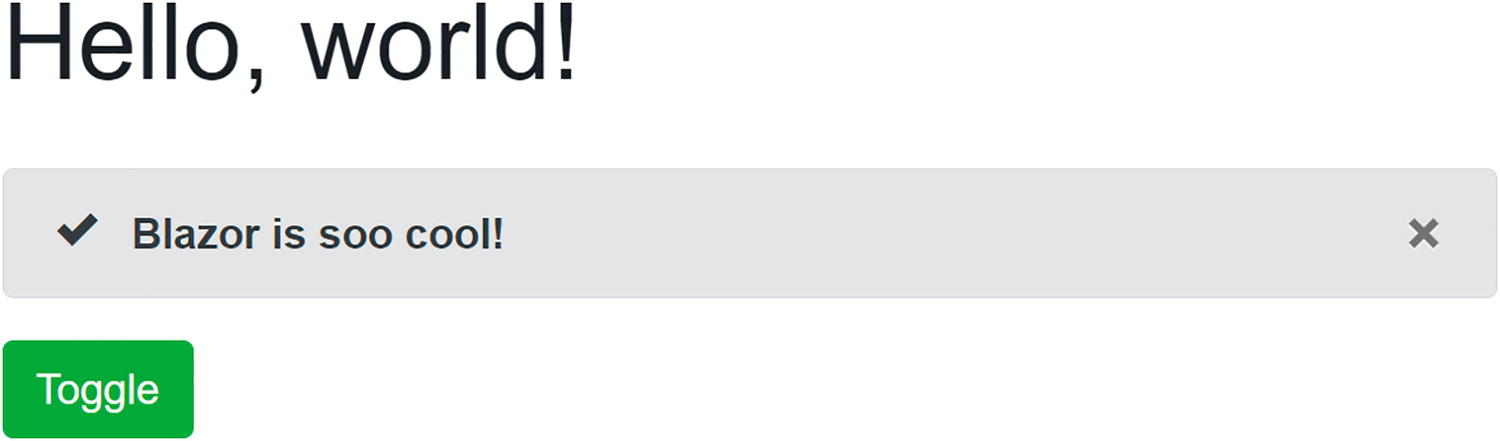
The Alert should automatically hide as illustrated in Figures 3-5 and 3-6.
../images/469993_3_En_3_Chapter/469993_3_En_3_Fig5_HTML.jpg
Figure 3-5

The Alert Being Shown

../images/469993_3_En_3_Chapter/469993_3_En_3_Fig6_HTML.jpg
Figure 3-6

The Alert Automatically Hides After 5 Seconds

Should your project still not update, you can debug a client-side Blazor project by adding breakpoints or some Console.WriteLine statements. These will appear in the browser’s console window. You can see examples of this in the book’s code which you can download from the Apress site.

Using EventCallback<T>

Now, with the DismissibleAlert component from the previous section, we have been using two-way data binding between components with the @bind-Show syntax, and we used the ShowChanged callback to notify the parent component that the Show property has changed. To make the parent update its UI, we also added a call to StateHasChanged when the parent’s ShowAlert property gets modified. But there is a better way!

Blazor has the EventCallback type for this, which was added to Blazor in .NET Core 3.0 Preview 3 (https://github.com/aspnet/AspNetCore/issues/6351). The big difference between Action<T> and EventCallback<T> is that the latter will invoke StateHasChanged for you!

Update the DismissibleAlert component’s ShowChanged as in Listing 3-14.
using Microsoft.AspNetCore.Components;
using System;
namespace Components.Pages
{
  public partial class DismissibleAlert
  {
    private bool show;
    [Parameter]
    public bool Show
    {
      get => show;
      set
      {
        if (value != show)
        {
          show = value;
          ShowChanged?.InvokeAsync(show);
        }
      }
    }
    [Parameter]
    public EventCallback<bool>? ShowChanged { get; set; }
    [Parameter]
    public RenderFragment ChildContent { get; set; } = default!;
    public void Dismiss()
      => Show = false;
  }
}
Listing 3-14

Using EventCallback<T>

So instead of using an Action<T> delegate, we use the EventCallback<T> type. First of all, this type is a value type, so we don’t need to check for null. And instead of an Invoke method, it has an InvokeAsync method which solves some special problems which are not important at this point in time.

If you want to learn more about these problems, open your browser on https://github.com/dotnet/aspnetcore/issues/6351.

You should also update the Timer component to use an EventCallback as in Listing 3-15.
using Microsoft.AspNetCore.Components;
using System;
using System.Threading;
namespace Components.Pages
{
  public class Timer : ComponentBase
  {
    [Parameter]
    public double TimeInSeconds { get; set; }
    [Parameter]
    public EventCallback Tick { get; set; } = default!;
    protected override void OnInitialized()
    {
      var timer = new System.Threading.Timer(
        callback: (_) => InvokeAsync(() => Tick.InvokeAsync()),
        state: null,
        dueTime: TimeSpan.FromSeconds(TimeInSeconds),
        period: Timeout.InfiniteTimeSpan);
    }
  }
}
Listing 3-15

The Improved Timer Component

Finally, update the Index component’s ShowAlert property by removing the call to StateHasChanged as in Listing 3-16 (we can use an automatic property again).
@page "/"
<h1>Hello, world!</h1>
<DismissibleAlert @bind-Show="ShowAlert">
  <span class="oi oi-check mr-2" aria-hidden="true"></span>
  <strong>Blazor is so cool!</strong>
</DismissibleAlert>
<button @onclick="ToggleAlert" class="btn btn-success">Toggle</button>
<Timer TimeInSeconds="5" Tick="ToggleAlert" />
@code {
  public bool ShowAlert { get; set; } = true;
  public void ToggleAlert()
  {
    ShowAlert = !ShowAlert;
  }
}
Listing 3-16

Index with Simple ShowAlert Property

Build and run. Wait 5 seconds. The alert should hide!

In general, you should prefer EventCallback<T> over normal delegates for parent-child communication, such as events and two-way data binding. There are exceptions to the rule (e.g., the fact that EventCallback triggers component, re-rendering might be a problem, and then using a delegate can be the solution).

Referring to a Child Component

Generally, you should prefer data binding to have components communicate with one another. This way, one component does not need to know anything about another component, except the data bindings. It also makes the Blazor runtime take care of updating components with changes.

However, you can also directly interact with a child component . Let’s look at an example: we want the dismissible alert to disappear by calling its Dismiss method. Update your code to match Listing 3-17, where we use the @ref syntax to place a reference to a component in a field. Please make sure that field is of the component’s type.
@page "/"
<h1>Hello, world!</h1>
<DismissibleAlert @bind-Show="ShowAlert" @ref="alert">
  <span class="oi oi-check mr-2" aria-hidden="true"></span>
  <strong>Blazor is so cool!</strong>
</DismissibleAlert>
<button @onclick="ToggleAlert" class="btn btn-success">Toggle</button>
<Timer TimeInSeconds="5" Tick="@(() => alert.Dismiss())" />
@code {
  public bool ShowAlert { get; set; } = true;
  public void ToggleAlert()
  {
    ShowAlert = !ShowAlert;
  }
  private DismissibleAlert alert = default!;
}
Listing 3-17

Referring to a Child Component

In this example, the Blazor runtime will put a reference to the DismissibleAlert component in the alert field. You can instruct Blazor to do this using the @ref syntax. When the timer calls its Tick parameter after 5 seconds, we use this reference to call the DismissibleAlert’s Dismiss method.

Communicating with Cascading Parameters

When a higher-level component wants to pass data to an immediate child, life is easy. Simply use data binding. But when a higher-level component needs to share some data with a deeper nested component, passing data using data binding requires each intermediate component to expose that data through a parameter and pass it down to the next level. Not only is this inconvenient when you have several levels of components, but who says that you are in control of these components? Blazor solves this problem with cascading values and parameters. Let us look at an example.

Open MyFirstBlazor and add the CounterData class from Listing 3-18.
using System;
namespace Components
{
  public class CounterData
  {
    private int count;
    public int Count
    {
      get => this.count;
      set
      {
        if (value != count)
        {
          this.count = value;
          CountChanged?.Invoke(this.count);
        }
      }
    }
    public Action<int>? CountChanged { get; set; }
  }
}
Listing 3-18

The CounterData Class

Using the CascadingValue Component

Our top-level component (called GrandMother) wants to pass this data as a cascading value to any descendant component. You can use the Blazor built-in CascadingValue component for this. Look at Listing 3-19 for an example of using the CascadingValue component . Here, we pass GrandMother’s data field (of type CounterData) as a cascading value. Any component which is part of the ChildContent will now be able to access the CounterData instance from GrandMother.
<h3>GrandMother</h3>
@data.Count
<CascadingValue Value="@this.data">
  @ChildContent
</CascadingValue>
@code {
    public CounterData data = new CounterData { Count = 10 };
    protected override void OnInitialized()
    {
      this.data.CountChanged += (newCount) =>
        this.StateHasChanged();
    }
    [Parameter]
    public RenderFragment ChildContent { get; set; } = default!;
}
Listing 3-19

Use the CascadingValue Component to Pass Data to Descendants

Open Index.razor and add the GrandMother component as in Listing 3-20. This component has two child components, one is a direct GrandChild component (which we will build after this) and another is a GrandChild component wrapped in a DismissibleAlert component. This last component knows nothing about CounterData or GrandMother. Still, the GrandMother component will be able to pass its cascading value to the GrandChild component.
@page "/"
<h1>Hello, world!</h1>
<DismissibleAlert @bind-Show="ShowAlert" @ref="alert">
  <span class="oi oi-check mr-2" aria-hidden="true"></span>
  <strong>Blazor is so cool!</strong>
</DismissibleAlert>
<button @onclick="ToggleAlert" class="btn btn-success">Toggle</button>
<Timer TimeInSeconds="5" Tick="@(() => alert.Dismiss())" />
<GrandMother>
  <GrandChild/>
  <DismissibleAlert Show="true">
    <GrandChild/>
  </DismissibleAlert>
</GrandMother>
@code {
  public bool ShowAlert { get; set; } = true;
  public void ToggleAlert()
  {
    ShowAlert = !ShowAlert;
  }
  private DismissibleAlert alert = default!;
}
Listing 3-20

Using the GrandMother Component

The GrandChild component can be found in Listing 3-21 (please add this as another component in the Pages folder). This component has a property of type CounterData, and it will receive it from GrandMother by adding the CascadingParameter attribute . Both GrandMother and GrandChild(ren) now are sharing the same instance of CounterData. If this looks like magic, the CascadingParameter will search all cascading properties of the CascadingParameter’s type. If there are multiple cascading properties, you can add a name to get a more specific match, as we will discuss next.
<h3>GrandChild</h3>
<button @onclick="Increment">Inc</button>
@code {
    [CascadingParameter()]
    public CounterData gmData { get; set; } = default!;
    private void Increment()
    {
      gmData.Count += 1;
    }
}
Listing 3-21

Receiving the Cascading Value

When you click the Inc button of GrandChild, the CounterData’s Count property increments. The GrandMother component wants to display this value every time it gets incremented, so CounterData notifies the GrandMother of changes. The GrandMother component subscribes to these changes and calls StateHasChanged to update itself. How the shared object handles this notification is up to you; for example, CounterData uses a delegate. You could also use INotifyPropertyChanged . If you’re not familiar with this interface, it is used in a lot of .NET applications to notify interested parties that a property has changed. For example, Windows Presentation Foundation (WPF) heavily relies on this interface. If you would like to learn more, any good book on WPF will explain this, or you can find more information at https://docs.microsoft.com/dotnet/api/system.componentmodel.inotifypropertychanged.

Resolving Ambiguities

What if there are several components exposing the same type of cascading value? In this case, you can name the cascading value. For example, you can name the GrandMother’s cascading value like in Listing 3-22.
<CascadingValue Value="@this.data" Name="gm">
  @ChildContent
</CascadingValue>
Listing 3-22

Use a Named Cascading Value in GrandMother

The GrandChild component should then receive the cascading value like in Listing 3-23.
[CascadingParameter(Name = "gm")]
public CounterData gmData { get; set; } = default!;
Listing 3-23

Receive the Named Cascading Value

Component Life Cycle Hooks

A Blazor component has a life cycle just like any other .NET object. A component is born, goes through a couple of changes, and then dies. A Blazor component has a couple of methods you can override to capture the life cycle of the component. In this section, we will look at these life cycle hooks because it's very important to understand them well. Putting code in the wrong life cycle hook will likely break your component.

You should also remember that each life cycle method gets called at least once for every component. Even a component with no parameters will see methods like SetParametersAsync and OnParametersSetAsync called at least once.

Life Cycle Overview

Let us start with the big picture. I have created a LifeCycle component from Listings 3-24 and 3-25 to experiment with and that shows each life cycle hook on the browser’s console. So every life cycle method is listed, except the asynchronous versions of two life cycle methods: OnInitializedAsync and OnParametersSetAsync. If you want to follow along, you can use the sample code that comes with the book.
using Microsoft.AspNetCore.Components;
using System;
using System.Threading.Tasks;
namespace Components.Pages
{
  public partial class LifeCycle
  {
    public LifeCycle()
    {
      Console.WriteLine("Inside constructor");
    }
    private int counter;
    [Parameter]
    public int Counter
    {
      get => counter;
      set
      {
        counter = value;
        Console.WriteLine($"Counter set to {counter}");
      }
    }
    public override Task SetParametersAsync(ParameterView parameters)
    {
      Console.WriteLine("SetParametersAsync called");
      return base.SetParametersAsync(parameters);
    }
    protected override void OnParametersSet()
      => Console.WriteLine("OnParametersSet called");
    protected override void OnInitialized()
      => Console.WriteLine("OnInitialized called");
    protected override void OnAfterRender(bool firstRender)
      => Console.WriteLine($"OnAfterRender called with firstRender = {firstRender}");
    protected override bool ShouldRender()
    {
      Console.WriteLine($"ShouldRender called");
      return true;
    }
    public void Dispose()
      => Console.WriteLine("Disposed");
  }
}
Listing 3-24

The LifeCycle Component’s Code

@implements IDisposable
<h3>LifeCycle @Counter</h3>
Listing 3-25

The LifeCycle Component’s Markup

Listing 3-25 also shows how you can implement an interface in a component using the @implements syntax . I also added this component to the Index component as in Listing 3-26. Let us run this and examine the output.
@page "/"
...
  <LifeCycle Counter="@counter" />
<button class="btn btn-primary" @onclick="Increment">Increment</button>
@code {
  private int counter = 1;
  public void Increment()
  {
    counter += 1;
  }
  ...
}
Listing 3-26

Using the LifeCycle Component

When the Index component gets created, it will create the nested LifeCycle component , resulting in this output:
Inside constructor
SetParametersAsync called
Counter set to 1
OnInitialized called
OnParametersSet called
OnAfterRender called with firstRender = True

The LifeCycle component gets constructed (constructor called), and then Blazor calls the SetParametersAsync method . This method normally will result in the parameter setters being called, and that is why we see the Counter property’s output.

Then the Blazor runtime calls the OnInitialized method (and the asynchronous OnInitializedAsync which I left out for simplicity). After this, the OnParametersSet method is called (and also the asynchronous OnParametersSetAsync method). Now the component is ready to be rendered, and the Blazor runtime renders it. Finally, rendering the OnAfterRender method is called which gets passed a Boolean which is true on the first render.
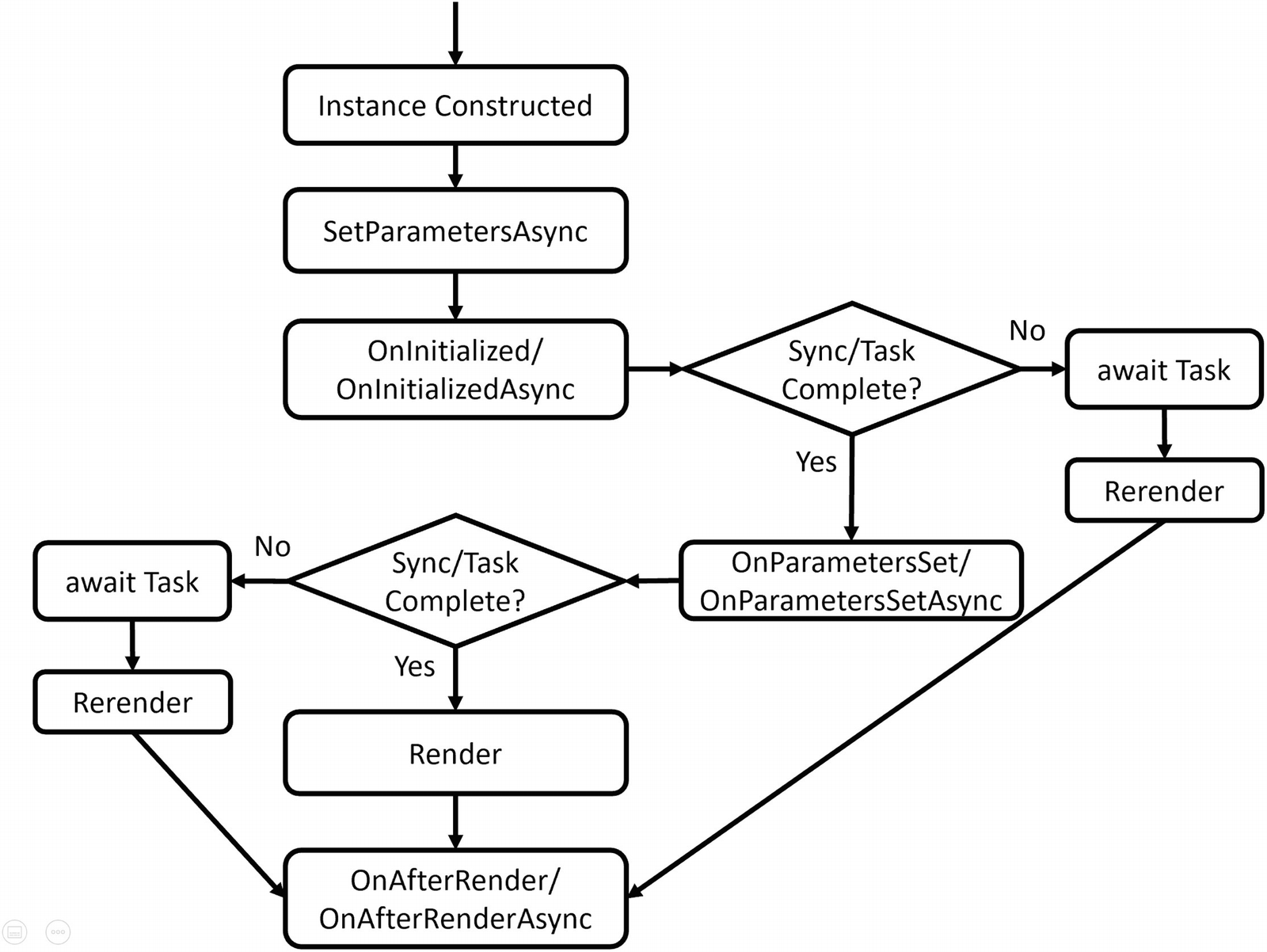
This whole process is illustrated in Figure 3-7.
../images/469993_3_En_3_Chapter/469993_3_En_3_Fig7_HTML.png
Figure 3-7

The Component Life Cycle Overview

My Index component has an Increment button, and when I click this button, this is the output:
SetParametersAsync called
Counter set to 2
OnParametersSet called
ShouldRender called
OnAfterRender called with firstRender = False

Because I clicked the Increment button of the Index component, it invokes the click handler and then re-renders itself. But first it sets the parameters on the LifeCycle component which results in the SetParametersAsync method being called again (which sets the Counter parameter). After this, it invokes the OnParametersSet method to indicate all parameters have been updated (and also the asynchronous OnParametersSetAsync method).

Now, should the Blazor runtime render the component? For this, it calls the ShouldRender method , and if this returns true, it will render the LifeCycle component (and then the OnAfterRender method).

Clicking the Increment button results in that sequence again.

Now switching to the FetchData component results in the LifeCycle component being destroyed, which results in the following output:
Disposed

Now let us look at each of these methods individually.

SetParametersAsync

If you need to execute some code before the parameters are set, you can override the SetParametersAsync method . The default implementation of the SetParametersAsync method will set each [Parameter] and [CascadingParameter] that has a value in the ParameterView argument. Other parameters (that don’t have a value in ParameterView) are left unchanged.

You can find the parameters in the ParameterView argument which behaves like a dictionary. Let’s look at an example in Listing 3-27. This example uses the SetParametersAsync method to inspect the parameters, looking for a “Counter” parameter. If this parameter is even, we call the base method; otherwise, we don’t do anything, resulting in an even valued Counter.

There is one snag; when you don’t call the base method, the UI doesn’t update, so you should call StateHasChanged if you want the component to update. Initially, our LifeCycle component could receive an odd value, and that is why we call StateHasChanged for the first time.

One more remark: should the LifeCycle component have other parameters, your implementation is still responsible for setting these parameters since we don’t call the base SetParametersAsync method in every case.
private bool firstParametersSet = true;
public override Task SetParametersAsync(ParameterView parameters)
{
  Console.WriteLine("SetParametersAsync called");
  if (parameters.TryGetValue(nameof(Counter), out int counter))
  {
    // ignore odd values
    if (counter % 2 == 0)
    {
      return base.SetParametersAsync(parameters);
    }
    if(firstParametersSet)
    {
      firstParametersSet = false;
      StateHasChanged(); // Force render
    }
  }
  return Task.CompletedTask;
}
Listing 3-27

Overriding SetParametersAsync

OnInitialized and OnInitializedAsync

When your component has been created and the parameters have been set, the OnInitialized and OnInitializedAsync methods are called. Implement one of these methods if you want to do some one-time extra initialization after the component has been created, for example, fetching some data from a server like the FetchData component from the project. The OnInitialized methods are only called once, right after the creation of the component.

Use OnInitialized for synchronous code as in Listing 3-28. Here, we execute synchronous code like fetching the current DateTime.
DateTime created;
protected override void OnInitialized()
{
  created = DateTime.Now;
}
Listing 3-28

The OnInitialized Life Cycle Hook

Use OnInitializedAsync (Listing 3-29) to call asynchronous methods, for example, making asynchronous REST calls (we will look at making REST calls in further chapters).
protected override async Task OnInitializedAsync()
{
  forecasts = await Http.GetFromJsonAsync<WeatherForecast[]>
                    ("sample-data/weather.json");
}
Listing 3-29

The OnInitializedAsync Life Cycle Hook

OnParametersSet and OnParametersSetAsync

When you need one or more parameters to look up data after a change to the parameters, you use OnParametersSet or OnParametersSetAsync instead of the OnInitialized/OnInitializedAsync methods. Every time data binding updates one or more of your parameters, these methods get called again, so they are ideal for calculated properties, filtering, etc. For example, you could have a DepartmentSelector component that allows the user to select a department from a company and another EmployeeList component that takes the selected department as a parameter. The EmployeeList component can then fetch the employees for that department in its OnParametersSetAsync method.

Use OnParametersSet (Listing 3-30) if you are only calling synchronous methods.
DateTime lastUpdate;
protected override void OnParametersSet()
{
  lastUpdate = DateTime.Now;
  Console.WriteLine("OnParametersSet called");
}
Listing 3-30

The OnParametersSet Method

Use OnParametersSetAsync (Listing 3-31) if you need to call asynchronous methods. For example, retrieving values from a database that depend on a parameter value should be done in an asynchronous way. In general, any use of methods that take longer than 60 milliseconds should be done asynchronously.
[Parameter]
public DateTime Date { get; set; }
protected override async Task OnParametersSetAsync()
{
  forecasts = await weatherService.GetForcasts(Date);
}
Listing 3-31

The OnParametersSetAsync Method

ShouldRender

The ShouldRender method returns a Boolean value, indicating if the component should be re-rendered. Do realize that the first render ignores this ShouldRender method, so a component will render at least once. The default implementation always returns true. You want to override this method to stop the component from re-rendering.

Let’s make a change to the LifeCycle component as in Listing 3-32. We only want it to show odd values. So when counter is even, we tell the Blazor engine not to render this component.
public override Task SetParametersAsync(ParameterView parameters)
{
  shouldRender = true;
  if (parameters.TryGetValue(nameof(Counter), out int counter))
  {
    // ignore odd values
    if (counter % 2 == 0)
    {
      shouldRender = false;
    }
  }
  return base.SetParametersAsync(parameters);
}
private bool shouldRender;
protected override bool ShouldRender()
{
  return shouldRender;
}
Listing 3-32

Implementing the ShouldRender Method

OnAfterRender and OnAfterRenderAsync

The OnAfterRender and OnAfterRenderAsync methods are called after Blazor has completely rendered the component. This means that the browser’s DOM has been updated with changes made to your Blazor component. Use these methods to invoke JavaScript code that needs access to elements from the DOM (which we will cover in the JavaScript chapter 10 ). This method takes a Boolean firstRender argument, which allows you to attach JavaScript event handlers only once.

Note

Avoid calling StateHasChanged in this method, as it can cause an infinite loop.

Use OnAfterRender shown in Listing 3-33 to call synchronous methods, for example, in JavaScript.
protected override void OnAfterRender(bool firstRender)
{
}
Listing 3-33

The OnAfterRender Life Cycle Hook

Use OnAfterRenderAsync as shown in Listing 3-34 to call asynchronous methods, for example, JavaScript methods that return promises or observables.
protected override Task OnAfterRenderAsync(bool firstRender)
{
}
Listing 3-34

The OnAfterRenderAsync Life Cycle Hook

IDisposable

If you need to run some cleanup code when your component is removed from the UI, implement the IDisposable interface. You can implement this interface in razor using the @implements syntax, for example, in Listing 3-25. Normally, you put the @implements at the top of the .razor file, but if you use code separation, you can also declare it on the partial class.

Most of the time, dependency injection will take care of calling Dispose, so generally, you won’t need to implement IDisposable if you only need to dispose of your dependencies.

The IDisposable interface requires you to implement a Dispose method as in Listing 3-35.
public void Dispose()
{
  // Cleanup code here
}
Listing 3-35

Implementing the Dispose Method

A Word on Asynchronous Methods

When the Blazor runtime calls asynchronous methods like OnInitializedAsync and OnParametersSetAsync, it will await this method and will also render the component. The only exception to this is the OnAfterRenderAsync method, which will not trigger a render (otherwise, this will cause an infinite render loop).

This is the reason you should always check variables that get initialized in an asynchronous method for null values. A nice example of this is the FetchData component as in Listing 3-36. The forecasts field gets initialized in the OnInitializedAsync method, so until this method completes, the forecast field is null. This means that we should check this field for null values as in Listing 3-37.
private WeatherForecast[]? forecasts;
protected override async Task OnInitializedAsync()
{
  forecasts = await Http.GetFromJsonAsync<WeatherForecast[]>("sample-data/weather.json");
}
Listing 3-36

Initializing forecasts

@if (forecasts == null)
{
  <p><em>Loading...</em></p>
}
Listing 3-37

Checking forecasts for Null

Refactoring PizzaPlace into Components

In the previous chapter on data binding, we built a website for ordering pizzas. This used only one component with three different sections. Let us split up this component into smaller, easier to understand components and try to maximize reuse.

Creating a Component to Display a List of Pizzas

Open the PizzaPlace Blazor project from the previous chapter. You can also start with the code examples from this book; look for Chapter 2 which contains the finished version. Start by reviewing Index.razor. This is our main component, and you can say that it has three main sections: a menu, a shopping basket, and customer information.

The menu iterates over the list of pizzas and displays each one with a button to order. The shopping basket also displays a list of pizzas (but now from the shopping basket) with a button to remove it from the order. Looks like both have something in common; they need to display pizzas with an action you choose by clicking the button. So let’s create a component to display a list of pizzas, using a nested component to display a pizza’s details.

We have also seen that we can split components into a razor file with the markup and a C# file with the code. Let us do that here!

Add a new component to the Pages folder called PizzaItem.razor. Also create a new class called PizzaItem.razor.cs. Replace this class with the code from Listing 3-38. You should be able to copy most of the code from Index.
using Microsoft.AspNetCore.Components;
using PizzaPlace.Shared;
namespace PizzaPlace.Client.Pages
{
  public partial class PizzaItem
  {
    [Parameter]
    public Pizza Pizza { get; set; } = default!;
    [Parameter]
    public string ButtonTitle { get; set; } = default!;
    [Parameter]
    public string ButtonClass { get; set; } = default!;
    [Parameter]
    public EventCallback<Pizza> Selected { get; set; }
    private string SpicinessImage(Spiciness spiciness)
        => $"images/{spiciness.ToString().ToLower()}.png";
  }
}
Listing 3-38

The Code for the PizzaItem Component

Now replace the razor file with contents from Listing 3-39. You can copy most of the markup from the Index component (the part within the first @foreach) with some changes.
<div class="row">
  <div class="col">
    @Pizza.Name
  </div>
  <div class="col text-right">
    @($"{Pizza.Price:0.00}")
  </div>
  <div class="col"></div>
  <div class="col">
    <img src="@SpicinessImage(Pizza.Spiciness)"
         alt="@Pizza.Spiciness" />
  </div>
  <div class="col">
    <button class="@ButtonClass"
            @onclick="@(() => Selected.InvokeAsync(Pizza))">
      Add
    </button>
  </div>
</div>
Listing 3-39

The PizzaItem Component

The PizzaItem component will display a pizza, so it should not come as a surprise that it has a Pizza parameter. This component also displays a button, but how this button looks and behaves will differ where we use it. And that is why it has a ButtonTitle and ButtonClass parameter to change the button’s look, and it also has a Selected event callback of type EventCallback<Pizza> which gets invoked when you click the button. Do you remember why we are using EventCallback<T> instead of Action<T>? Do note that this component does one thing well, and only one thing: display the pizza and allow an action on the pizza by clicking the button.

We can now use this component to display the menu (a list of pizzas). Add a new component to the Pages folder called PizzaList.razor (and PizzaList.razor.cs) as in Listings 3-40 and 3-41.
using Microsoft.AspNetCore.Components;
using PizzaPlace.Shared;
using System.Collections.Generic;
namespace PizzaPlace.Client.Pages
{
  public partial class PizzaList
  {
    [Parameter]
    public string Title { get; set; } = default!;
    [Parameter]
    public IEnumerable<Pizza> Items { get; set; } = default!;
    [Parameter]
    public string ButtonClass { get; set; } = default!;
    [Parameter]
    public string ButtonTitle { get; set; } = default!;
    [Parameter]
    public EventCallback<Pizza> Selected { get; set; }
  }
}
Listing 3-40

The PizzaList Component’s Code

@if (Items is null || !Items.Any())
{
  <div>Loading...</div>
}
else
{
  <h1>@Title</h1>
  @foreach (var pizza in Items)
  {
    <PizzaItem Pizza="@pizza"
           ButtonClass="@ButtonClass"
           ButtonTitle="@ButtonTitle"
           Selected="@Selected" />
  }
}
Listing 3-41

The PizzaList Component’s Markup

First note the use of the @if. Here, we need to decide what to do should the Items property (which is an IEnumerable<Pizza>) be null of empty. In that case, we will display a loading UI, assuming the Items collection will be filled in later.

Otherwise, the PizzaList component displays a Title and all the pizzas from the Items collection, so it takes these as parameters. It also takes a Selected event callback which you invoke by clicking the button next to a pizza. Note that the PizzaList component reuses the PizzaItem component to display each pizza and that the PizzaList Selected event callback is passed directly to the PizzaItem Selected event callback. Same thing for the button parameters. The Index component will set this callback, and it will be executed by the PizzaItem component.

With the PizzaItem and PizzaList components ready, we can use them in Index , which you can find in Listing 3-42.
<!-- Menu -->
<PizzaList Title="Our Selection of Pizzas"
           Items="@State.Menu.Pizzas"
           ButtonTitle="Order"
           ButtonClass="btn btn-success pl-4 pr-4"
           Selected="@AddToBasket" />
<!-- End menu -->
Listing 3-42

Using the PizzaList Component in Index.razor

Run the application and try to order a pizza. Your selected pizza should be added to the shopping basket. Thanks to the EventCallback<T> type, there is no need to call StateHasChanged. Had we used an Action<T> or Func<T>, the UI would not update, and you would need to call StateHasChanged whenever you receive events from a child component!

Showing the ShoppingBasket Component

Add a new razor component called ShoppingBasket.razor (and code behind file) to the Pages folder and change its contents to Listings 3-43 and 3-44.
using Microsoft.AspNetCore.Components;
using PizzaPlace.Shared;
using System;
using System.Collections.Generic;
using System.Linq;
namespace PizzaPlace.Client.Pages
{
  public partial class ShoppingBasket
  {
    [Parameter]
    public IEnumerable<int> Orders { get; set; } = default!;
    [Parameter]
    public EventCallback<int> Selected { get; set; } = default!;
    [Parameter]
    public Func<int, Pizza> GetPizzaFromId { get; set; }
      = default!;
    private IEnumerable<(Pizza pizza, int pos)> Pizzas
      { get; set; } = default!;
    private decimal TotalPrice { get; set; } = default!;
    protected override void OnParametersSet()
    {
      Pizzas = Orders.Select((id, pos)
                 => (pizza: GetPizzaFromId(id), pos: pos));
      TotalPrice = Pizzas.Select(tuple
                     => tuple.pizza.Price).Sum();
    }
  }
}
Listing 3-43

The ShoppingBasket Component’s Code

@if (Orders is not null && Orders.Any())
{
  <h1 class="">Your current order</h1>
  @foreach (var (pizza, pos) in Pizzas)
  {
    <div class="row mb-2">
      <div class="col">
        @pizza.Name
      </div>
      <div class="col text-right">
        @($"{pizza.Price:0.00}")
      </div>
      <div class="col"></div>
      <div class="col"></div>
      <div class="col">
        <button class="btn btn-danger"
            @onclick="@(() => Selected.InvokeAsync(pos))">
          Remove
        </button>
      </div>
    </div>
  }
  <div class="row">
    <div class="col"></div>
    <div class="col"><hr /></div>
    <div class="col"> </div>
    <div class="col"> </div>
  </div>
  <div class="row">
    <div class="col"> Total:</div>
    <div class="col text-right font-weight-bold">@($"{TotalPrice:0.00}")</div>
    <div class="col"> </div>
    <div class="col"> </div>
    <div class="col"> </div>
  </div>
}
Listing 3-44

The ShoppingBasket Component’s Markup

The ShoppingBasket component is similar to the PizzaList component , but there are some big differences (and that is why we are not reusing the PizzaList component. We will do this in the next chapter). The ShoppingBasket class (the one from the shared project) keeps track of the order using only ids of pizzas, so we need something to get the pizza object. This is done through the GetPizzaFromId delegate (again, we don’t want this component to know a lot about the other classes). Another change is the OnParametersSet method. The OnParametersSet method gets called when the component’s parameters have been set. Here, we override it to build a list of (pizza, position) tuples which we need during data binding and to calculate the total price of the order.

Tuples are just another type in C#. But with modern C#, we get this very convenient syntax; for example, IEnumerable<(Pizza pizza, int pos)> means we have a type that is a list of pizza and position pairs. Think of tuples as a nice replacement for anonymous types, which allow you to quickly have compiler-generated types.

Using the ShoppingBasket component in Index is easy, as you can see in Listing 3-45.
<!-- Shopping Basket -->
<ShoppingBasket Orders="@State.Basket.Orders"
                GetPizzaFromId="@State.Menu.GetPizza"
                Selected="@RemoveFromBasket" />
<!-- End shopping basket -->
Listing 3-45

Using the ShoppingBasket Component

Run your project again. Everything should still work (and look the same).

Adding the CustomerEntry Component

Add a new CustomerEntry component to the Pages folder as in Listings 3-46 and 3-47.
using Microsoft.AspNetCore.Components;
using PizzaPlace.Shared;
namespace PizzaPlace.Client.Pages
{
  public partial class CustomerEntry
  {
    [Parameter]
    public string Title { get; set; } = default!;
    [Parameter]
    public string ButtonTitle { get; set; } = default!;
    [Parameter]
    public string ButtonClass { get; set; } = default!;
    [Parameter]
    public Customer Customer { get; set; } = default!;
    [Parameter]
    public EventCallback ValidSubmit { get; set; } = default!;
  }
}
Listing 3-46

The CustomerEntry Component’s Code

<h1 class="mt-2 mb-2">@Title</h1>
<EditForm Model="@Customer"
          OnValidSubmit="@ValidSubmit">
  <DataAnnotationsValidator />
  <fieldset>
    <div class="row mb-2">
      <label class="col-2" for="name">Name:</label>
      <InputText class="form-control col-6"
        @bind-Value="@Customer.Name" />
    </div>
    <div class="row mb-2">
      <div class="col-6 offset-2">
        <ValidationMessage For="@(() => Customer.Name)" />
      </div>
    </div>
    <div class="row mb-2">
      <label class="col-2" for="street">Street:</label>
      <InputText class="form-control col-6"
        @bind-Value="@Customer.Street" />
    </div>
    <div class="row mb-2">
      <div class="col-6 offset-2">
        <ValidationMessage For="@(() => Customer.Street)" />
      </div>
    </div>
    <div class="row mb-2">
      <label class="col-2" for="city">City:</label>
      <InputText class="form-control col-6"
        @bind-Value="@Customer.City" />
    </div>
    <div class="row mb-2">
      <div class="col-6 offset-2">
        <ValidationMessage For="@(() => Customer.City)" />
      </div>
    </div>
    <div class="row mb-2">
      <button class="@ButtonClass">@ButtonTitle</button>
    </div>
  </fieldset>
</EditForm>
Listing 3-47

The CustomerEntry Component’s Markup

The CustomerEntry component uses a <label>, InputText, and ValidationMessage for each customer property.

Now we are ready to complete the Index component . Listing 3-48 shows you the whole Index.razor file.
@page "/"
<!-- Menu -->
<PizzaList Title="Our Selection of Pizzas"
           Items="@State.Menu.Pizzas"
           ButtonTitle="Order"
           ButtonClass="btn btn-success pl-4 pr-4"
           Selected="@AddToBasket" />
<!-- End menu -->
<!-- Shopping Basket -->
<ShoppingBasket Orders="@State.Basket.Orders"
                GetPizzaFromId="@State.Menu.GetPizza"
                Selected="@RemoveFromBasket" />
<!-- End shopping basket -->
<!-- Customer entry -->
<CustomerEntry Title="Please enter your details below"
               Customer="@State.Basket.Customer"
               ButtonTitle="Checkout"
               ButtonClass="mx-auto w-25 btn btn-success"
               ValidSubmit="PlaceOrder" />
<!-- End customer entry -->
@State.ToJson()
@code {
  private State State { get; } = new State();
  protected override void OnInitialized()
  {
    State.Menu.Add(
      new Pizza(1, "Pepperoni", 8.99M, Spiciness.Spicy));
    State.Menu.Add(
      new Pizza(2, "Margarita", 7.99M, Spiciness.None));
    State.Menu.Add(
      new Pizza(3, "Diabolo", 9.99M, Spiciness.Hot));
  }
  private void AddToBasket(Pizza pizza)
  => State.Basket.Add(pizza.Id);
  private void RemoveFromBasket(int pos)
  => State.Basket.RemoveAt(pos);
  private void PlaceOrder()
  {
    Console.WriteLine("Placing order");
  }
}
Listing 3-48

The Index Component

Build and run the PizzaPlace application. Things should work like before, except for one thing. Remember the debugging tip from the previous chapter? When you change the name of the customer, this tip does not update correctly. Only after pressing the button will this update. Let’s fix this.

Using Cascading Properties

The problem is as follows. Whenever the user edits properties from the customer, we want the CustomerEntry component to trigger a CustomerChanged event callback. This way, other components in the UI will update because of changes to the customer. But how can we detect these changes? If we were using <input> elements, we could use the onchanged event, but unfortunately, the InputText component does not have this event. It does have the ValueChanged event, but I don’t want to use that here (otherwise, I could not show you the use of a cascading property for this).

Look at the CustomerEntry component again. You see an EditForm with nested InputText components. The EditForm provides a cascading value of type EditContext, and the InputText components use this EditContext for things like validation.

Note

If you like, all of the source code for the InputText and other components in Blazor is available on GitHub (https://github.com/dotnet/aspnetcore/tree/master/src/Components) since Blazor is open source. That is what I did to figure out the solution to the problem.

Whenever one of the Input components changes, it calls the EditContext.NotifyFieldChanged method . And here is where things get interesting because EditContext has an OnFieldChanged event, which triggers every time a model’s property changes.

Let us build a component that uses the EditContext’s OnFieldChanged event to notify us of changes. This way, we don’t have to implement the ValueChanged event for each Input.

Add a new class to the client project’s Pages folder, and name it InputWatcher with the implementation shown in Listing 3-49. The InputWatcher class has one parameter FieldChanged, of type EventCallback<string>. The InputWatcher receives the same EditContext instance (as a cascading parameter) as the one used by the InputText component. By subscribing to the EditContext’s FieldChanged event, all the work will be done by the EditContext instance.
using Microsoft.AspNetCore.Components;
using Microsoft.AspNetCore.Components.Forms;
namespace PizzaPlace.Client.Pages
{
  public class InputWatcher : ComponentBase
  {
    private EditContext editContext = default!;
    [CascadingParameter]
    public EditContext EditContext
    {
      get => this.editContext;
      set
      {
        this.editContext = value;
        EditContext.OnFieldChanged += async (sender, e) =>
        {
          await FieldChanged.InvokeAsync(e.FieldIdentifier
                                          .FieldName);
        };
      }
    }
    [Parameter]
    public EventCallback<string> FieldChanged { get; set; }
    public bool Validate()
      => EditContext?.Validate() ?? false;
  }
}
Listing 3-49

The InputWatcher Component

When the EditContext property gets set, the InputWatcher simply registers for the FieldChanged event and calls its own FieldChanged event callback.

Let’s use the InputWatcher in our CustomerEntry component . Add the InputWatcher component inside the EditForm component, and add a FieldChanged event callback as in Listings 3-50 and 3-51. The InputWatcher component invokes the FieldChanged method, which triggers the CustomerChanged callback.
using Microsoft.AspNetCore.Components;
using PizzaPlace.Shared;
namespace PizzaPlace.Client.Pages
{
  public partial class CustomerEntry
  {
    ...
    [Parameter]
    public EventCallback<Customer> CustomerChanged { get; set; }
    private void FieldChanged(string fieldName)
    {
      CustomerChanged.InvokeAsync(Customer);
    }
  }
}
Listing 3-50

Make the Customer Parameter Two-Way Bindable

<EditForm Model="@Customer"
          OnValidSubmit="@ValidSubmit">
  <DataAnnotationsValidator />
  <InputWatcher FieldChanged="@FieldChanged" />
Listing 3-51

The CustomerEntry Component with CustomerChanged Callback

To complete the story, use two-way data binding in the Index component for the Customer property as in Listing 3-52.
<CustomerEntry Title="Please enter your details below"
               @bind-Customer="@State.Basket.Customer"
               ButtonTitle="Checkout"
               ButtonClass="mx-auto w-25 btn btn-success"
               ValidSubmit="PlaceOrder" />
Listing 3-52

Use Two-Way Data Binding for the Customer

Build and run. When you make a change to the customer, you should see the customer update in the debugging tip when you tab out of a control. Hey, this was not hard at all!

Disabling the Submit Button

You might want to disable the Submit button as long as there are validation errors. Our freshly introduced InputWatcher allows us to do that. Look for the Validate method in Listing 3-49. This method calls the EditContext.Validate method. We are going to use this to enable/disable the Submit button.

Start by making the changes from Listings 3-53 and 3-54. First, we add a reference to the InputWatcher because we need to call the Validate method every time a field changes. Also, add a Boolean field isInvalid, and use it to disable the button by binding it to the button’s disabled attribute. Finally, every time a field changes, we update the isInvalid by calling the Validate method.
using Microsoft.AspNetCore.Components;
using PizzaPlace.Shared;
namespace PizzaPlace.Client.Pages
{
  public partial class CustomerEntry
  {
    ...
    private void FieldChanged(string fieldName)
    {
      CustomerChanged.InvokeAsync(Customer);
      isInvalid = !inputWatcher.Validate();
    }
    private InputWatcher inputWatcher = default!;
    bool isInvalid = true;
  }
}
Listing 3-53

Disabling the Submit Button

<h1 class="mt-2 mb-2">@Title</h1>
<EditForm Model="@Customer"
          OnValidSubmit="@ValidSubmit">
  <DataAnnotationsValidator />
  <InputWatcher FieldChanged="@FieldChanged" @ref="@inputWatcher" />
  <fieldset>
    <div class="row mb-2">
      <label class="col-2" for="name">Name:</label>
      <InputText class="form-control col-6"
        @bind-Value="@Customer.Name" />
    </div>
    <div class="row mb-2">
      <div class="col-6 offset-2">
        <ValidationMessage For="@(() => Customer.Name)" />
      </div>
    </div>
    <div class="row mb-2">
      <label class="col-2" for="street">Street:</label>
      <InputText class="form-control col-6"
        @bind-Value="@Customer.Street" />
    </div>
    <div class="row mb-2">
      <div class="col-6 offset-2">
        <ValidationMessage For="@(() => Customer.Street)" />
      </div>
    </div>
    <div class="row mb-2">
      <label class="col-2" for="city">City:</label>
      <InputText class="form-control col-6"
        @bind-Value="@Customer.City" />
    </div>
    <div class="row mb-2">
      <div class="col-6 offset-2">
        <ValidationMessage For="@(() => Customer.City)" />
      </div>
    </div>
    <div class="row mb-2">
      <button class="@ButtonClass" disabled="@isInvalid">
        @ButtonTitle
      </button>
    </div>
  </fieldset>
</EditForm>
Listing 3-54

Disabling the Submit Button

Run your application, and leave some of the Customer properties invalid (that is to say blank). When you press the Submit button (a.k.a. Checkout), you will get validation errors and the button will disable itself. When you fix the validation errors, the Submit button will again be enabled. If you want the button to be enabled right away, change the initial value of isInvalid to false.

Summary

In this chapter, we covered building Blazor components. We discussed how components can communicate with each other through parameters and data binding. We look at how a component can reference a child component. Cascading values are a very nice way of sharing data between components in a hierarchy. Finally, we saw the life cycle hooks that Blazor components have and allow us to intercept the important events in a component’s life.

We applied this by dividing the monolithic Index component of the PizzaPlace application into smaller components.