© The Author(s), under exclusive license to APress Media, LLC, part of Springer Nature 2022
P. HimschootMicrosoft Blazorhttps://doi.org/10.1007/978-1-4842-7845-1_16

16. Security with OpenId Connect

Peter Himschoot1  
(1)
Melle, Belgium
 

Many web applications need some way to identify the user, also known as authentication . Sometimes this is only to show the user what they were looking at before, so we need an identity to retrieve the user’s state from the server. Sometimes we need to protect certain resources, also known as authorization , which can be personal information, or contents that the user has paid for, or because of some legal requirement. In this chapter, we will look at OpenId Connect and how we can use this to identify the user and decide what the current user can do.

Representing the User

Let us first discuss how we can represent users. You might think that we just need to know the user’s name, but this is not true. We will represent the user as a collection of properties about the user, which can include the user’s name and also information like age and which department the user works for. We call this claims-based security . Some claims can represent things the user can do; these are known as roles. For example, one claim could state that the user has the admin role, allowing our software to check the role instead of the name. Users can move around in an organization, and then you simply change the role claims to give users more or less things they can do with the software.

Using Claims-Based Security
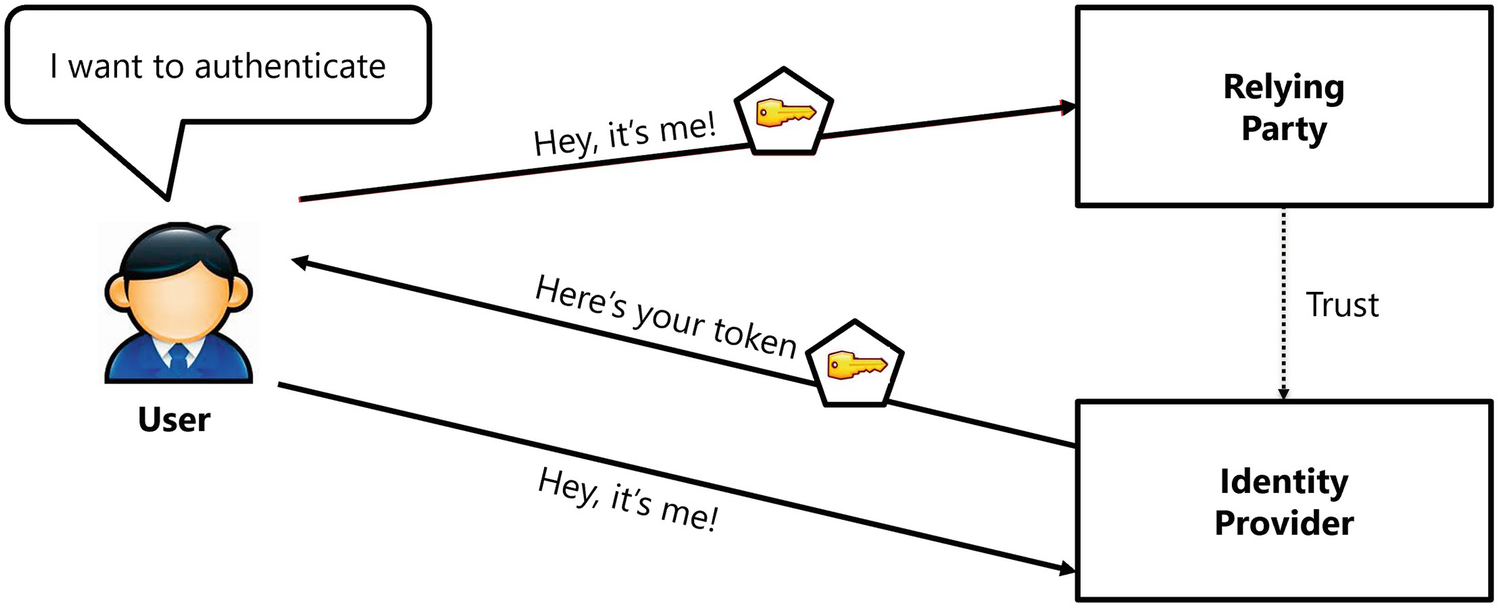
Claims-based security uses a token to represent the user, and this token is a collection of claims about the user. Claims represent statements about the user; for example, one claim could be that the user’s first name is Peter. In real life, we also have tokens; for example, your passport is a nice example of a token, containing claims such as your nationality, name, date of birth, etc. If this was all there about a token, they would be worthless because anyone could create a token. Why does the airport security trust your passport? Because it was issued by a trusted party, also known as an identity provider . In my case, the airport security trusts the claims on my passport because it was issued by the Belgian government. Passports use all kinds of nifty protections such as holograms to make it hard to create a passable fake passport. Tokens used by computers work in the same manner; they are issued by a trusted party, which uses a digital signature so that the relying party (the application) can verify to see if the token was issued by a trusted party known to the application. Of course, the identity provider will need a way to verify who the user actually is. They can use any means they want, a user and password combination, or some smart card you need to insert in a card reader. This whole process is illustrated in Figure 16-1.
../images/469993_3_En_16_Chapter/469993_3_En_16_Fig1_HTML.png
Figure 16-1

The Authentication Process

One more aspect about tokens is that once a user has received a token, the user can use it again and again without the need to go back to the identity provider. Of course, there needs to be a limit to this, and that is why tokens have a valid period, and after this period, the user will need to get a new token. My passport was issued to me a couple of years ago, but I can still use it until it expires. Then I will have to go back to city hall and get a new one. Of course, software tokens will not last that long, because it is easy to get a new one over the network.

Understanding Token Serialization

How are tokens serialized over a network? Modern applications using REST use the JSON Web Token (JWT) open standard. This allows us to transmit tokens in a secure way in the form of a JSON object.

JWT tokens are serialized as a base-64 encoded string, and each token consists of three parts, a header, a payload containing the claims, and a signature. Listing 16-1 shows an example of a serialized token.
eyJhbGciOiJSUzI1NiIsImtpZCI6InVibTdLa1BjQXZ5Z0NXYlR1djRVQWciLCJ0eXAiOiJKV1QifQ.eyJuYmYiOjE2MjY5NTIzMDAsImV4cCI6MTYyNjk1MjYwMCwiaXNzIjoiaHR0cHM6Ly9sb2NhbGhvc3Q6NTAwMCIsImF1ZCI6ImJsYXpvciIsImlhdCI6MTYyNjk1MjMwMCwiYXRfaGFzaCI6Ik9oMFRJdXExZVh6S2pDaXExdVpKdGciLCJzX2hhc2giOiJOaWwwcmllZzUwdlBTdU45TVNnTzl3Iiwic2lkIjoibXBqODROWkdNa0lORGtXUWgwR0FNQSIsInN1YiI6IjZkOTY4NjIxLTI3ZTAtNDZkYS1iNzNiLTlkNWNjODc4ZGIwYSIsImF1dGhfdGltZSI6MTYyNjk1MjI5OSwiaWRwIjoibG9jYWwiLCJhbXIiOlsicHdkIl19.f0Rm_sVFlwc2PnJwFmufrDLY9h1HJ6VnejdouMKhMYOwfyKLukUa6D3Zum5gRw-4jJQvevaBQe5dGFmZzN24nS8bzTOC3UxSLUTtdNIajiQ5SpHOdkuM5HDO9A0mdKygy5MizAsXTiClOymXFXun-gS1YfM2mezrvjJbhgY-gRAxCyOnnPaIDs1M6gQ_zMuyblwznj5ovo-Hh_tWD3qHE_ttEsDJe6KR9aM1-Qyz87sKn-wL_oo6DKiyCimG_y6qe27hjmuSg-B5BDOeOUEaHEpSHXwrdJCTuYAY88Jx2k5W_fDnqwWPFx9Yvtkycp-nrBoOlbs0EzByj8QHOCoTBg
Listing 16-1

A Serialized Token

This token is not human-readable, but using a tool like https://jwt.io, you can easily inspect the token’s content. Doing this reveals that this token contains the following header with the type of the token (JWT) and the signing algorithm:
{
  "alg": "RS256",
  "kid": "ubm7KkPcAvygCWbTuv4UAg",
  "typ": "JWT"
}
Generally, you should ignore the header, but the payload contains the following claims:
{
  "nbf": 1626952300,
  "exp": 1626952600,
  "iss": "https://localhost:5000",
  "aud": "blazor",
  "iat": 1626952300,
  "at_hash": "Oh0TIuq1eXzKjCiq1uZJtg",
  "s_hash": "Nil0rieg50vPSuN9MSgO9w",
  "sid": "mpj84NZGMkINDkWQh0GAMA",
  "sub": "6d968621-27e0-46da-b73b-9d5cc878db0a",
  "auth_time": 1626952299,
  "idp": "local",
  "amr": [
    "pwd"
  ]
}

The issuer claim (iss) states that this token was issued by my development identity provider with URL https://localhost:5000, and the not before claim (nbf) together with the expiry claim (exp) gives this token a validity period. The audience claim (aud) states that this token is intended for the application called Blazor. Finally, the subject claim (sub) contains a unique identifier for the current user. There are a lot of other official claims you can find in a token, and you can find their meaning on the IANA JSON Web Token Registry’s site at www.iana.org/assignments/jwt/jwt.xhtml.

The payload of the token is not encrypted, so never include sensitive information in here!

The signature allows our software to check if the token has been modified, and again you should ignore this (but not our software!).

Representing Claims in .NET

So how are claims represented in .NET? From the start, Microsoft has provided us with two interfaces to represent the user, IPrincipal and IIdentity.

The IPrincipal interface represents the security context for the current user, including the user’s identity (the IIdentity interface) and roles. It is implemented by the ClaimsPrincipal class which holds a collection of Claim instances in its Claims property. Our code will use the ClaimsPrincipal instance to see if a user holds a certain claim. For example, we can retrieve the user’s name using the implementation from Listing 16-2. Here, we use the AuthenticationState class (more details later) with the User property of type ClaimsPrincipal. The ClaimsPrincipal class has the FindFirst method which will search the collection of Claims and returns the claim with given key or returns a null if there is no claim with the given key. Here, I use the ClaimTypes class which holds the name of most standard claims.
Claim givenNameClaim =
  authState.User.FindFirst(ClaimTypes.GivenName);
Listing 16-2

Retrieving the Name of the User from ClaimsPrincipal

OpenId Connect

OpenId Connect is a standard protocol that allows us to secure our applications, including websites, mobile applications, server, and desktop applications. Because of differences in application types, OpenId Connect describes a number of flows, such as Resource Owner Password Credential, Client Credential, Implicit, Authorization Code, and Hybrid flows. With Blazor, we will use the Hybrid and Authorization Code flows.

Understanding OpenId Connect Hybrid Flow
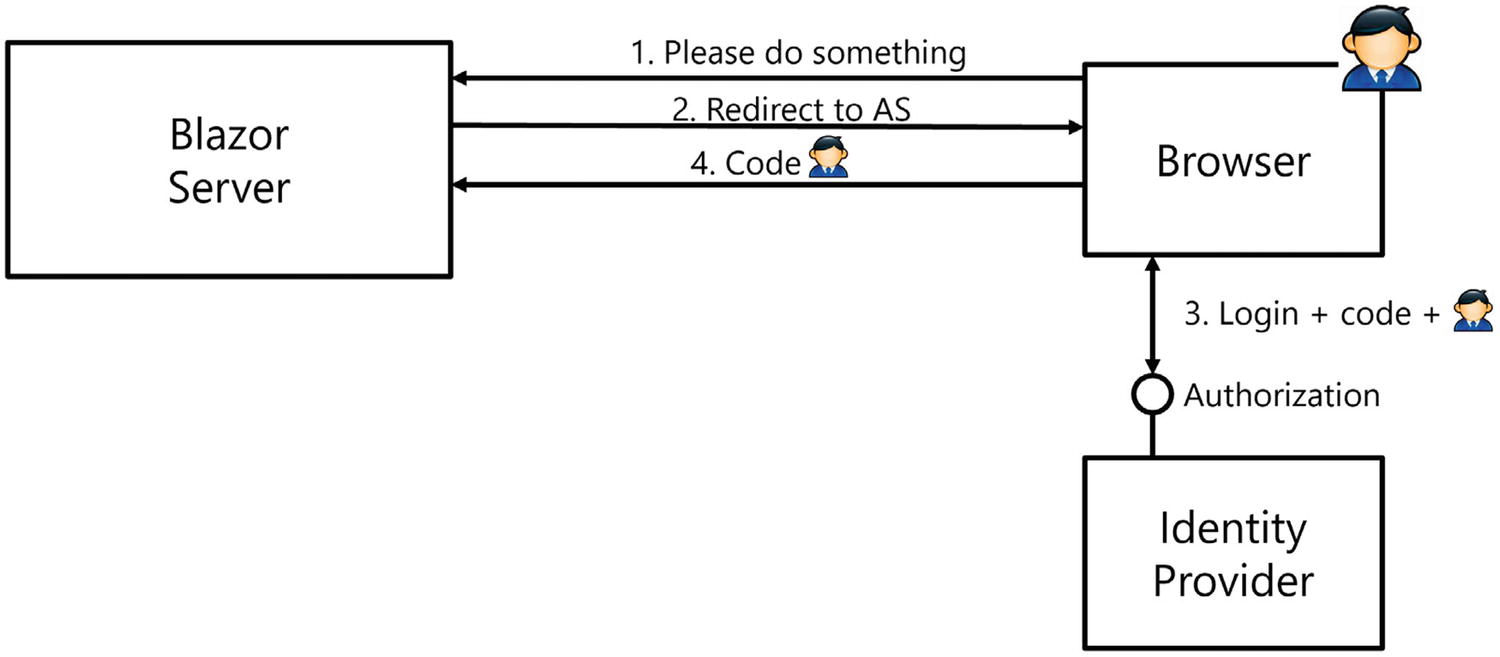
In Blazor Server, we will use the Hybrid flow , so let us review how this flow works as illustrated in Figure 16-2. Figure 16-2 shows the identity provider, our Blazor Server application, and the user using a browser. When we look at Blazor WebAssembly, we will review Authorization Code flow.
../images/469993_3_En_16_Chapter/469993_3_En_16_Fig2_HTML.jpg
Figure 16-2

The OpenId Connect Hybrid Flow

When the not yet authenticated user visits a protected resource (Step 1), the Blazor Server will return an HTTP redirect result (Step 2) which will make the browser visit the identity provider, also known as an authorization server (AS). The URL contains credential information about the client (the ClientId and ClientSecret) together with a redirect URI. The identity provider identifies the client application through its ClientId and verifies if the redirect URI matches its list of registered client redirect URIs. The identity provider will then present the user with some kind of login UI (Step 3), for example, to enter the username and password. The identity provider is free how this login process works, and after a successful login, the identity provider will return an HTTP redirect to the browser (Step 4) so the browser will visit the redirect URI (the Blazor Server application) with the request containing a code and identity token. The redirect URI is then processed by the Blazor application, the identity token is turned into a ClaimsPrincipal, and the user has been authenticated. The Blazor application is also responsible for storing the ClaimsPrincipal, and with Blazor Server, this is done by storing the ClaimsPrincipal in a cookie, so the next request containing that cookie can deserialize it again. For the moment, we don’t need the code, but we will use it later.

A couple of remarks: an identity provider will only send tokens to known redirect URIs, so these have to be registered with the identity provider. This prevents unknown parties (hackers!) from hijacking requests. When you deploy your application, you should not forget to register the new redirect URI in the identity provider. There can be several registered redirect URIs, so you can keep developing locally and run the application in production using the same identity provider.

Identity Providers

There are many identity providers out there. For example, there is Microsoft Azure Active Directory, Google, Facebook, etc. Each of these identity providers comes with their own UI, but as long as they use OpenID Connect, the implementation works on the same principles.

Here, I want to use IdentityServer4 (www.identityserver.com/) which allows you to build your own identity provider for free (however, identity server is not free for commercial use). These people need to eat too!

Implementing the Identity Provider with IdentityServer4

Let us start by creating the project that we will use as our identity provider, using IdentityServer4. Create a new AspNet .NET Core Web App project and name it IdentityProvider.

Modify the ports in launchSettings.json as in Listing 16-3. Our identity provider needs to run on another URI, and changing the port is the easiest way. Here, we will use HTTPS port 5011.
{
  ...
  "profiles": {
    "IdentityProvider": {
      "commandName": "Project",
      "dotnetRunMessages": true,
      "launchBrowser": true,
      "applicationUrl": "https://localhost:5011;http://localhost:5010",
      "environmentVariables": {
        "ASPNETCORE_ENVIRONMENT": "Development"
      }
    },
    ...
  }
}
Listing 16-3

Changing the Port

Use NuGet to add the latest stable version of IdentityServer4, or modify your project directly as in Listing 16-4.
<Project Sdk="Microsoft.NET.Sdk.Web">
  <PropertyGroup>
    <TargetFramework>net6.0</TargetFramework>
  </PropertyGroup>
  <ItemGroup>
    <PackageReference Include="IdentityServer4" Version="4.1.2" />
  </ItemGroup>
</Project>
Listing 16-4

Use NuGet to Add IdentityServer4

Configure dependency injection for IdentityServer by modifying the Startup class’s ConfigureServices method as in Listing 16-5.
public void ConfigureServices(IServiceCollection services)
{
  services.AddIdentityServer();
}
Listing 16-5

Configuring Dependency Injection

And use IdentityServer in the ASP.NET pipeline with the Configure method as in Listing 16-6.
public void Configure(IApplicationBuilder app,
                      IWebHostEnvironment env)
{
  if (env.IsDevelopment())
  {
    app.UseDeveloperExceptionPage();
  }
  app.UseIdentityServer();
}
Listing 16-6

Adding IdentityServer to the Pipeline

IdentityServer4 can be configured using a database or an in-memory configuration. We will use the latter because it is easier for learning and experimentation. Add a new class called Config to the project next to Program.cs. This Config class will contain the configuration for IdentityServer4.

First, we need a couple of users, so add the GetUsers method from Listing 16-7. We use IdentityServer’s TestUser class which allows us to set the SubjectId unique key, Username, Password, and Claims. We also add a couple of standard identifying claims which belong to the Profile scope. Scopes are used to group a number of claims and can be requested during the authentication process.
public static List<TestUser> GetUsers()
=> new List<TestUser>
{
  new TestUser
  {
    SubjectId = "{223C9865-03BE-4951-8911-740A438FCF9D}",
    Username = "peter@u2u.be",
    Password = "u2u-secret",
    Claims = new List<Claim>
    {
      new Claim("given_name", "Peter"),
      new Claim(JwtClaimTypes.Name, "Peter Himschoot"),
      new Claim("family_name", "Himschoot"),
    }
  },
  new TestUser
  {
    SubjectId = "{34119795-78A6-44C2-B128-30BFBC29139D}",
    Username = "student@u2u.be",
    Password = "u2u-secret",
    Claims = new List<Claim>
    {
      new Claim("given_name", "Student"),
      new Claim(JwtClaimTypes.Name, "Student Blazor"),
      new Claim("family_name", "Blazor"),
    }
  }
};
Listing 16-7

Adding Users to IdentityServer

Next, we need to add a couple of identity resources with the GetIdentityResources method from Listing 16-8. These map to scopes that will give us access to certain claims from configuration. Scopes are used to group claims and provide an easy way to request claims. The OpenId method will give us access to the subject id (sid) which is a unique identifier of the current user, and the Profile method gives us access to claims about the user, such as given_name and family_name.
public static IEnumerable<IdentityResource> GetIdentityResources()
=> new List<IdentityResource>
{
  new IdentityResources.OpenId(),
  new IdentityResources.Profile(),
};
Listing 16-8

Adding Identity Resources

We will also need to add the client applications that our identity provider will support. For the moment, we will only have one client, so implement the GetClients method as in Listing 16-9. Here, we added the ClientId and ClientSecrets which the client will use to prove itself. We will use the Hybrid flow as described before, and we set the RedirectUris to include the client’s URI. We also need to configure which scopes our client application will get. The Profile and OpenId scopes are provided by default, but we will add more scopes later, and it does not hurt to be explicit.
public static IEnumerable<Client> GetClients()
=> new List<Client>
{
  new Client
  {
    ClientName = "Blazor Server",
    ClientId = "BlazorServer",
    AllowedGrantTypes = GrantTypes.Hybrid,
    RedirectUris = new List<string>{
      "https://localhost:5001/signin-oidc"
    },
    RequirePkce = false,
    AllowedScopes = {
      IdentityServerConstants.StandardScopes.OpenId,
      IdentityServerConstants.StandardScopes.Profile
    },
    ClientSecrets = { new Secret("u2u-secret".Sha512()) },
    RequireConsent = true
  }
};
Listing 16-9

Adding Clients

Now we are ready to complete the configuration as in Listing 16-10. Here, we are adding our users, identity resources, and clients. We also need a valid certificate for signing, and when developing, we can use the AddDeveloperSigningCredentials. When you move to production, you will have to get a valid certificate and use the AddSigningCredentials method .
public void ConfigureServices(IServiceCollection services)
=> services.AddIdentityServer()
           .AddInMemoryIdentityResources(
             Config.GetIdentityResources())
           .AddTestUsers(Config.GetUsers())
           .AddInMemoryClients(Config.GetClients())
           .AddDeveloperSigningCredential();
Listing 16-10

Adding Users, Identity Resources, and Clients

You can now run your identity provider if you like. However, you will not get any UI until we complete the next step. IdentityServer4 will emit logging in the console, for example:
info: IdentityServer4.Startup[0]
      Starting IdentityServer4 version 4.1.2+997a6cdd643e46cd5762b710c4ddc43574cbec2e
info: IdentityServer4.Startup[0]
      You are using the in-memory version of the persisted grant store. This will store consent decisions, authorization codes, refresh and reference tokens in memory only. If you are using any of those features in production, you want to switch to a different store implementation.
info: IdentityServer4.Startup[0]
      Using the default authentication scheme idsrv for IdentityServer
info: Microsoft.Hosting.Lifetime[14]
      Now listening on: https://localhost:5011
info: Microsoft.Hosting.Lifetime[14]
      Now listening on: http://localhost:5010
info: Microsoft.Hosting.Lifetime[0]
      Application started. Press Ctrl+C to shut down.
info: Microsoft.Hosting.Lifetime[0]
      Hosting environment: Development
info: Microsoft.Hosting.Lifetime[0]
      Content root path: C:\Code\GitHub\Microsoft.Blazor.3rd\Ch16\Blazor.OpenIdConnect\src\IdentityProvider

Adding the Login UI to Our Identity Provider

When our users want to log in to the identity provider, the identity provider will present a login screen to the user. IdentityServer4 comes with a built-in UI, so here we will add this to the IdentityProvider project.

Getting everything installed is pretty easy with dotnet CLI.

You can get all files installed using dotnet CLI using the following command from your project’s folder:
dotnet new -i identityserver4.templates
dotnet new is4ui

This will install two new folders called QuickStart and Views and will also install some CSS and scripts in the wwwroot folder.

Of course, we need to add support for MVC in the IdentityProvider project so it can render the login and consent pages. Add support for controllers and views in the ConfigureServices method as in Listing 16-11.
public void ConfigureServices(IServiceCollection services)
{
  services.AddIdentityServer()
          .AddInMemoryIdentityResources(
            Config.GetIdentityResources())
          .AddTestUsers(Config.GetUsers())
          .AddInMemoryClients(Config.GetClients())
          .AddDeveloperSigningCredential();
  services.AddControllersWithViews();
}
Listing 16-11

Configure Services for MVC

And use the middleware from Listing 16-12 in the pipeline.
public void Configure(IApplicationBuilder app, IWebHostEnvironment env)
{
  if (env.IsDevelopment())
  {
    app.UseDeveloperExceptionPage();
  }
  app.UseStaticFiles();
  app.UseRouting();
  app.UseIdentityServer();
  app.UseAuthorization();
  app.UseEndpoints(endpoints =>
  {
    endpoints.MapDefaultControllerRoute();
  });
}
Listing 16-12

Adding MVC Middleware

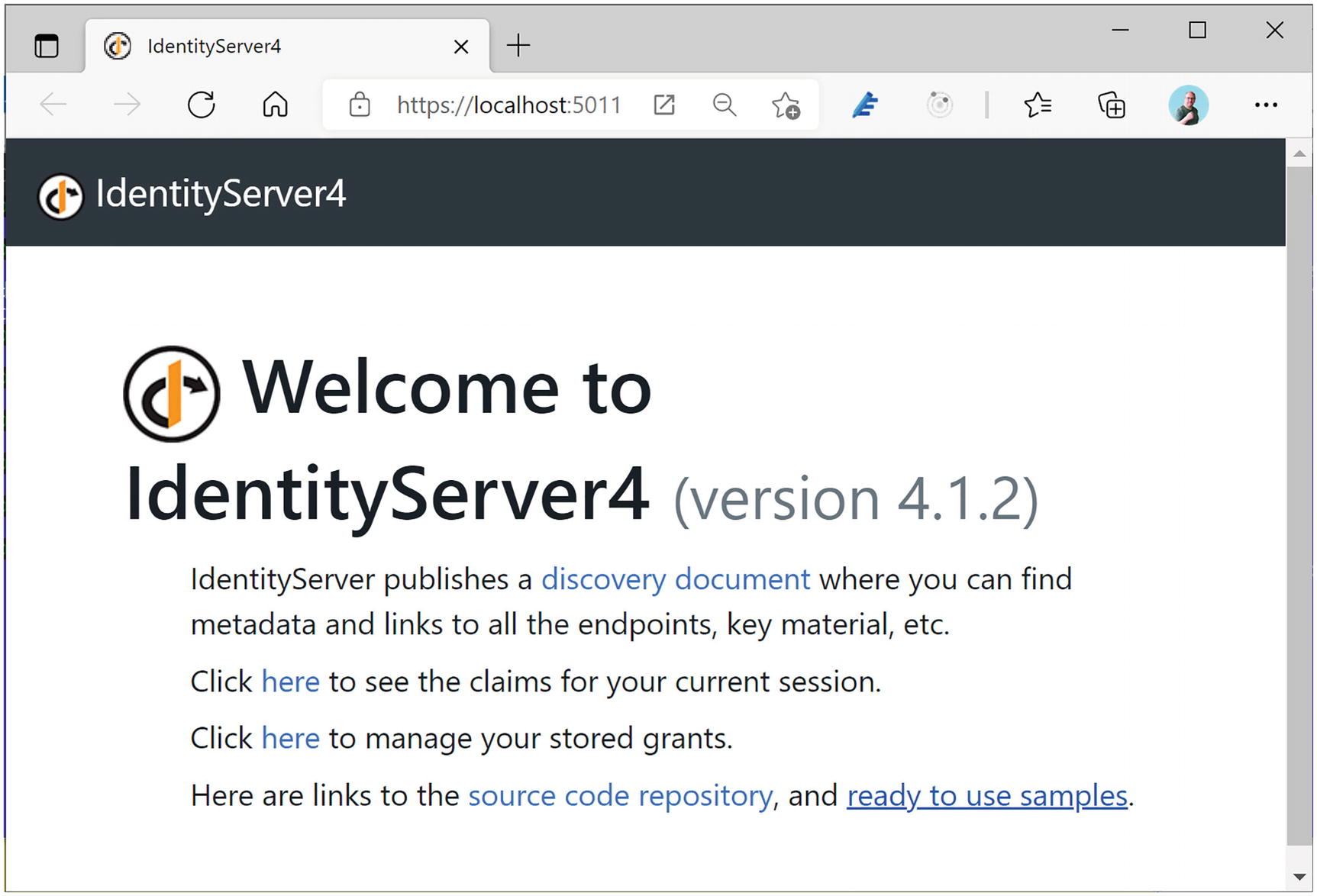
Running the application will show the UI similar to Figure 16-3.
../images/469993_3_En_16_Chapter/469993_3_En_16_Fig3_HTML.jpg
Figure 16-3

The Identity Server Home Page

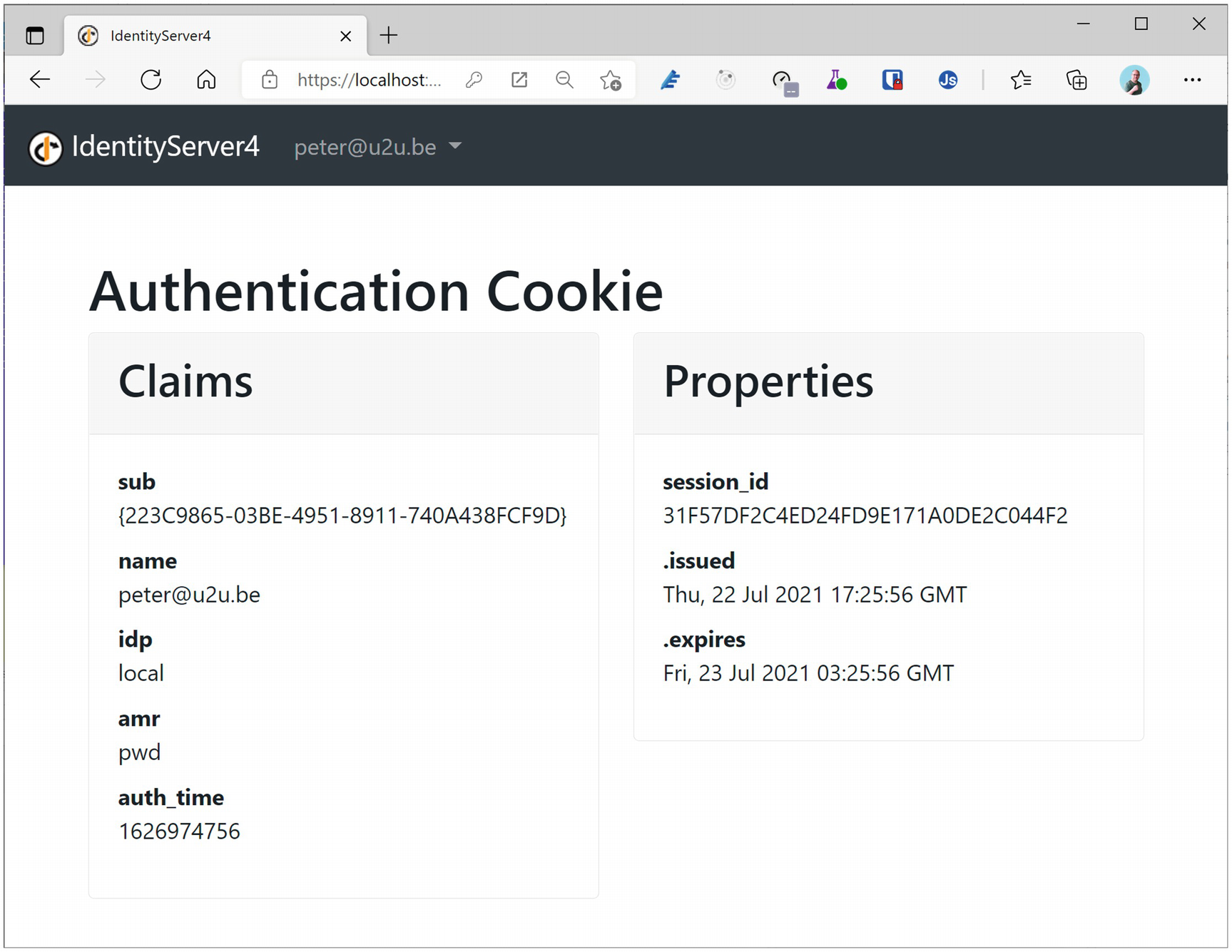
Click the second link (see the claims); you will be asked to log in (with one of our users from Listing 16-7), after which it will display the claims just like Figure 16-4.
../images/469993_3_En_16_Chapter/469993_3_En_16_Fig4_HTML.png
Figure 16-4

Displaying the User’s Claims

Understanding User Consent

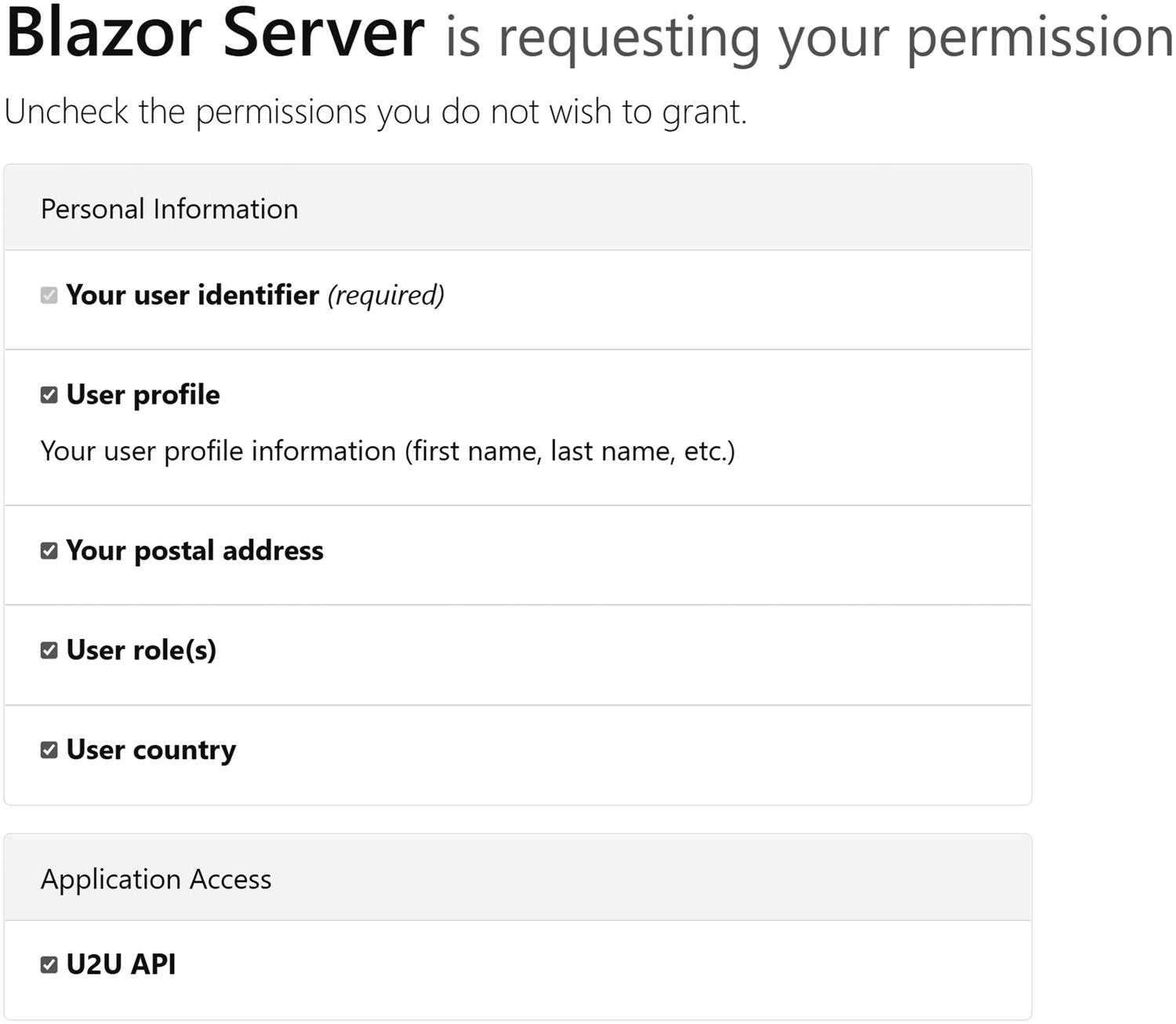
OpenId Connect is used to authenticate users, but it is also used to allow an application to access another application’s resources. Facebook, for example, uses this to allow third-party applications to use Facebook’s identity provider as an authentication mechanism and then to post things on your Facebook page. When the user logs in for the first time, an identity provider should tell the user which claims will be used by the application, and a user can then decide which claims it will allow. IdentityServer4’s default UI will look somewhat like Figure 16-5. This will list the personal information that the application will be able to access and also any APIs that the application can access on the user’s behalf. Users can then click the “Yes, Allow” button after optionally unchecking any claims they don’t want to share. Next time, the identity provider will not ask this question again because this information is stored by the identity provider. Because we are running IdentityServer4 in memory, every time we rerun the IdentityProvider project, we will be asked for consent. Listing 16-9 has enabled this user consent, and while developing, you can use this to temporarily test stuff by unchecking claims and see how your application reacts to this missing claim. Feel free to disable user consent during development if you find it annoying.
../images/469993_3_En_16_Chapter/469993_3_En_16_Fig5_HTML.jpg
Figure 16-5

The User Consent Screen

Protecting a Blazor Server Application with Hybrid Flow

Now that we have our own identity provider, we can build a Blazor Server application and secure it. Later, we will do the same for Blazor WebAssembly.

Add a new Blazor Server application to the existing solution and name it Blazor.Server.OpenIdConnect. If you are using Visual Studio, leave the Authentication Type set to None. This will generate the project without any authentication components. In the next chapter on using OpenId Connect with Blazor WebAssembly, you will use a more practical approach that will generate the authentication components for you using the Authentication Type set to Individual Accounts.

Adding OpenId Connect to Blazor Server

Add the Microsoft.AspNetCore.Authentication.OpenIdConnect package to the Blazor.Server.OpenIdConnect project.

Now add Listing 16-13 to the Startup class’s ConfigureServices method of your Blazor Server project. This tells authentication to retrieve and store the ClaimsPrincipal in a cookie and use it as the DefaultScheme. You can also configure the cookie’s name and expiry period here, but we will go with the defaults. We are also telling the middleware that when the user is not yet authenticated, it should use OpenId Connect through the DefaultChallengeScheme property.
services.AddAuthentication(options =>
{
  options.DefaultScheme =
    CookieAuthenticationDefaults.AuthenticationScheme;
  options.DefaultChallengeScheme =
    OpenIdConnectDefaults.AuthenticationScheme;
})
.AddCookie(CookieAuthenticationDefaults.AuthenticationScheme);
Listing 16-13

Configuring Authentication

Next, we should add the authentication/authorization middleware in the Configure method as shown in Listing 16-14.
app.UseRouting();
app.UseAuthentication();
app.UseAuthorization();
Listing 16-14

Add Authentication Middleware

We still need to tell the OpenIdConnect middleware where it should go if there is no valid cookie containing the ClaimsPrincipal. So add Listing 16-15 to the ConfigureServices method right after the AddCookie method . Here, we set the Authority property to the URL of the identity provider (which runs on port 5011), and we pass the ClientId and ClientSecret of the Client we configured in Listing 16-9. We also tell it to use the Hybrid flow (code id_token) and that it should get the profile claims such as given_name from the userinfo endpoint which will result in a smaller initial id token.
.AddOpenIdConnect(OpenIdConnectDefaults.AuthenticationScheme,
 options =>
{
  options.SignInScheme =
    CookieAuthenticationDefaults.AuthenticationScheme;
  options.Authority = "https://localhost:5011";
  options.ClientId = "BlazorServer";
  options.ClientSecret = "u2u-secret";
  // When set to code, the middleware will use PKCE protection
  options.ResponseType = "code id_token";
  // It's recommended to always get claims from the
  // UserInfoEndpoint during the flow.
  options.GetClaimsFromUserInfoEndpoint = true;
});
Listing 16-15

Configuring OpenId Connect

Implementing Authorization in Blazor Server

Before running the application, we should also protect one of our resources; otherwise, there is no need to authenticate using the identity provider. But first we need to understand how authentication works in Blazor using the AuthenticationState and AuthenticationStateProvider classes . The AuthenticationState class allows access to the current user’s claims with the User property of type ClaimsPrincipal, and the AuthenticationStateProvider abstracts away how we retrieve the current AuthenticationState, because the process is different in Blazor Server and Blazor WebAssembly. So you should always use the AuthenticationStateProvider in your Blazor components if you want these to work in both Blazor Server and Blazor WebAssembly. Listing 16-16 contains a nice example of how you do this.

In Blazor Server, the user’s ClaimsPrincipal is stored in the HttpContext.User property so AuthenticationStateProvider retrieves it there.

Let us update the Index component to show the list of claims of the current user. Add a new class called Index as the code-beside class (so use the Index.razor.cs filename) and implement it as in Listing 16-16. Here, we use the AuthenticationStateProvider received through dependency injection and call its GetAuthenticationStateAsync asynchronous method. When we receive a non-null AuthenticationState instance, we set the Claims and UserName properties for use in the component.
using Microsoft.AspNetCore.Components;
using Microsoft.AspNetCore.Components.Authorization;
using System.Collections.Generic;
using System.Linq;
using System.Security.Claims;
using System.Threading.Tasks;
namespace Blazor.Server.OpenIdConnect.Pages
{
  public partial class Index
  {
    [Inject]
    public AuthenticationStateProvider
      AuthenticationStateProvider { get; set; }
    private IEnumerable<Claim> Claims { get; set; }
    public string UserName { get; set; } = "Unknown";
    protected override async Task OnInitializedAsync()
    {
      AuthenticationState authState =
        await AuthenticationStateProvider
                .GetAuthenticationStateAsync();
      if (authState is not null)
      {
        Claims = authState.User.Claims;
        Claim givenNameClaim =
          authState.User.FindFirst(“given_name”);
        if( givenNameClaim is not null)
        {
          UserName = givenNameClaim.Value;
        }
      }
    }
  }
}
Listing 16-16

Using the AuthenticationState in a Component

Update the Index component’s markup as in Listing 16-17. Here, we display the UserName property, and we iterate over each Claim and display it. We also protect the Index component using the Authorize attribute, so only authenticated users can see it.
@page "/"
@attribute [Authorize]
<h1>Hello, world!</h1>
Welcome @UserName
@if( Claims is not null )
{
  foreach(Claim claim in Claims)
  {
    <p>@claim.Type - @claim.Value</p>
  }
}
Listing 16-17

The Index Component

But wait, there is more. We need routing to check the Authorize attribute, so we will need to make same changes to routing. In our application, the App component contains the router. When we want to redirect the user to the identity provider so he or she can log in, we need to use the AuthorizeRouteView. This templated component has a NotAuthorized property that allows us to show some UI if the user is not authorized to view the protected component. Update the App component as in Listing 16-18. First, we wrap the Router component in a CascadingAuthenticationState component , which provides the current AuthenticationState as a cascading parameter. This component is required for the AuthorizeRouteView. In the NotAuthorized property of the AuthorizeRouteView, we first check if the user has been authenticated. If not, we use the RedirectToLogin component (to follow) to redirect the user to the identity provider so he or she can log in. Otherwise, it means that the user tried to access a protected resource that this user is not allowed to use, so we show some unauthorized UI.
<CascadingAuthenticationState>
  <Router AppAssembly="@typeof(Program).Assembly"
    PreferExactMatches="@true">
    <Found Context="routeData">
      <AuthorizeRouteView RouteData="@routeData"
                          DefaultLayout="@typeof(MainLayout)">
        <NotAuthorized>
          @if (!context.User.Identity.IsAuthenticated)
          {
            <RedirectToLogin />
          }
          else
          {
            <p>
              You are not authorized to access this resource.
            </p>
          }
        </NotAuthorized>
      </AuthorizeRouteView>
    </Found>
    <NotFound>
      <LayoutView Layout="@typeof(MainLayout)">
        <p>Sorry, there's nothing at this address.</p>
      </LayoutView>
    </NotFound>
  </Router>
</CascadingAuthenticationState>
Listing 16-18

Update App Component

Let us see how we can redirect the user to the identity provider and back. Add a new component called RedirectToLogin with contents from Listing 16-19. This Blazor component tells the browser to navigate to the login page. We are running as a Blazor Server application, so we need to tell the ASP.NET application to perform the login, which requires a couple of hoops to jump through.
@inject NavigationManager Navigation
@code {
  protected override void OnInitialized()
  {
    Navigation.NavigateTo(
      $"/login?returnUrl={Uri.EscapeDataString(Navigation.Uri)}");
  }
}
Listing 16-19

Add RedirectToLogin

Add a new razor page (NOT a razor component!) and name it Login.cshtml. Complete its markup as in Listing 16-20 and model as in Listing 16-21. Its major purpose it to redirect the browser to the identity provider using the OpenId Connect middleware. The way to do this is to return a Challenge ActionResult, passing the OpenId Connect option and the redirect URI, so after the user has been successfully authenticated, we end up at the protected component. When the user has been already authenticated, it immediately redirects back to the redirectUri.
@page
@model Blazor.Server.OpenIdConnect.LoginModel
@{
}
Listing 16-20

Add the Login.cshtml Razor Page

using Microsoft.AspNetCore.Authentication;
using Microsoft.AspNetCore.Authentication.OpenIdConnect;
using Microsoft.AspNetCore.Mvc;
using Microsoft.AspNetCore.Mvc.RazorPages;
using System.Threading.Tasks;
namespace Blazor.Server.OpenIdConnect
{
  public class LoginModel : PageModel
  {
    public async Task<IActionResult> OnGetAsync(
      string redirectUri)
    {
      // just to remove compiler warning
      await Task.CompletedTask;
      if (string.IsNullOrWhiteSpace(redirectUri))
      {
        redirectUri = Url.Content("~/");
      }
      // If user is already logged in, we can redirect directly...
      if (HttpContext.User.Identity.IsAuthenticated)
      {
        Response.Redirect(redirectUri);
      }
      return Challenge(
          new AuthenticationProperties
          {
            RedirectUri = redirectUri
          },
          OpenIdConnectDefaults.AuthenticationScheme);
    }
  }
}
Listing 16-21

The Login Page’s Model

Let us walk through the authentication process step by step. First, start the IdentityProvider project; next, start the Blazor.Server.OpenIdConnect project.

Note

Please do not forget to always start the IdentityProvider project; the easiest way with Visual Studio is to set up multiple startup projects.
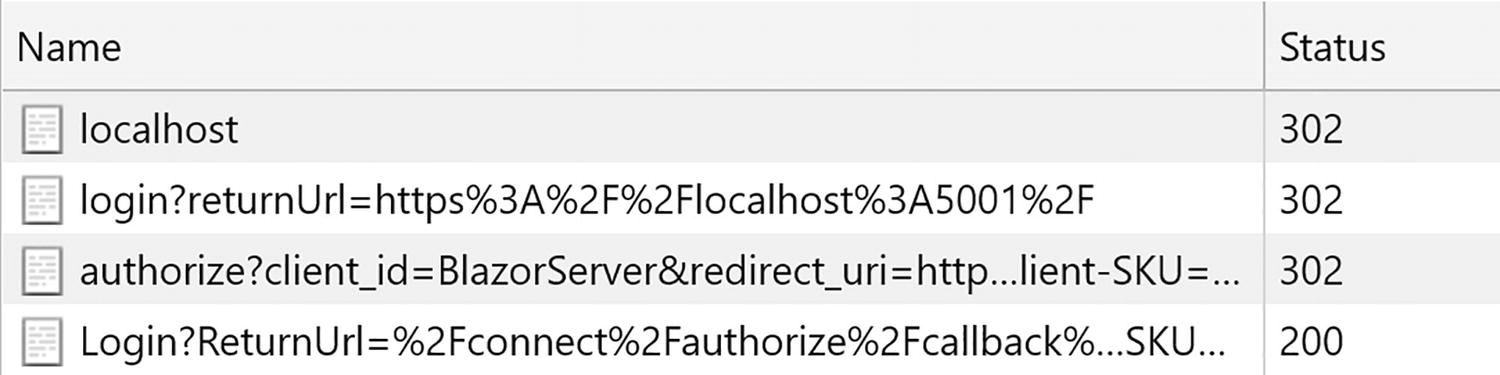
On the Browser tab for the localhost:5001 URL, open the browser debugger on the Network tab and navigate to https://localhost:5001 again to get a fresh network log. You should see Figure 16-6. This shows that visiting the Index page (first line) will redirect to the login page (second line), which will then cause the middleware to redirect to the identity provider (third line), which will show its login page (fourth line). Should your browser immediately show the Index component, you need to clear your cookies and try again.
../images/469993_3_En_16_Chapter/469993_3_En_16_Fig6_HTML.jpg
Figure 16-6

Redirecting to the Identity Provider

After completing the login process, you will be redirected to the Blazor Server’s signin-oidc URL which will be handled by the OpenId Connect middleware. This middleware will convert the identity token into a ClaimsPrincipal and redirect to the original URI that initiated the login process. The Cookie middleware will serialize the ClaimsPrincipal into a cookie (actually, it might use multiple cookies because of the limited length of cookies). The browser then will process the original URI and convert the cookie into the ClaimsPrincipal and because now the user is authenticated will give access to the Index component.
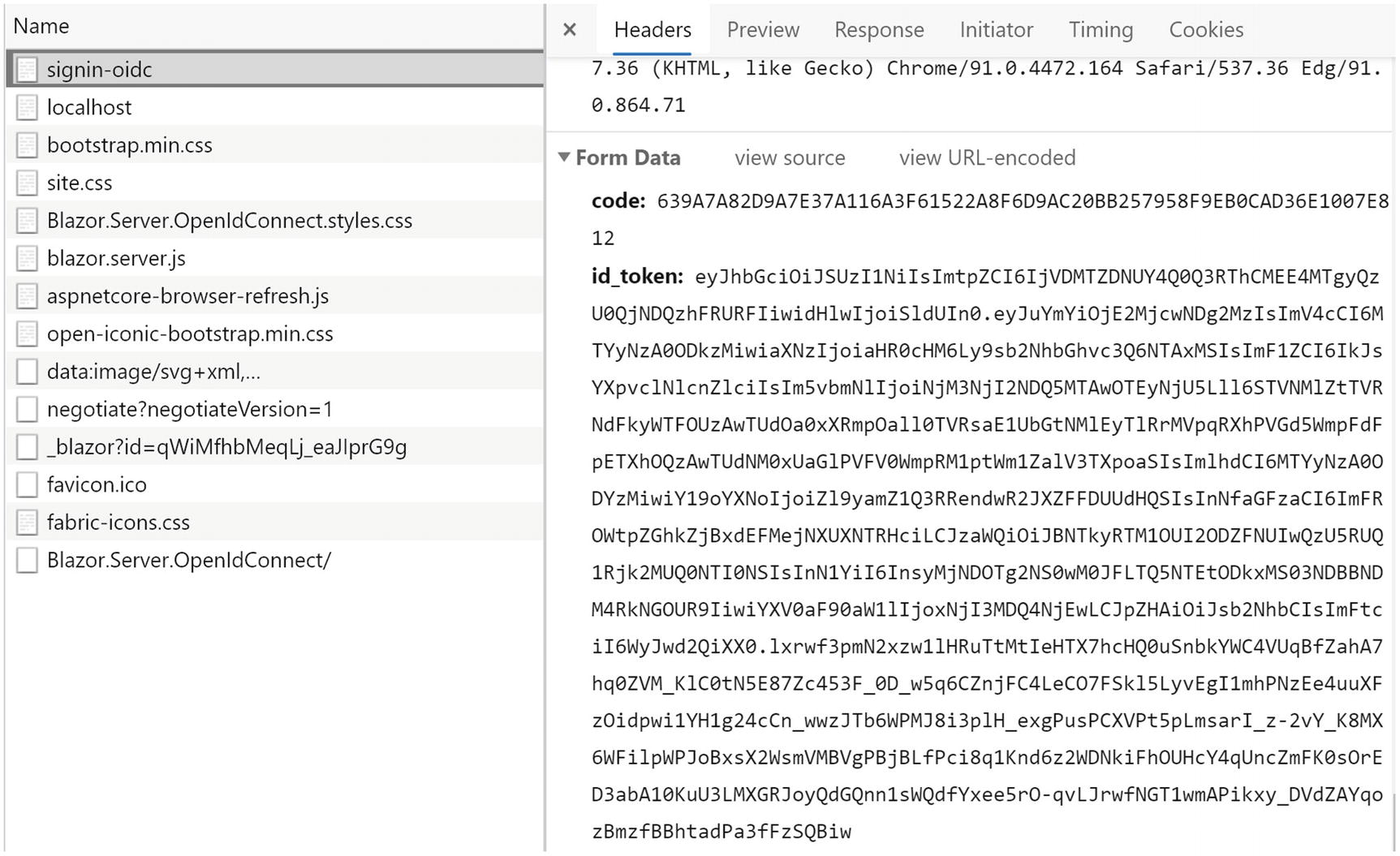
Select the signin-oidc URL in the browser’s debugger and scroll down. You will see that this will return the code and the identity token as in Figure 16-7.
../images/469993_3_En_16_Chapter/469993_3_En_16_Fig7_HTML.jpg
Figure 16-7

Receiving the Code and Id Token

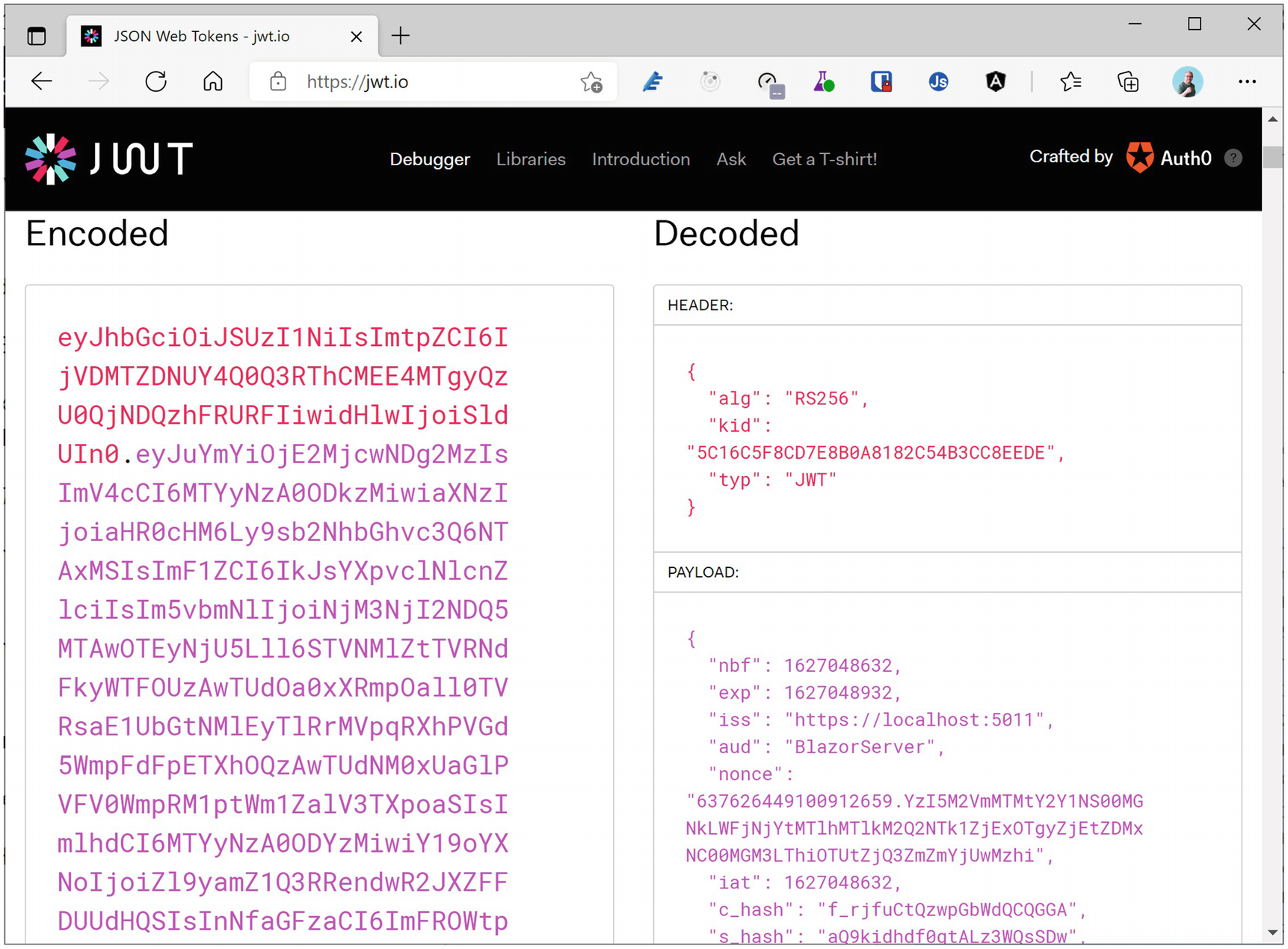
You can inspect the id token by copying its value, open another browser tab on https://jwt.io, and paste the value as shown in Figure 16-8.
../images/469993_3_En_16_Chapter/469993_3_En_16_Fig8_HTML.png
Figure 16-8

Using jwt.io to Inspect a Token

Congratulations. You have just added authentication to your Blazor Server application!

Using AuthorizeView

Let us add some UI so the user can log in and log out explicitly. Of course, we should only show the Login link when the user has not yet authenticated and only show the Logout link otherwise. For this, Blazor comes with the AuthorizeView templated component, which has three properties – Authorized, NotAuthorized, and Authorizing – which will render a UI when the user is authorized, not authorized, and in the process of authorizing. We can use this to modify our navigation menu to either show a Login link or the normal page links with an additional Logout link as in Listing 16-22. Do note that the AuthorizeView requires a CascadingAuthenticationState, which we added in the App component.
<div class="@NavMenuCssClass" @onclick="ToggleNavMenu">
  <nav class="flex-column">
    <AuthorizeView>
      <Authorized>
        <li class="nav-item px-3">
          <NavLink class="nav-link" href=""
            Match="NavLinkMatch.All">
            <span class="oi oi-home"
                  aria-hidden="true"></span>
            Home
          </NavLink>
        </li>
        <li class="nav-item px-3">
          <NavLink class="nav-link" href="counter">
            <span class="oi oi-plus"
                  aria-hidden="true"></span>
            Counter
          </NavLink>
        </li>
        <li class="nav-item px-3">
          <NavLink class="nav-link" href="fetchdata">
            <span class="oi oi-list-rich"
                  aria-hidden="true"></span>
            Fetch data
          </NavLink>
        </li>
        <li class="nav-item px-3">
          <NavLink class="nav-link" href="logout">
            <span class="oi oi-list-rich"
                  aria-hidden="true"></span>
            Logout
          </NavLink>
        </li>
      </Authorized>
      <NotAuthorized>
        <li class="nav-item px-3">
          <NavLink class="nav-link" href="login">
            <span class="oi oi-list-rich"
                  aria-hidden="true"></span>
            Login
          </NavLink>
        </li>
      </NotAuthorized>
    </AuthorizeView>
  </nav>
</div>
Listing 16-22

Modifying the NavMenu Component

We already have a login razor page, but we still need one for logout. Again, add a new razor page (NOT a razor component) and name it Logout.cshtml. Update the LogoutModel as in Listing 16-23. Here, we return a SignOutResult which will cause the middleware to log out. There are two middlewares involved (Cookie and OpenIdConnect), so we need to pass both as the authenticationSchemes parameter.
using Microsoft.AspNetCore.Authentication.Cookies;
using Microsoft.AspNetCore.Authentication.OpenIdConnect;
using Microsoft.AspNetCore.Mvc;
using Microsoft.AspNetCore.Mvc.RazorPages;
using System.Threading.Tasks;
namespace Blazor.Server.OpenIdConnect.Pages
{
  public class LogoutModel : PageModel
  {
    public async Task<IActionResult> OnGetAsync()
    {
      // just to remove compiler warning
      await Task.CompletedTask;
      return SignOut(
          OpenIdConnectDefaults.AuthenticationScheme,
          CookieAuthenticationDefaults.AuthenticationScheme);
    }
  }
}
Listing 16-23

The LogoutModel Class

Let us test this, but first comment the Index component’s Authorize attribute as in Listing 16-24.
@page "/"
@*@attribute [Authorize]
*@
<h1>Hello, world!</h1>
Listing 16-24

Remove the Authorize Attribute

Run the application, and log in. Then click the Logout link which will take you to the identity server logout page as shown in Figure 16-9.
../images/469993_3_En_16_Chapter/469993_3_En_16_Fig9_HTML.jpg
Figure 16-9

The Logout Page

The problem here is that this page will stay put; now the user has to manually navigate to the site in order to log in back again. We can change this by setting the client application’s PostLogoutRedirectUris property in our identity provider as in Listing 16-25.
public static IEnumerable<Client> GetClients()
=> new List<Client>
{
  new Client
  {
    ...
    RequireConsent = true,
    PostLogoutRedirectUris = new List<string>
    {
      "https://localhost:5001/signout-callback-oidc"
    }
  }
};
Listing 16-25

Setting the PostLogoutRedirectUris Property
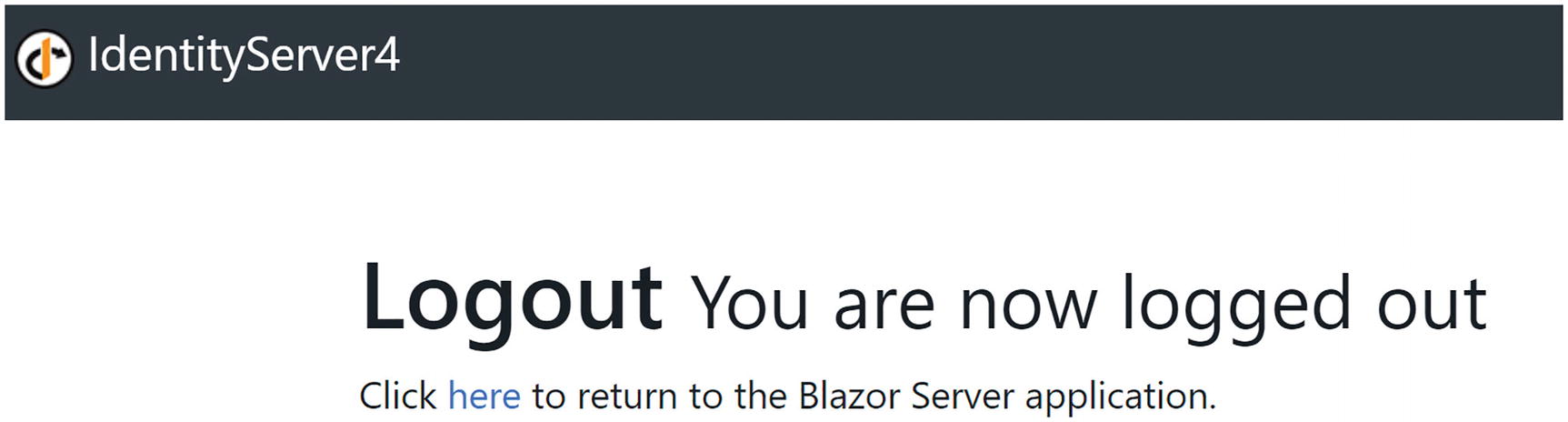
When this property is set, IdentityServer will add a hyperlink in its logout page as shown in Figure 16-10. Clicking this link will take us back to the Blazor Server site.
../images/469993_3_En_16_Chapter/469993_3_En_16_Fig10_HTML.jpg
Figure 16-10

IdentityServer4 Showing the LogoutRedirectUri

If you like, you can skip the logout page and immediately redirect to the Blazor application. Look for the AccountOptions class in the QuickStart folder, and set the AutomaticRedirectAfterSignOut property to true as in Listing 16-26.
public class AccountOptions
{
  public static bool AllowLocalLogin = true;
  public static bool AllowRememberLogin = true;
  public static TimeSpan RememberMeLoginDuration =
    TimeSpan.FromDays(30);
  public static bool ShowLogoutPrompt = true;
  public static bool AutomaticRedirectAfterSignOut = true;
  public static string InvalidCredentialsErrorMessage =
    "Invalid username or password";
}
Listing 16-26

Enable Automatic Redirect After Signing Out

Adding and Removing Claims

Let us add another claim for our users; let’s say we need to know the address of the user. First, we will need to add a scope to the identity provider, and then we will need to request this scope in the client. Start by adding the address claim to each user as in Listing 16-27.
public static List<TestUser> GetUsers()
=> new List<TestUser>
{
  new TestUser
  {
    SubjectId = "{223C9865-03BE-4951-8911-740A438FCF9D}",
    Username = "peter@u2u.be",
    Password = "u2u-secret",
    Claims = new List<Claim>
    {
      new Claim("given_name", "Peter"),
      new Claim(JwtClaimTypes.Name, "Peter Himschoot"),
      new Claim("family_name", "Himschoot"),
      new Claim("address", "Melle"),
    }
  },
  new TestUser
  {
    SubjectId = "{34119795-78A6-44C2-B128-30BFBC29139D}",
    Username = "student@u2u.be",
    Password = "u2u-secret",
    Claims = new List<Claim>
    {
      new Claim("given_name", "Student"),
      new Claim(JwtClaimTypes.Name, "Student Blazor"),
      new Claim("family_name", "Blazor"),
      new Claim("address", "Zellik"),
    }
  }
};
Listing 16-27

Adding an Additional Claim to the Users

Now we need to add a new scope (using an IdentityResource) for address to the GetIdentityResources method as in Listing 16-28.
public static IEnumerable<IdentityResource> GetIdentityResources()
=> new List<IdentityResource>
{
  new IdentityResources.OpenId(),
  new IdentityResources.Profile(),
  new IdentityResources.Address(),
};
Listing 16-28

Adding an IdentityResource for Address

And we should allow this scope for our client application as in Listing 16-29.
public static IEnumerable<Client> GetClients()
=> new List<Client>
{
  ...
  AllowedScopes = {
      IdentityServerConstants.StandardScopes.OpenId,
      IdentityServerConstants.StandardScopes.Profile,
      IdentityServerConstants.StandardScopes.Address
    },
  ...
};
Listing 16-29

Allowing the Address Scope for a Client

Now we can request this claim in our client application by adding the address scope as in Listing 16-30.
.AddOpenIdConnect(OpenIdConnectDefaults.AuthenticationScheme,
 options =>
{
  ...
  // We should add mappings for additional claims
  // (not openid and profile)
  options.Scope.Add("address");
});
Listing 16-30

Requesting the Address Scope

Running the application will show that the claim has been returned to the client. We can see this in IdentityServer4’s logging (which should be easy to find in the IdentityProvider application’s console):
info: IdentityServer4.ResponseHandling.UserInfoResponseGenerator[0]
      Profile service returned the following claim types: given_name name family_name address

However, we will not find the address claim in the Index component. Why? Because we need to explicitly map this additional claim using ClaimActions.

Add Listing 16-31 to your Blazor Server Startup’s ConfigureServices. The MapUniqueJsonKey will retrieve the address from the JWT and create the address claim. The DeleteClaims method will remove the sid and s_hash claim.
options.Scope.Add("address");
options.ClaimActions
       .MapUniqueJsonKey("address", "address");
options.ClaimActions
       .DeleteClaims("sid", "s_hash");
Listing 16-31

Add and Remove Claims with ClaimActions

Running the application and logging in again (!) will show the address claim.

Enabling Role-Based Security

Currently, we have claims that allow us to identify the user. We have the user’s name and address. But what if we would like to protect certain parts of our application so only certain users can access it? Should we check a long list of user names? No, in this case, we will define a number of roles, assign these roles to some of our users, and only allow access when the user has a specific role. This is known as role-based access control (RBAC).

Start by adding some role claims to each user as in Listing 16-32. Here, Peter will have the admin role, while Student will have the tester role.
new TestUser
{
  ...
  Claims = new List<Claim>
  {
    new Claim("given_name", "Peter"),
    new Claim(JwtClaimTypes.Name, "Peter Himschoot"),
    new Claim("family_name", "Himschoot"),
    new Claim("address", "Melle"),
    new Claim("role", "admin"),
  }
},
new TestUser
{
  ...
  Claims = new List<Claim>
  {
    new Claim("given_name", "Student"),
    new Claim(JwtClaimTypes.Name, "Student Blazor"),
    new Claim("family_name", "Blazor"),
    new Claim("address", "Zellik"),
    new Claim("role", "tester"),
  }
}
Listing 16-32

Adding User Roles

This also means we need to add a roles scope, so update the GetIdentityResources method as in Listing 16-33. This also illustrates how we can add a custom IdentityResource. The displayName property is used during user consent.
public static IEnumerable<IdentityResource> GetIdentityResources()
=> new List<IdentityResource>
{
  new IdentityResources.OpenId(),
  new IdentityResources.Profile(),
  new IdentityResources.Address(),
  new IdentityResource(name: "roles",
    displayName: "User role(s)",
    userClaims: new List<string> { "role" }),
};
Listing 16-33

Adding a Roles Scope

And in our client configuration, we add the roles scope as in Listing 16-34.
new Client
{
  ClientName = "Blazor Server",
  ...
  AllowedScopes = {
    IdentityServerConstants.StandardScopes.OpenId,
    IdentityServerConstants.StandardScopes.Profile,
    IdentityServerConstants.StandardScopes.Address,
    "roles"
  },
  ...
}
Listing 16-34

Adding the Roles Scope

All similar to adding the address scope. Guess what we need to do in our Blazor application? Same steps as for address, but with one additional piece of code as in Listing 16-35 that declares the “role” claim to be used for RBAC.
options.Scope.Add("roles");
options.ClaimActions.MapUniqueJsonKey("role", "role");
options.TokenValidationParameters = new TokenValidationParameters
{
  RoleClaimType = "role"
};
Listing 16-35

Declaring the Roles Scope and Role Claim

Run the application, and log in again; the user’s role should be shown.

Now we can protect one of our routes. Add the Authorize attribute to the Counter component as in Listing 16-36. With the Authorize attribute, we can verify if the user has a certain role.
@page "/counter"
@attribute [Authorize(Roles = "admin")]
<h1>Counter</h1>
<p role="status">Current count: @currentCount</p>
<button class="btn btn-primary" @onclick="IncrementCount">Click me</button>
@code {
    private int currentCount = 0;
    private void IncrementCount()
    {
        currentCount++;
    }
}
Listing 16-36

Using the Authorize Attribute for RBAC

We can also use the AuthorizeView component to show certain content based on a user’s role; for example, add Listing 16-37 to the Index component.
<AuthorizeView Roles="admin">
  <Authorized>
    Hey, you're an admin!
  </Authorized>
</AuthorizeView>
Listing 16-37

Using AuthorizeView to Show Additional Content

We can do the same in the NavMenu component as in Listing 16-38 to hide the Counter component when the user does not have the proper role.
<AuthorizeView Roles="admin">
  <Authorized>
    <li class="nav-item px-3">
      <NavLink class="nav-link" href="counter">
        <span class="oi oi-plus" aria-hidden="true"></span>
        Counter
      </NavLink>
    </li>
  </Authorized>
</AuthorizeView>
Listing 16-38

Hiding NavLinks in the NavMenu

Run and log in with a user who has the admin role; you should see the Counter link in the navigation bar, and it should appear when you click it. Do the same for a user without the admin role; now there should be no Counter link in the navigation bar, and even manually modifying the browser’s URL to /counter will show a not authorized screen.

Accessing a Secured API

Where are we? We can use OpenId Connect to implement the authentication for our Blazor Server site, and we can use roles to protect certain sections of our application, either by writing code using the AuthenticationState or declaratively using the Authorize and AuthorizeView classes. This is enough when your Blazor Server accesses data itself. There is one more thing. Your Blazor application might need to access a protected API running in another application. How do we do this? The answer is of course more claims!

Using an Access Token
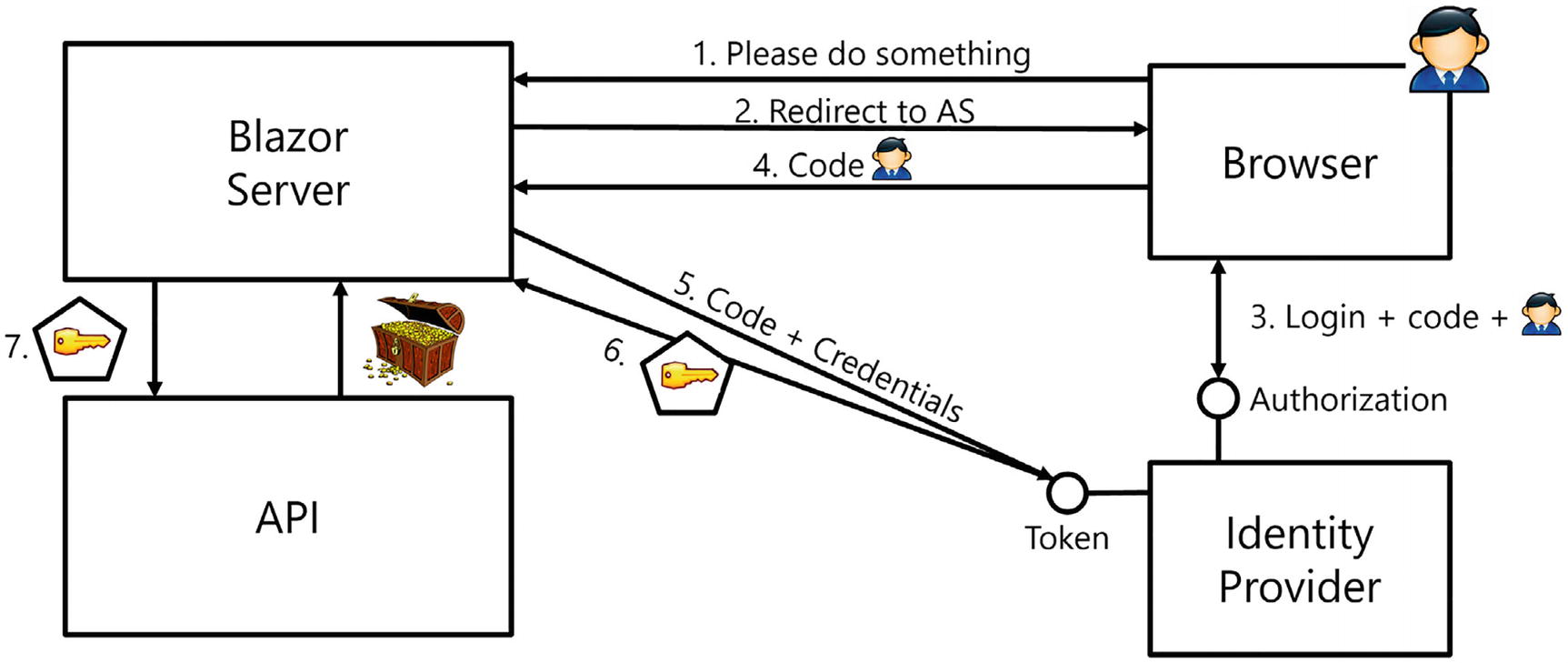
Access tokens are just ordinary tokens, but they don’t contain information about the user; they contain information about the client application and what the current user can do with the API. Because the API is yet another application, both should use the same identity provider. The client application (Blazor) can then use an OpenId Connect flow to request an access token from the identity provider and use it to access the API. Let us look at this process using the OpenId Connect Hybrid flow as shown in Figure 16-11.
../images/469993_3_En_16_Chapter/469993_3_En_16_Fig11_HTML.jpg
Figure 16-11

API Authorization with OpenId Connect Hybrid Flow

Steps 1–4 are the same as before, and our Blazor Server application receives an identity token and a code (which we ignored until now). This code can then be used together with the Blazor Server application’s identifying information to retrieve an access token (Step 5) from the identity provider. The identity provider will then use the code to verify which claims it should give to the Blazor Server application (Step 6). Once our application has an access token, it can send it along with the API request (Step 7) using a header to the API application, which can then use the claims in the access token to determine how is should behave.

Let us create an API application and register it with our identity provider. Add a new ASP.NET Core Web API project and name it WeatherServices. Change its launchSettings to run HTTPS at port 5005 as in Listing 16-39.
{
  "$schema": "https://json.schemastore.org/launchsettings.json",
  "iisSettings": {
    "windowsAuthentication": false,
    "anonymousAuthentication": true,
    "iisExpress": {
      "applicationUrl": "http://localhost:7628",
      "sslPort": 44310
    }
  },
  "profiles": {
    "WeatherServices": {
      "commandName": "Project",
      "dotnetRunMessages": true,
      "launchBrowser": true,
      "launchUrl": "swagger",
      "applicationUrl": "https://localhost:5005;http://localhost:5004",
      "environmentVariables": {
        "ASPNETCORE_ENVIRONMENT": "Development"
      }
    },
    "IIS Express": {
      "commandName": "IISExpress",
      "launchBrowser": true,
      "launchUrl": "swagger",
      "environmentVariables": {
        "ASPNETCORE_ENVIRONMENT": "Development"
      }
    }
  }
}
Listing 16-39

Change the API Project’s Port

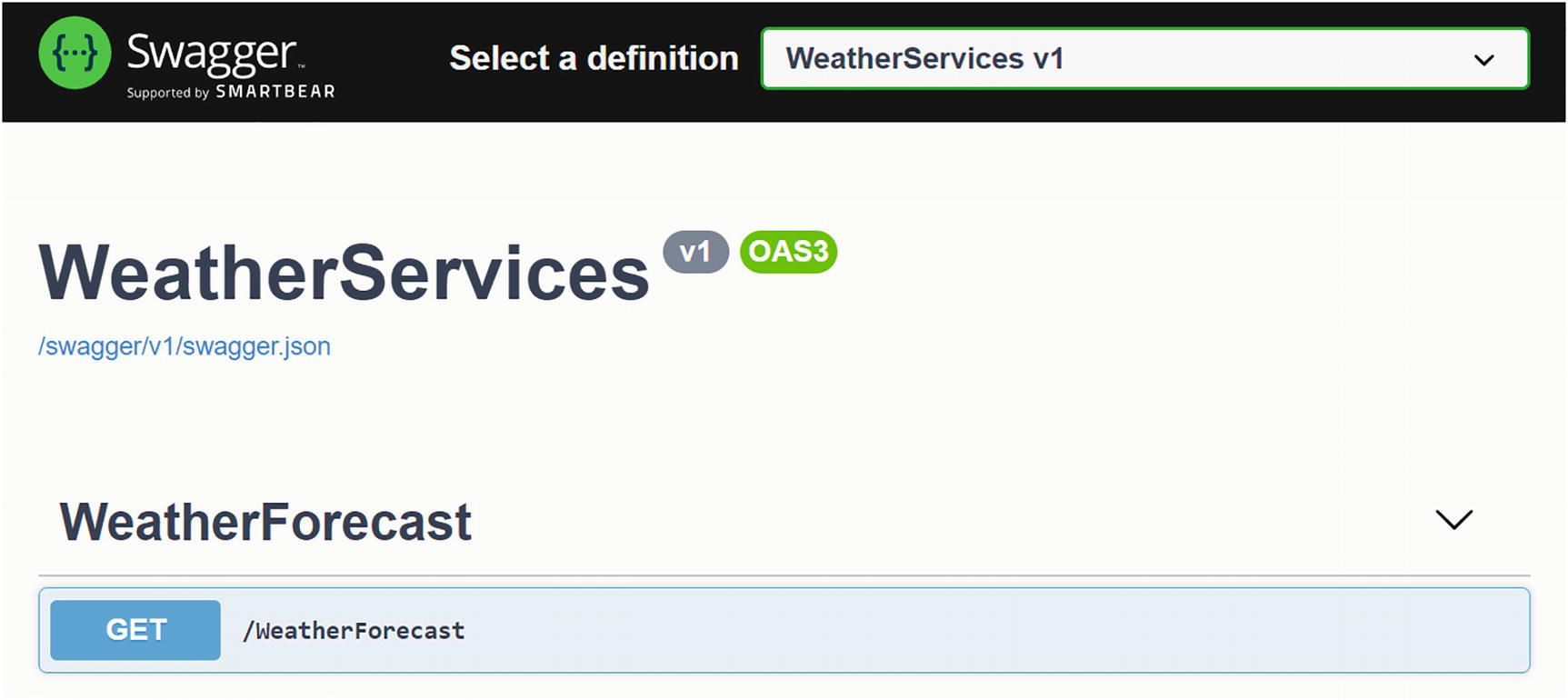
Run the API project. By default, it will open the browser and show the Swagger UI as in Figure 16-12. This will allow you to test the API (which is currently unprotected).
../images/469993_3_En_16_Chapter/469993_3_En_16_Fig12_HTML.jpg
Figure 16-12

The Swagger UI

Click the GET button, then click Try It Out, and then Execute. You should see some forecasts.

Since our client will come from another origin, we also need to enable CORS. Add Listing 16-40 to the API’s Startup.ConfigureServices method. Here, we allow any origin because we will use an access token to protect our services.
public void ConfigureServices(IServiceCollection services)
{
  services.AddControllers();
  services.AddSwaggerGen(c =>
  {
    c.SwaggerDoc("v1", new OpenApiInfo
    {
      Title = "WeatherServices", Version = "v1"
    });
  });
  services.AddCors(options =>
  {
    options.AddPolicy("CorsPolicy",
      builder =>
                builder.AllowAnyOrigin()
                .AllowAnyMethod()
                .AllowAnyHeader());
  });
}
Listing 16-40

Creating the CORS Policy

Now add the CORS middleware to the API project’s middleware as in Listing 16-41.
public void Configure(IApplicationBuilder app, IWebHostEnvironment env)
{
  if (env.IsDevelopment())
  {
    app.UseDeveloperExceptionPage();
    app.UseSwagger();
    app.UseSwaggerUI(
      c => c.SwaggerEndpoint("/swagger/v1/swagger.json",
                             "WeatherServices v1"));
  }
  app.UseHttpsRedirection();
  app.UseCors("CorsPolicy");
  app.UseRouting();
  app.UseAuthorization();
  app.UseEndpoints(endpoints =>
  {
    endpoints.MapControllers();
  });
}
Listing 16-41

Adding the CORS Middleware

Registering the API Project with the Identity Provider

Now we are ready to register the WeatherService API client with our identity provider. To do this, we create an APIScope, so add Listing 16-42 after the GetClients method in the identity provider’s Config class. This APIScope will be included in the scope claim and is used to verify if the client has access.
public static IEnumerable<ApiScope> GetApiScopes()
  => new List<ApiScope>
  {
    new ApiScope("u2uApi", "U2U API")
  };
Listing 16-42

Adding an APIScope

We also need to create an ApiResource, so add Listing 16-43 below the GetApiScopes method.
public static IEnumerable<ApiResource> GetApiResources()
  => new List<ApiResource>
  {
    new ApiResource("u2uApi", "U2U API")
    {
        Scopes = { "u2uApi" }
    }
  };
Listing 16-43

Creating an ApiResource

We can now grant our Blazor Server application access to this API resource by adding the API scope to the client’s AllowedScopes as in Listing 16-44.
AllowedScopes = {
  IdentityServerConstants.StandardScopes.OpenId,
  IdentityServerConstants.StandardScopes.Profile,
  IdentityServerConstants.StandardScopes.Address,
  "roles",
  "u2uApi"
},
Listing 16-44

Allowing the Client to Access an API

Finally, we should invoke the Config.GetApiScopes and Config.GetApiResources methods as in Listing 16-45.
public void ConfigureServices(IServiceCollection services)
{
  services.AddIdentityServer()
          .AddInMemoryApiScopes(Config.GetApiScopes())
          .AddInMemoryApiResources(Config.GetApiResources())
          .AddInMemoryIdentityResources(
            Config.GetIdentityResources())
          .AddTestUsers(Config.GetUsers())
          .AddInMemoryClients(Config.GetClients())
          .AddDeveloperSigningCredential();
  services.AddControllersWithViews();
}
Listing 16-45

Registering the ApiScopes and ApiResources

Adding JWT Bearer Token Middleware

A client application will send the access token using an HTTP Authorization Bearer header, and we need our API project to look for this header and install the ClaimsPrincipal from the access token. Use NuGet to install the Microsoft.AspNetCore.Authentication.JwtBearer package in the WeatherServices project.

Now we can register this JWT handling using dependency injection, so add Listing 16-46 to the API project’s ConfigureServices method . Authentication will look for the Bearer header, convert the JWT access token into a ClaimsPrincipal, and then process the request. We need to set the Authority property to the trusted identity provider’s URL (which in our case uses port 5011), and we use the Audience property, so set the u2uApi scope to use. Do note that we are hard-coding everything here; for a real production application, we should read this from configuration.
services
  .AddAuthentication("Bearer")
  .AddJwtBearer("Bearer", opt =>
  {
    opt.RequireHttpsMetadata = false; // for development purposes, disable in production!
    opt.Authority = "https://localhost:5011";
    opt.Audience = "u2uApi";
  });
Listing 16-46

Adding JWT Authentication

And don’t forget to add the Authentication and Authorization middleware as in Listing 16-47.
public void Configure(IApplicationBuilder app,
                      IWebHostEnvironment env)
{
  if (env.IsDevelopment())
  {
    app.UseDeveloperExceptionPage();
    app.UseSwagger();
    app.UseSwaggerUI(
      c =>
      c.SwaggerEndpoint("/swagger/v1/swagger.json",
                        "WeatherServices v1"));
  }
  app.UseHttpsRedirection();
  app.UseCors("CorsPolicy");
  app.UseRouting();
  app.UseAuthentication();
  app.UseAuthorization();
  app.UseEndpoints(endpoints =>
  {
    endpoints.MapControllers();
  });
}
Listing 16-47

Adding the Authentication Middleware

That’s all for the moment for our API.

Enabling the Bearer Token in the Client

Our client application should now use the received code to request an access token from the identity provider and use it in its API requests.

Update the Blazor Server WeatherForecastService as in Listing 16-48. This class uses the IHttpClientFactory interface to create an HttpClient instance. We do this so we can configure it to automatically use the access token.
using System;
using System.Net.Http;
using System.Net.Http.Json;
using System.Threading.Tasks;
namespace Blazor.Server.OpenIdConnect.Data
{
  public class WeatherForecastService
  {
    private readonly IHttpClientFactory httpClientFactory;
    public WeatherForecastService(
     IHttpClientFactory httpClientFactory)
    => this.httpClientFactory = httpClientFactory;
    public async ValueTask<WeatherForecast[]> GetForecastAsync(
      DateTime startDate)
    {
      HttpClient httpClient =
        this.httpClientFactory
            .CreateClient(nameof(WeatherForecastService));
      var result =
        await httpClient
         .GetFromJsonAsync<WeatherForecast[]>("weatherforecast");
      return result;
    }
  }
}
Listing 16-48

The WeatherForecastService

We also need to configure dependency injection in the Blazor Server project to give us an instance of the IHttpClientFactory. The IHttpClientFactory will give us an HttpClient that will be configured for us to include the access token and which will send it as a Bearer token to the API.

Proceed by adding the new API scope to our list of scopes as in Listing 16-49.
options.Scope.Add("u2uApi");
Listing 16-49

Adding the API Scope to the Client

Add the IdentityModel.AspNetCore package to the client project. This package will take care of things like exchanging the code for an access token and attaching it to the HttpClient request. Now we can add this to dependency injection, so add Listing 16-50 to the end of the ConfigureServices method of the client project. Now when the WeatherForecastService creates the HttpClient instance for the WeatherForecastService through the IHttpClientFactory, it will be configured with the access token.
services.AddAccessTokenManagement();
services.AddUserAccessTokenHttpClient(
  nameof(WeatherForecastService), null, client =>
  {
    client.BaseAddress = new Uri("https://localhost:5005");
  });
Listing 16-50

Add Token Management

Start the IdentityProvider project, next the WeatherServices project, and finally the Blazor.Server.OpenIdConnect project. Log out (if you’re still logged in) and log in again. This will refresh our tokens.
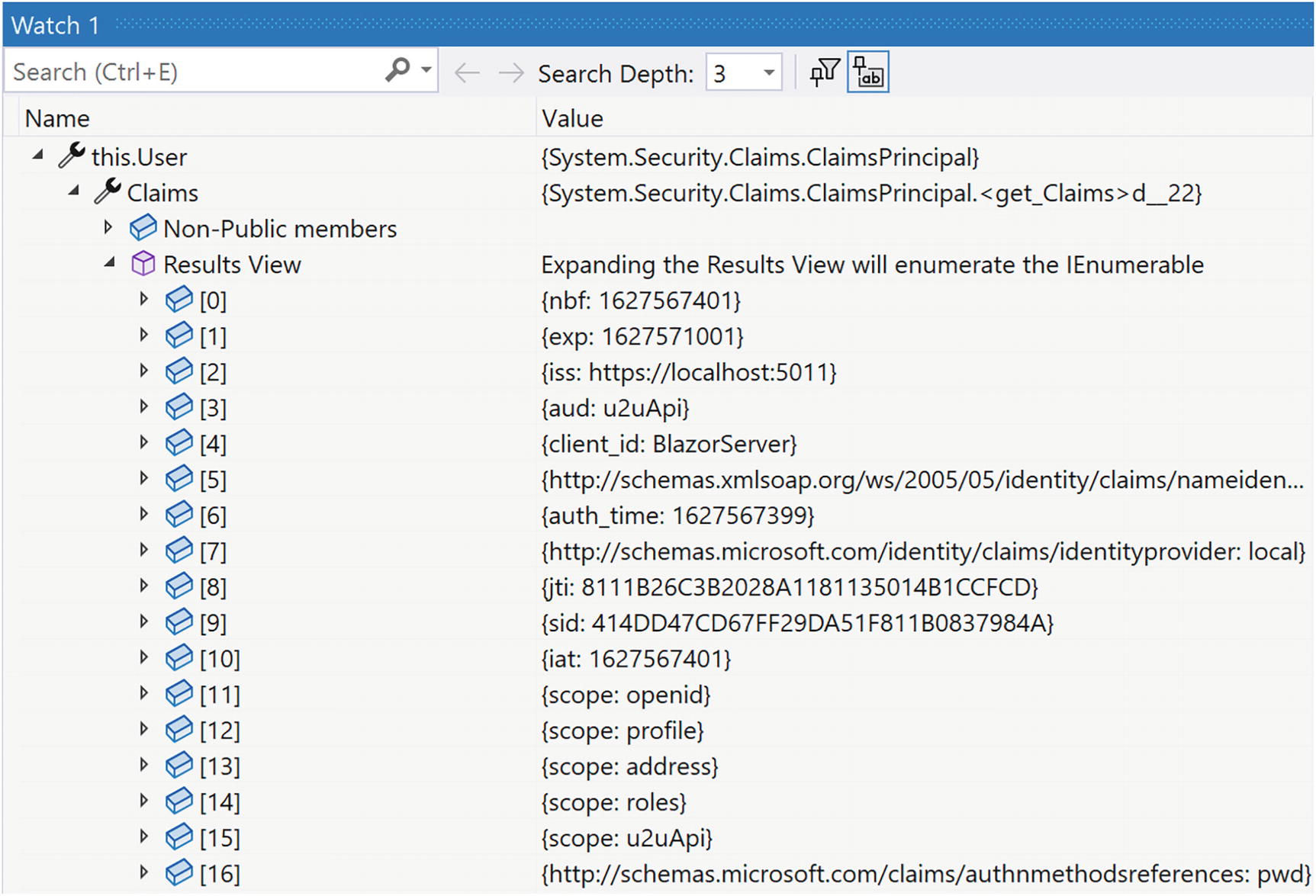
Now we can use the debugger to inspect the ClaimsPrincipal in the WeatherServices project. Put a breakpoint on the GetForecastAsync method and now use the client to fetch the forecasts. The debugger should stop, and now we can use the watch window to inspect the this.User property as in Figure 16-13.
../images/469993_3_En_16_Chapter/469993_3_En_16_Fig13_HTML.jpg
Figure 16-13

The WeatherServices ClaimsPrincipal

If the results view is empty, you will need to review your code because you forgot something. You should see the scope: u2uApi claim.

Now we can protect our WeatherForecastController’s Get method by adding the Authorize attribute as in Listing 16-51.
using Microsoft.AspNetCore.Authorization;
using Microsoft.AspNetCore.Mvc;
using Microsoft.Extensions.Logging;
using System;
using System.Collections.Generic;
using System.Linq;
namespace WeatherServices.Controllers
{
  [ApiController]
  [Route("[controller]")]
  public class WeatherForecastController : ControllerBase
  {
    ...
    public WeatherForecastController(
      ILogger<WeatherForecastController> logger)
    => this._logger = logger;
    [HttpGet]
    [Authorize]
    public IEnumerable<WeatherForecast> Get()
    {
      ...
    }
  }
}
Listing 16-51

Protecting the WeatherForecastController
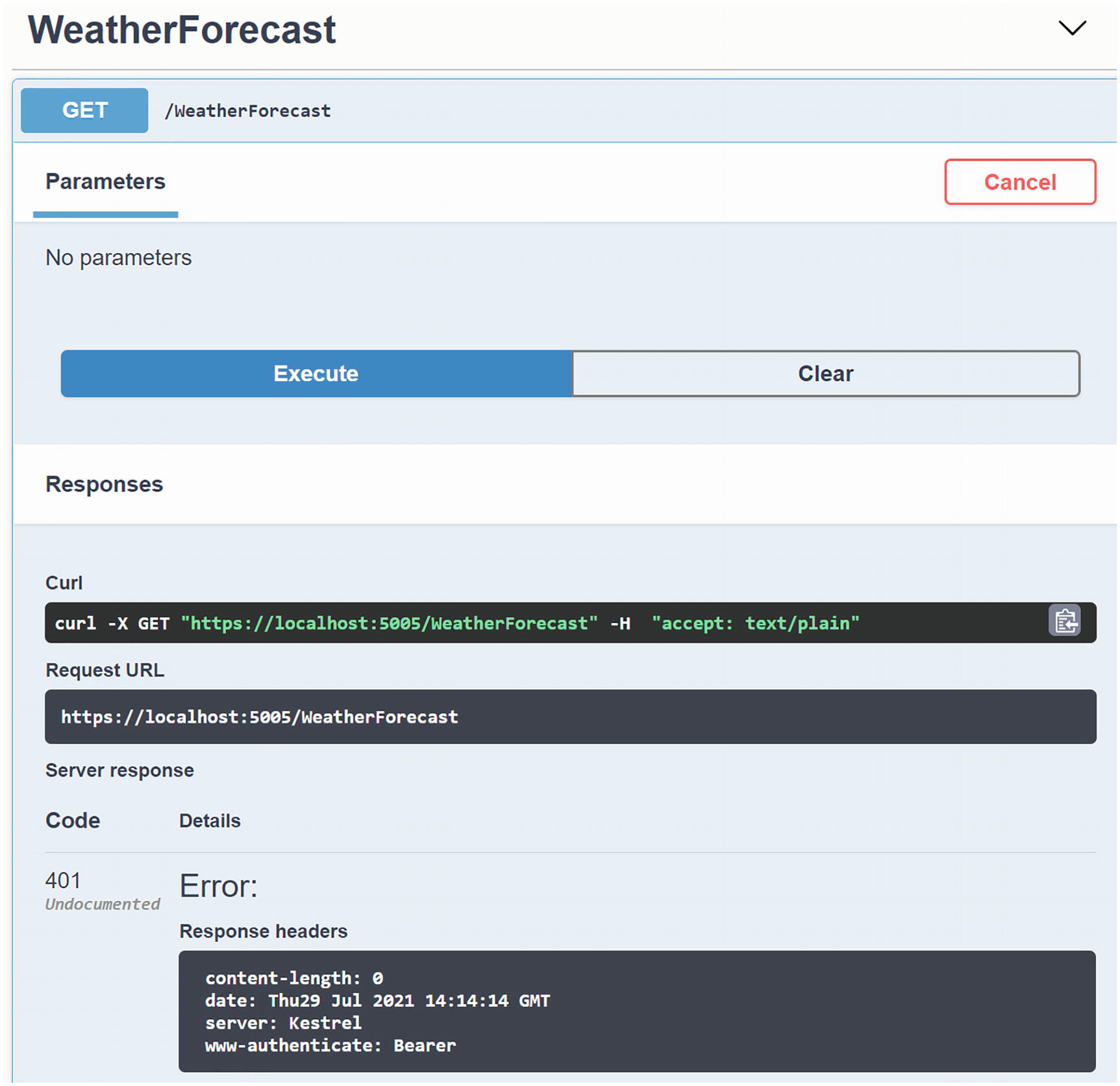
Run everything again; you should be able to retrieve the weather forecasts, but when you use the Swagger UI, you will get a 401 Undocumented as in Figure 16-14.
../images/469993_3_En_16_Chapter/469993_3_En_16_Fig14_HTML.jpg
Figure 16-14

Accessing a Protected API with Swagger

Using Policy-Based Access Control

What if we want to use one or more claims to determine if the user can access a certain resource? For example, we might only want to allow authenticated users that live in Belgium to access the forecasts. In that case, we can use policy-based access control (PBAC).

Policies allow us to combine claims to determine if the user can access a certain component or API resource. You can even build complex policies that can, for example, check the age of a user by using the birthdate claim. We could accomplish the same just with roles, but this requires a lot more maintenance of the user’s roles. And we don’t like maintenance, do we? With PBAC, we need to create a policy instance and then apply this policy to the protected resource using the Authorize attribute. Let us enhance our application with this as an example. First, we need to add a “country” claim to each user as in Listing 16-52.
public class Config
{
  public static List<TestUser> GetUsers()
  => new List<TestUser>
  {
    new TestUser
    {
      SubjectId = "{223C9865-03BE-4951-8911-740A438FCF9D}",
      Username = "peter@u2u.be",
      Password = "u2u-secret",
      Claims = new List<Claim>
      {
        new Claim("given_name", "Peter"),
        new Claim(JwtClaimTypes.Name, "Peter Himschoot"),
        new Claim("family_name", "Himschoot"),
        new Claim("address", "Melle"),
        new Claim("role", "admin"),
        new Claim("country", "Belgium"),
      }
    },
    new TestUser
    {
      SubjectId = "{34119795-78A6-44C2-B128-30BFBC29139D}",
      Username = "student@u2u.be",
      Password = "u2u-secret",
      Claims = new List<Claim>
      {
        new Claim("given_name", "Student"),
        new Claim(JwtClaimTypes.Name, "Student Blazor"),
        new Claim("family_name", "Blazor"),
        new Claim("address", "Zellik"),
        new Claim("role", "tester"),
        new Claim("country", "France"),
     }
    }
  };
Listing 16-52

Adding the Country Claim

Of course, we will also need a scope using an IdentityResource for this as in Listing 16-53.
public static IEnumerable<IdentityResource> GetIdentityResources()
=> new List<IdentityResource>
{
  new IdentityResources.OpenId(),
  new IdentityResources.Profile(),
  new IdentityResources.Address(),
  new IdentityResource(name: "roles",
    displayName: "User role(s)",
    userClaims: new List<string> { "role" }),
  new IdentityResource(name: "country",
    displayName: "User country",
    userClaims: new List<string> { "country" })
};
Listing 16-53

Adding the Country IdentityResource

And finally, we make this scope available to our client application as in Listing 16-54.
public static IEnumerable<Client> GetClients()
=> new List<Client>
{
  new Client
  {
    ...
    AllowedScopes = {
      IdentityServerConstants.StandardScopes.OpenId,
      IdentityServerConstants.StandardScopes.Profile,
      IdentityServerConstants.StandardScopes.Address,
      "roles",
      "u2uApi",
      "country"
    },
    ...
  }
};
Listing 16-54

Allowing the Country Scope

This completes the identity provider. Now we need to retrieve the country scope in our client application, so add Listing 16-55 to the AddOpenIdConnect method .
options.Scope.Add("country");
options.ClaimActions.MapUniqueJsonKey("country", "country");
Listing 16-55

Requesting the Country Scope in the Client

Next, we should add the policy configuration to the end of the client’s ConfigureServices method as in Listing 16-56. Here, we add a policy named FromBelgium, requiring the user to be authenticated and having the country claim set to BE (which the peter@u2u.be user has).
services.AddAuthorization(options =>
{
  options.AddPolicy("FromBelgium", policyBuilder =>
  {
    policyBuilder.RequireAuthenticatedUser();
    policyBuilder.RequireClaim("country", "Belgium");
  });
});
Listing 16-56

Adding the FromBelgium Policy

We also need to hide the navigation menu to not show the Fetch link. How can we do this? We have seen the AuthorizeView component which allows us to show content when the user has been authenticated or when the user has a certain role. We can also use this to show content when a user passes a certain policy. Modify the NavMenu component as in Listing 16-57 (just move the Fetch data NavLink to the bottom and wrap it into an AuthorizeView).
<div class="top-row pl-4 navbar navbar-dark">
  <a class="navbar-brand" href="">Blazor.Server.OpenIdConnect</a>
  <button title="Navigation menu" class="navbar-toggler"
    @onclick="ToggleNavMenu">
    <span class="navbar-toggler-icon"></span>
  </button>
</div>
<div class="@NavMenuCssClass" @onclick="ToggleNavMenu">
  <nav class="flex-column">
    <AuthorizeView>
      <Authorized>
        <li class="nav-item px-3">
          <NavLink class="nav-link" href=""
            Match="NavLinkMatch.All">
            <span class="oi oi-home" aria-hidden="true"></span>
            Home
          </NavLink>
        </li>
        <li class="nav-item px-3">
          <NavLink class="nav-link" href="logout">
            <span class="oi oi-list-rich"
                  aria-hidden="true"></span>
            Logout
          </NavLink>
        </li>
      </Authorized>
      <NotAuthorized>
          <li class="nav-item px-3">
            <NavLink class="nav-link" href="login">
              <span class="oi oi-list-rich"
                    aria-hidden="true"></span>
              Login
            </NavLink>
          </li>
      </NotAuthorized>
    </AuthorizeView>
    <AuthorizeView Roles="admin">
        <Authorized>
          <li class="nav-item px-3">
            <NavLink class="nav-link" href="counter">
                <span class="oi oi-plus"
                      aria-hidden="true"></span>
                Counter
            </NavLink>
          </li>
        </Authorized>
    </AuthorizeView>
    <AuthorizeView Policy="FromBelgium">
        <li class="nav-item px-3">
          <NavLink class="nav-link" href="fetchdata">
            <span class="oi oi-list-rich"
                  aria-hidden="true"></span>
            Fetch data
          </NavLink>
        </li>
    </AuthorizeView>
  </nav>
</div>
@code {
  private bool collapseNavMenu = true;
  private string NavMenuCssClass
  => collapseNavMenu ? "collapse" : null;
  private void ToggleNavMenu()
  {
      collapseNavMenu = !collapseNavMenu;
  }
}
Listing 16-57

Using Policies with the AuthorizeView

Running the application and logging in as student@u2u.be will not show the link because this user is from France, while logging in as peter@u2u.be will show the link since the FromBelgium policy passed. This completes the client.

We want to use this policy with the API project as well, so we could copy this code. Let us do the proper thing and move the policy into a library project so we can use the same policy in our Blazor and API projects.

Start by adding a new library project to the solution called Blazor.Shared.OpenIdConnect. Add the Microsoft.AspNetCore.Authorization package. Now add the Policies class from Listing 16-58. This class will create a new AuthorizationPolicy which will check if the user has been authenticated and is from Belgium.
using Microsoft.AspNetCore.Authorization;
namespace Blazor.Shared.OpenIdConnect
{
  public static class Policies
  {
    public const string FromBelgium = "FromBelgium";
    public static AuthorizationPolicy FromBelgiumPolicy()
        => new AuthorizationPolicyBuilder()
        .RequireAuthenticatedUser()
        .RequireClaim("country", "Belgium")
        .Build();
  }
}
Listing 16-58

The Policies Class

Add the shared project as a project reference to API project. Now we can add this as an authorization policy in the API project’s ConfigureServices method as in Listing 16-59. Now do the same instead of Listing 16-56 for the client project.
services.AddAuthorization(options =>
{
  options.AddPolicy(Policies.FromBelgium,
    Policies.FromBelgiumPolicy());
});
Listing 16-59

Enabling the FromBelgium Policy in the API Project

In the API project, modify the Authorize attribute on the WeatherForecastController’s Get method to use this policy as in Listing 16-60.
[HttpGet]
[Authorize(Policy = Policies.FromBelgium)]
public IEnumerable<WeatherForecast> Get()
Listing 16-60

Using a Policy to Protect an API

However, there is one more thing we need to do. The access token will not contain the user’s country claim by default, and that is why we need to update the ApiResource to include this claim as in Listing 16-61.
public static IEnumerable<ApiResource> GetApiResources()
  => new List<ApiResource>
  {
    new ApiResource("u2uApi", "U2U API")
    {
        // To use user's country claim we need to add it here
        Scopes = { "u2uApi" }, UserClaims = new [] { "country"}
    },
  };
Listing 16-61

Including the Country Claim in the Access Token

Run all three projects, and log in with the peter@u2u.be user; the Fetch data link should be shown, and when you click the link, you should get a list of forecasts.

Congratulations. You just completed authentication and authorization for Blazor Server applications! Now let us look at Blazor WebAssembly in the next chapter.

Summary

In this chapter, we looked at protecting a Blazor Server application using OpenId Connect. In our modern world, applications use claims to allow applications to identify the current user and to protect resources. We then learned about the OpenId Connect Hybrid flow and used it for authentication, getting an identity token containing user’s claims. We then used the AuthenticationState class to access these claims. We updated routing to check the Authorize attribute and used the AuthorizeView component to conditionally render a UI according to the user’s claims. After this, we looked at retrieving an access token and used it to protect an API. This allows us to use different applications with the same Web API, each given different levels of access to our API. All of this using IdentityServer4 as the identity provider.