02
Speaking C#
This chapter is all about the basics of the C# programming language. Over the course of this chapter, you'll learn how to write statements using the grammar of C#, as well as being introduced to some of the common vocabulary that you will use every day. In addition to this, by the end of the chapter, you'll feel confident in knowing how to temporarily store and work with information in your computer's memory.
This chapter covers the following topics:
- Introducing the C# language
- Understanding C# grammar and vocabulary
- Working with variables
- Exploring more about console applications
Introducing the C# language
This part of the book is about the C# language—the grammar and vocabulary that you will use every day to write the source code for your applications.
Programming languages have many similarities to human languages, except that in programming languages, you can make up your own words, just like Dr. Seuss!
In a book written by Dr. Seuss in 1950, If I Ran the Zoo, he states this:
"And then, just to show them, I'll sail to Ka-Troo And Bring Back an It-Kutch, a Preep, and a Proo, A Nerkle, a Nerd, and a Seersucker, too!"
Understanding language versions and features
This part of the book covers the C# programming language and is written primarily for beginners, so it covers the fundamental topics that all developers need to know, from declaring variables to storing data to how to define your own custom data types.
This book covers features of the C# language from version 1.0 up to the latest version 10.0.
If you already have some familiarity with older versions of C# and are excited to find out about the new features in the most recent versions of C#, I have made it easier for you to jump around by listing language versions and their important new features below, along with the chapter number and topic title where you can learn about them.
C# 1.0
C# 1.0 was released in 2002 and included all the important features of a statically typed object-oriented modern language, as you will see throughout Chapters 2 to 6.
C# 2.0
C# 2.0 was released in 2005 and focused on enabling strong data typing using generics, to improve code performance and reduce type errors, including the topics listed in the following table:
|
Feature |
Chapter |
Topic |
|
Nullable value types |
6 |
Making a value type nullable |
|
Generics |
6 |
Making types more reusable with generics |
C# 3.0
C# 3.0 was released in 2007 and focused on enabling declarative coding with Language INtegrated Queries (LINQ) and related features like anonymous types and lambda expressions, including the topics listed in the following table:
|
Feature |
Chapter |
Topic |
|
Implicitly typed local variables |
2 |
Inferring the type of a local variable |
|
LINQ |
11 |
All topics in Chapter 11, Querying and Manipulating Data Using LINQ |
C# 4.0
C# 4.0 was released in 2010 and focused on improving interoperability with dynamic languages like F# and Python, including the topics listed in the following table:
|
Feature |
Chapter |
Topic |
|
Dynamic types |
2 |
Storing dynamic types |
|
Named/optional arguments |
5 |
Optional parameters and named arguments |
C# 5.0
C# 5.0 was released in 2012 and focused on simplifying asynchronous operation support by automatically implementing complex state machines while writing what looks like synchronous statements, including the topics listed in the following table:
|
Feature |
Chapter |
Topic |
|
Simplified asynchronous tasks |
12 |
Understanding async and await |
C# 6.0
C# 6.0 was released in 2015 and focused on minor refinements to the language, including the topics listed in the following table:
|
Feature |
Chapter |
Topic |
|
|
2 |
Simplifying the usage of the console |
|
Interpolated strings |
2 |
Displaying output to the user |
|
Expression bodied members |
5 |
Defining read-only properties |
C# 7.0
C# 7.0 was released in March 2017 and focused on adding functional language features like tuples and pattern matching, as well as minor refinements to the language, including the topics listed in the following table:
|
Feature |
Chapter |
Topic |
|
Binary literals and digit separators |
2 |
Storing whole numbers |
|
Pattern matching |
3 |
Pattern matching with the |
|
|
5 |
Controlling how parameters are passed |
|
Tuples |
5 |
Combining multiple values with tuples |
|
Local functions |
6 |
Defining local functions |
C# 7.1
C# 7.1 was released in August 2017 and focused on minor refinements to the language, including the topics listed in the following table:
|
Feature |
Chapter |
Topic |
|
Default literal expressions |
5 |
Setting fields with default literal |
|
Inferred tuple element names |
5 |
Inferring tuple names |
|
|
12 |
Improving responsiveness for console apps |
C# 7.2
C# 7.2 was released in November 2017 and focused on minor refinements to the language, including the topics listed in the following table:
|
Feature |
Chapter |
Topic |
|
Leading underscores in numeric literals |
2 |
Storing whole numbers |
|
Non-trailing named arguments |
5 |
Optional parameters and named arguments |
|
|
5 |
Understanding access modifiers |
|
You can test |
5 |
Comparing tuples |
C# 7.3
C# 7.3 was released in May 2018 and focused on performance-oriented safe code that improves ref variables, pointers, and stackalloc. These are advanced and rarely needed for most developers, so they are not covered in this book.
C# 8
C# 8 was released in September 2019 and focused on a major change to the language related to null handling, including the topics listed in the following table:
|
Feature |
Chapter |
Topic |
|
Nullable reference types |
6 |
Making a reference type nullable |
|
Switch expressions |
3 |
Simplifying |
|
Default interface methods |
6 |
Understanding default interface methods |
C# 9
C# 9 was released in November 2020 and focused on record types, refinements to pattern matching, and minimal-code console apps, including the topics listed in the following table:
|
Feature |
Chapter |
Topic |
|
Minimal-code console apps |
1 |
Top-level programs |
|
Target-typed new |
2 |
Using target-typed new to instantiate objects |
|
Enhanced pattern matching |
5 |
Pattern matching with objects |
|
Records |
5 |
Working with records |
C# 10
C# 10 was released in November 2021 and focused on features that minimize the amount of code needed in common scenarios, including the topics listed in the following table:
|
Feature |
Chapter |
Topic |
|
Global namespace imports |
2 |
Importing namespaces |
|
Constant string literals |
2 |
Formatting using interpolated strings |
|
File-scoped namespaces |
5 |
Simplifying namespace declarations |
|
Required properties |
5 |
Requiring properties to be set during instantiation |
|
Record structs |
6 |
Working with record struct types |
|
Null parameter checks |
6 |
Checking for null in method parameters |
Understanding C# standards
Over the years, Microsoft has submitted a few versions of C# to standards bodies, as shown in the following table:
|
C# version |
ECMA standard |
ISO/IEC standard |
|
1.0 |
ECMA-334:2003 |
ISO/IEC 23270:2003 |
|
2.0 |
ECMA-334:2006 |
ISO/IEC 23270:2006 |
|
5.0 |
ECMA-334:2017 |
ISO/IEC 23270:2018 |
The standard for C# 6 is still a draft and work on adding C# 7 features is progressing. Microsoft made C# open source in 2014.
There are currently three public GitHub repositories for making the work on C# and related technologies as open as possible, as shown in the following table:
|
Description |
Link |
|
C# language design |
|
|
Compiler implementation |
|
|
Standard to describe the language |
Discovering your C# compiler versions
.NET language compilers for C# and Visual Basic, also known as Roslyn, along with a separate compiler for F#, are distributed as part of the .NET SDK. To use a specific version of C#, you must have at least that version of the .NET SDK installed, as shown in the following table:
|
.NET SDK |
Roslyn compiler |
Default C# language |
|
1.0.4 |
2.0 - 2.2 |
7.0 |
|
1.1.4 |
2.3 - 2.4 |
7.1 |
|
2.1.2 |
2.6 - 2.7 |
7.2 |
|
2.1.200 |
2.8 - 2.10 |
7.3 |
|
3.0 |
3.0 - 3.4 |
8.0 |
|
5.0 |
3.8 |
9.0 |
|
6.0 |
3.9 - 3.10 |
10.0 |
When you create class libraries then you can choose to target .NET Standard as well as versions of modern .NET. They have default C# language versions, as shown in the following table:
|
.NET Standard |
C# |
|
2.0 |
7.3 |
|
2.1 |
8.0 |
How to output the SDK version
Let's see what .NET SDK and C# language compiler versions you have available:
- On macOS, start Terminal. On Windows, start Command Prompt.
- To determine which version of the .NET SDK you have available, enter the following command:
dotnet --version - Note the version at the time of writing is 6.0.100, indicating that it is the initial version of the SDK without any bug fixes or new features yet, as shown in the following output:
6.0.100
Enabling a specific language version compiler
Developer tools like Visual Studio and the dotnet command-line interface assume that you want to use the latest major version of a C# language compiler by default. Before C# 8.0 was released, C# 7.0 was the latest major version and was used by default. To use the improvements in a C# point release like 7.1, 7.2, or 7.3, you had to add a <LangVersion> configuration element to the project file, as shown in the following markup:
<LangVersion>7.3</LangVersion>
After the release of C# 10.0 with .NET 6.0, if Microsoft releases a C# 10.1 compiler and you want to use its new language features then you will have to add a configuration element to your project file, as shown in the following markup:
<LangVersion>10.1</LangVersion>
Potential values for the <LangVersion> are shown in the following table:
|
LangVersion |
Description |
|
7, 7.1, 7.2, 7.3 8, 9, 10 |
Entering a specific version number will use that compiler if it has been installed. |
|
latestmajor |
Uses the highest major number, for example, 7.0 in August 2019, 8.0 in October 2019, 9.0 in November 2020, 10.0 in November 2021. |
|
|
Uses the highest major and highest minor number, for example, 7.2 in 2017, 7.3 in 2018, 8 in 2019, perhaps 10.1 in early 2022. |
|
|
Uses the highest available preview version, for example, 10.0 in July 2021 with .NET 6.0 Preview 6 installed. |
After creating a new project, you can edit the .csproj file and add the <LangVersion> element, as shown highlighted in the following markup:
<Project Sdk="Microsoft.NET.Sdk">
  <PropertyGroup>
    <OutputType>Exe</OutputType>
    <TargetFramework>net6.0</TargetFramework>
    <LangVersion>preview</LangVersion>
  </PropertyGroup>
</Project>
Your projects must target net6.0 to use the full features of C# 10.
Good Practice: If you are using Visual Studio Code and you have not done so already, install the Visual Studio Code extension named MSBuild project tools. This will give you IntelliSense while editing .csproj files, including making it easy to add the <LangVersion> element with appropriate values.
Understanding C# grammar and vocabulary
To learn simple C# language features, you can use .NET Interactive Notebooks, which remove the need to create an application of any kind.
To learn some other C# language features, you will need to create an application. The simplest type of application is a console application.
Let's start by looking at the basics of the grammar and vocabulary of C#. Throughout this chapter, you will create multiple console applications, with each one showing related features of the C# language.
Showing the compiler version
We will start by writing code that shows the compiler version:
- If you've completed Chapter 1, Hello, C#! Welcome, .NET!, then you will already have a
Codefolder. If not, then you'll need to create it. - Use your preferred code editor to create a new console app, as defined in the following list:
- Project template: Console Application [C#] /
console - Workspace/solution file and folder:
Chapter02 - Project file and folder:
VocabularyGood Practice: If you have forgotten how, or did not complete the previous chapter, then step-by-step instructions for creating a workspace/solution with multiple projects are given in Chapter 1, Hello, C#! Welcome, .NET!.
- Project template: Console Application [C#] /
- Open the
Program.csfile, and at the top of the file, under the comment, add a statement to show the C# version as an error, as shown in the following code:#error version - Run the console application:
- In Visual Studio Code, in a terminal, enter the command
dotnet run. - In Visual Studio, navigate to Debug | Start Without Debugging. When prompted to continue and run the last successful build, click No.
- In Visual Studio Code, in a terminal, enter the command
- Note the compiler version and language version appear as a compiler error message number
CS8304, as shown in Figure 2.1: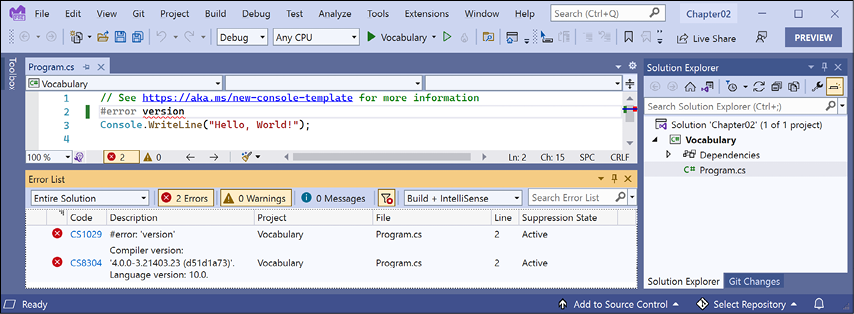
Figure 2.1: A compiler error that shows the C# language version
- The error message in the Visual Studio Code PROBLEMS window or Visual Studio Error List window says
Compiler version: '4.0.0...'with language version10.0. - Comment out the statement that causes the error, as shown in the following code:
// #error version - Note that the compiler error messages disappear.
Understanding C# grammar
The grammar of C# includes statements and blocks. To document your code, you can use comments.
Good Practice: Comments should not be the only way that you document your code. Choosing sensible names for variables and functions, writing unit tests, and creating actual documents are other ways to document your code.
Statements
In English, we indicate the end of a sentence with a full stop. A sentence can be composed of multiple words and phrases, with the order of words being part of the grammar. For example, in English, we say "the black cat."
The adjective, black, comes before the noun, cat. Whereas French grammar has a different order; the adjective comes after the noun: "le chat noir." What's important to take away from this is that the order matters.
C# indicates the end of a statement with a semicolon. A statement can be composed of multiple variables and expressions. For example, in the following statement, totalPrice is a variable and subtotal + salesTax is an expression:
var totalPrice = subtotal + salesTax;
The expression is made up of an operand named subtotal, an operator +, and another operand named salesTax. The order of operands and operators matters.
Comments
When writing your code, you're able to add comments to explain your code using a double slash, //. By inserting // the compiler will ignore everything after the // until the end of the line, as shown in the following code:
// sales tax must be added to the subtotal
var totalPrice = subtotal + salesTax;
To write a multiline comment, use /* at the beginning and */ at the end of the comment, as shown in the following code:
/*
This is a multi-line comment.
*/
Good Practice: Well-designed code, including function signatures with well-named parameters and class encapsulation, can be somewhat self-documenting. When you find yourself putting too many comments and explanations in your code, ask yourself: can I rewrite, aka refactor, this code to make it more understandable without long comments?
Your code editor has commands to make it easier to add and remove comment characters, as shown in the following list:
- Visual Studio 2022 for Windows: Navigate to Edit | Advanced | Comment Selection or Uncomment Selection
- Visual Studio Code: Navigate to Edit | Toggle Line Comment or Toggle Block Comment
Good Practice: You comment code by adding descriptive text above or after code statements. You comment out code by adding comment characters before or around statements to make them inactive. Uncommenting means removing the comment characters.
Blocks
In English, we indicate a new paragraph by starting a new line. C# indicates a block of code with the use of curly brackets, { }.
Blocks start with a declaration to indicate what is being defined. For example, a block can define the start and end of many language constructs including namespaces, classes, methods, or statements like foreach.
You will learn more about namespaces, classes, and methods later in this chapter and subsequent chapters but to briefly introduce some of those concepts now:
- A namespace contains types like classes to group them together.
- A class contains the members of an object including methods.
- A method contains statements that implement an action that an object can take.
Examples of statements and blocks
In the project template for console apps when targeting .NET 5.0, note that examples of the grammar of C# have been written for you by the project template. I've added some comments to the statements and blocks, as shown in the following code:
using System; // a semicolon indicates the end of a statement
namespace Basics
{ // an open brace indicates the start of a block
  class Program
  {
    static void Main(string[] args)
    {
      Console.WriteLine("Hello World!"); // a statement
    }
  }
} // a close brace indicates the end of a block
Understanding C# vocabulary
The C# vocabulary is made up of keywords, symbol characters, and types.
Some of the predefined, reserved keywords that you will see in this book include using, namespace, class, static, int, string, double, bool, if, switch, break, while, do, for, foreach, and, or, not, record, and init.
Some of the symbol characters that you will see include ", ', +, -, *, /, %, @, and $.
There are other contextual keywords that only have a special meaning in a specific context.
However, that still means that there are only about 100 actual C# keywords in the language.
Comparing programming languages to human languages
The English language has more than 250,000 distinct words, so how does C# get away with only having about 100 keywords? Moreover, why is C# so difficult to learn if it has only 0.0416% of the number of words in the English language?
One of the key differences between a human language and a programming language is that developers need to be able to define the new "words" with new meanings. Apart from the about 100 keywords in the C# language, this book will teach you about some of the hundreds of thousands of "words" that other developers have defined, but you will also learn how to define your own "words."
Programmers all over the world must learn English because most programming languages use English words such as namespace and class. There are programming languages that use other human languages, such as Arabic, but they are rare. If you are interested in learning more, this YouTube video shows a demonstration of an Arabic programming language: https://youtu.be/dkO8cdwf6v8.
Changing the color scheme for C# syntax
By default, Visual Studio Code and Visual Studio show C# keywords in blue to make them easier to differentiate from other code. Both tools allow you to customize the color scheme:
- In Visual Studio Code, navigate to Code | Preferences | Color Theme (it is on the File menu on Windows).
- Select a color theme. For reference, I'll use the Light+ (default light) color theme so that the screenshots look good in a printed book.
- In Visual Studio, navigate to Tools | Options.
- In the Options dialog box, select Fonts and Colors, and then select the display items that you would like to customize.
Help for writing correct code
Plain text editors such as Notepad don't help you write correct English. Likewise, Notepad won't help you write correct C# either.
Microsoft Word can help you write English by highlighting spelling mistakes with red squiggles, with Word saying that "icecream" should be ice-cream or ice cream, and grammatical errors with blue squiggles, such as a sentence should have an uppercase first letter.
Similarly, Visual Studio Code's C# extension and Visual Studio help you write C# code by highlighting spelling mistakes, such as the method name should be WriteLine with an uppercase L, and grammatical errors, such as statements that must end with a semicolon.
The C# extension constantly watches what you type and gives you feedback by highlighting problems with colored squiggly lines, similar to that of Microsoft Word.
Let's see it in action:
- In
Program.cs, change theLin theWriteLinemethod to lowercase. - Delete the semicolon at the end of the statement.
- In Visual Studio Code, navigate to View | Problems, or in Visual Studio navigate to View | Error List, and note that a red squiggle appears under the code mistakes and details are shown, as you can see in Figure 2.2:
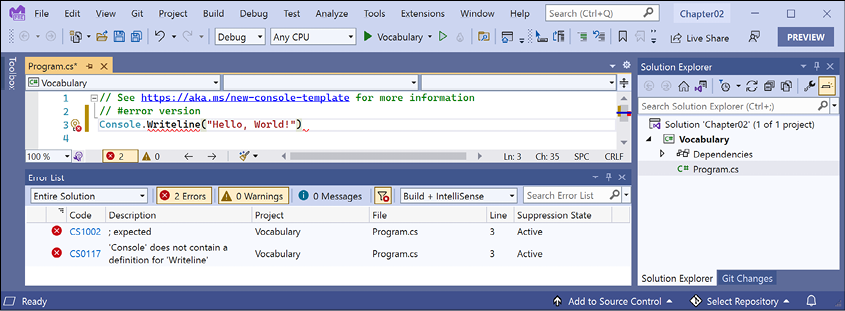
Figure 2.2: The Error List window showing two compile errors
- Fix the two coding errors.
Importing namespaces
System is a namespace, which is like an address for a type. To refer to someone's location exactly, you might use Oxford.HighStreet.BobSmith, which tells us to look for a person named Bob Smith on the High Street in the city of Oxford.
System.Console.WriteLine tells the compiler to look for a method named WriteLine in a type named Console in a namespace named System. To simplify our code, the Console Application project template for every version of .NET before 6.0 added a statement at the top of the code file to tell the compiler to always look in the System namespace for types that haven't been prefixed with their namespace, as shown in the following code:
using System; // import the System namespace
We call this importing the namespace. The effect of importing a namespace is that all available types in that namespace will be available to your program without needing to enter the namespace prefix and will be seen in IntelliSense while you write code.
.NET Interactive notebooks have most namespaces imported automatically.
Implicitly and globally importing namespaces
Traditionally, every .cs file that needs to import namespaces would have to start with using statements to import those namespaces. Namespaces like System and System.Linq are needed in almost all .cs files, so the first few lines of every .cs file often had at least a few using statements, as shown in the following code:
using System;
using System.Linq;
using System.Collections.Generic;
When creating websites and services using ASP.NET Core, there are often dozens of namespaces that each file would have to import.
C# 10 introduces some new features that simplify importing namespaces.
First, the global using statement means you only need to import a namespace in one .cs file and it will be available throughout all .cs files. You could put global using statements in the Program.cs file but I recommend creating a separate file for those statements named something like GlobalUsings.cs or GlobalNamespaces.cs, as shown in the following code:
global using System;
global using System.Linq;
global using System.Collections.Generic;
Good Practice: As developers get used to this new C# feature, I expect one naming convention for this file to become the standard.
Second, any projects that target .NET 6.0 and therefore use the C# 10 compiler generate a.cs file in the obj folder to implicitly globally import some common namespaces like System. The specific list of implicitly imported namespaces depends on which SDK you target, as shown in the following table:
|
SDK |
Implicitly imported namespaces |
|
|
|
|
|
Same as
|
|
|
Same as
|
Let's see the current auto-generated implicit imports file:
- In Solution Explorer, select the
Vocabularyproject, toggle on the Show All Files button, and note the compiler-generatedbinandobjfolders are visible. - Expand the
objfolder, expand theDebugfolder, expand thenet6.0folder, and open the file namedVocabulary.GlobalUsings.g.cs. - Note this file is automatically created by the compiler for projects that target .NET 6.0, and that it imports some commonly used namespaces including
System.Threading, as shown in the following code:// <autogenerated /> global using global::System; global using global::System.Collections.Generic; global using global::System.IO; global using global::System.Linq; global using global::System.Net.Http; global using global::System.Threading; global using global::System.Threading.Tasks; - Close the
Vocabulary.GlobalUsings.g.csfile. - In Solution Explorer, select the project, and then add additional entries to the project file to control which namespaces are implicitly imported, as shown highlighted in the following markup:
<Project Sdk="Microsoft.NET.Sdk"> <PropertyGroup> <OutputType>Exe</OutputType> <TargetFramework>net6.0</TargetFramework> <Nullable>enable</Nullable> <ImplicitUsings>enable</ImplicitUsings> </PropertyGroup> <ItemGroup> <Using Remove="System.Threading" /> <Using Include="System.Numerics" /> </ItemGroup> </Project> - Save the changes to the project file.
- Expand the
objfolder, expand theDebugfolder, expand thenet6.0folder, and open the file namedVocabulary.GlobalUsings.g.cs. - Note this file now imports
System.Numericsinstead ofSystem.Threading, as shown highlighted in the following code:// <autogenerated /> global using global::System; global using global::System.Collections.Generic; global using global::System.IO; global using global::System.Linq; global using global::System.Net.Http; global using global::System.Threading.Tasks; global using global::System.Numerics; - Close the
Vocabulary.GlobalUsings.g.csfile.
You can disable the implicitly imported namespaces feature for all SDKs by removing an entry in the project file, as shown in the following markup:
<ImplicitUsings>enable</ImplicitUsings>
Verbs are methods
In English, verbs are doing or action words, like run and jump. In C#, doing or action words are called methods. There are hundreds of thousands of methods available to C#. In English, verbs change how they are written based on when in time the action happens. For example, Amir was jumping in the past, Beth jumps in the present, they jumped in the past, and Charlie will jump in the future.
In C#, methods such as WriteLine change how they are called or executed based on the specifics of the action. This is called overloading, which we'll cover in more detail in Chapter 5, Building Your Own Types with Object-Oriented Programming. But for now, consider the following example:
// outputs the current line terminator string
// by default, this is a carriage-return and line feed
Console.WriteLine();
// outputs the greeting and the current line terminator string
Console.WriteLine("Hello Ahmed");
// outputs a formatted number and date and the current line terminator string
Console.WriteLine("Temperature on {0:D} is {1}°C.",
  DateTime.Today, 23.4);
A different analogy is that some words are spelled the same but have different meanings depending on the context.
Nouns are types, variables, fields, and properties
In English, nouns are names that refer to things. For example, Fido is the name of a dog. The word "dog" tells us the type of thing that Fido is, and so in order for Fido to fetch a ball, we would use his name.
In C#, their equivalents are types, variables, fields, and properties. For example:
AnimalandCarare types; they are nouns for categorizing things.HeadandEnginemight be fields or properties; nouns that belong toAnimalandCar.FidoandBobare variables; nouns for referring to a specific object.
There are tens of thousands of types available to C#, though have you noticed how I didn't say, "There are tens of thousands of types in C#?" The difference is subtle but important. The language of C# only has a few keywords for types, such as string and int, and strictly speaking, C# doesn't define any types. Keywords such as string that look like types are aliases, which represent types provided by the platform on which C# runs.
It's important to know that C# cannot exist alone; after all, it's a language that runs on variants of .NET. In theory, someone could write a compiler for C# that uses a different platform, with different underlying types. In practice, the platform for C# is .NET, which provides tens of thousands of types to C#, including System.Int32, which is the C# keyword alias int maps to, as well as many more complex types, such as System.Xml.Linq.XDocument.
It's worth taking note that the term type is often confused with class. Have you ever played the parlor game Twenty Questions, also known as Animal, Vegetable, or Mineral? In the game, everything can be categorized as an animal, vegetable, or mineral. In C#, every type can be categorized as a class, struct, enum, interface, or delegate. You will learn what these mean in Chapter 6, Implementing Interfaces and Inheriting Classes. As examples, the C# keyword string is a class, but int is a struct. So, it is best to use the term type to refer to both.
Revealing the extent of the C# vocabulary
We know that there are more than 100 keywords in C#, but how many types are there? Let's write some code to find out how many types (and their methods) are available to C# in our simple console application.
Don't worry exactly how this code works for now but know that it uses a technique called reflection:
- We'll start by importing the
System.Reflectionnamespace at the top of theProgram.csfile, as shown in the following code:using System.Reflection; - Delete the statement that writes
Hello World!and replace it with the following code:Assembly? assembly = Assembly.GetEntryAssembly(); if (assembly == null) return; // loop through the assemblies that this app references foreach (AssemblyName name in assembly.GetReferencedAssemblies()) { // load the assembly so we can read its details Assembly a = Assembly.Load(name); // declare a variable to count the number of methods int methodCount = 0; // loop through all the types in the assembly foreach (TypeInfo t in a.DefinedTypes) { // add up the counts of methods methodCount += t.GetMethods().Count(); } // output the count of types and their methods Console.WriteLine( "{0:N0} types with {1:N0} methods in {2} assembly.", arg0: a.DefinedTypes.Count(), arg1: methodCount, arg2: name.Name); } - Run the code. You will see the actual number of types and methods that are available to you in the simplest application when running on your OS. The number of types and methods displayed will be different depending on the operating system that you are using, as shown in the following outputs:
// Output on Windows
0 types with 0 methods in System.Runtime assembly.
106 types with 1,126 methods in System.Linq assembly.
44 types with 645 methods in System.Console assembly.
// Output on macOS
0 types with 0 methods in System.Runtime assembly.
103 types with 1,094 methods in System.Linq assembly.
57 types with 701 methods in System.Console assembly.
Why does the
System.Runtimeassembly contain zero types? This assembly is special because it contains only type-forwarders rather than actual types. A type-forwarder represents a type that has been implemented outside of .NET or for some other advanced reason. - Add statements to the top of the file after importing the namespace to declare some variables, as shown highlighted in the following code:
using System.Reflection;
// declare some unused variables using types
// in additional assemblies
System.Data.DataSet ds;
HttpClient client;
By declaring variables that use types in other assemblies, those assemblies are loaded with our application, which allows our code to see all the types and methods in them. The compiler will warn you that you have unused variables but that won't stop your code from running.
- Run the console application again and view the results, which should look similar to the following outputs:
// Output on Windows
0 types with 0 methods in System.Runtime assembly.
383 types with 6,854 methods in System.Data.Common assembly.
456 types with 4,590 methods in System.Net.Http assembly.
106 types with 1,126 methods in System.Linq assembly.
44 types with 645 methods in System.Console assembly.
// Output on macOS
0 types with 0 methods in System.Runtime assembly.
376 types with 6,763 methods in System.Data.Common assembly.
522 types with 5,141 methods in System.Net.Http assembly.
103 types with 1,094 methods in System.Linq assembly.
57 types with 701 methods in System.Console assembly.
Now, you have a better sense of why learning C# is a challenge, because there are so many types and methods to learn. Methods are only one category of a member that a type can have, and you and other programmers are constantly defining new types and members!
Working with variables
All applications process data. Data comes in, data is processed, and then data goes out.
Data usually comes into our program from files, databases, or user input, and it can be put temporarily into variables that will be stored in the memory of the running program. When the program ends, the data in memory is lost. Data is usually output to files and databases, or to the screen or a printer. When using variables, you should think about, firstly, how much space the variable takes in the memory, and, secondly, how fast it can be processed.
We control this by picking an appropriate type. You can think of simple common types such as int and double as being different-sized storage boxes, where a smaller box would take less memory but may not be as fast at being processed; for example, adding 16-bit numbers might not be processed as fast as adding 64-bit numbers on a 64-bit operating system. Some of these boxes may be stacked close by, and some may be thrown into a big heap further away.
Naming things and assigning values
There are naming conventions for things, and it is good practice to follow them, as shown in the following table:
|
Naming convention |
Examples |
Used for |
|
Camel case |
|
Local variables, private fields |
|
Title case aka Pascal case |
|
Types, non-private fields, and other members like methods |
Good Practice: Following a consistent set of naming conventions will enable your code to be easily understood by other developers (and yourself in the future!).
The following code block shows an example of declaring a named local variable and assigning a value to it with the = symbol. You should note that you can output the name of a variable using a keyword introduced in C# 6.0, nameof:
// let the heightInMetres variable become equal to the value 1.88
double heightInMetres = 1.88;
Console.WriteLine($"The variable {nameof(heightInMetres)} has the value
{heightInMetres}.");
The message in double quotes in the preceding code wraps onto a second line because the width of a printed page is too narrow. When entering a statement like this in your code editor, type it all in a single line.
Literal values
When you assign to a variable, you often, but not always, assign a literal value. But what is a literal value? A literal is a notation that represents a fixed value. Data types have different notations for their literal values, and over the next few sections, you will see examples of using literal notation to assign values to variables.
Storing text
For text, a single letter, such as an A, is stored as a char type.
Good Practice: Actually, it can be more complicated than that. Egyptian Hieroglyph A002 (U+13001) needs two System.Char values (known as surrogate pairs) to represent it: \uD80C and \uDC01. Do not always assume one char equals one letter or you could introduce weird bugs into your code.
A char is assigned using single quotes around the literal value, or assigning the return value of a fictitious function call, as shown in the following code:
char letter = 'A'; // assigning literal characters
char digit = '1';
char symbol = '$';
char userChoice = GetSomeKeystroke(); // assigning from a fictitious function
For text, multiple letters, such as Bob, are stored as a string type and are assigned using double quotes around the literal value, or assigning the return value of a function call, as shown in the following code:
string firstName = "Bob"; // assigning literal strings
string lastName = "Smith";
string phoneNumber = "(215) 555-4256";
// assigning a string returned from a fictitious function
string address = GetAddressFromDatabase(id: 563);
Understanding verbatim strings
When storing text in a string variable, you can include escape sequences, which represent special characters like tabs and new lines using a backslash, as shown in the following code:
string fullNameWithTabSeparator = "Bob\tSmith";
But what if you are storing the path to a file on Windows, and one of the folder names starts with a T, as shown in the following code?
string filePath = "C:\televisions\sony\bravia.txt";
The compiler will convert the \t into a tab character and you will get errors!
You must prefix with the @ symbol to use a verbatim literal string, as shown in the following code:
string filePath = @"C:\televisions\sony\bravia.txt";
To summarize:
- Literal string: Characters enclosed in double-quote characters. They can use escape characters like
\tfor tab. To represent a backslash, use two:\\. - Verbatim string: A literal string prefixed with
@to disable escape characters so that a backslash is a backslash. It also allows thestringvalue to span multiple lines because the white space characters are treated as themselves instead of instructions to the compiler. - Interpolated string: A literal string prefixed with
$to enable embedded formatted variables. You will learn more about this later in this chapter.
Storing numbers
Numbers are data that we want to perform an arithmetic calculation on, for example, multiplying. A telephone number is not a number. To decide whether a variable should be stored as a number or not, ask yourself whether you need to perform arithmetic operations on the number or whether the number includes non-digit characters such as parentheses or hyphens to format the number, such as (414) 555-1234. In this case, the number is a sequence of characters, so it should be stored as a string.
Numbers can be natural numbers, such as 42, used for counting (also called whole numbers); they can also be negative numbers, such as -42 (called integers); or, they can be real numbers, such as 3.9 (with a fractional part), which are called single- or double-precision floating-point numbers in computing.
- Use your preferred code editor to add a new Console Application to the
Chapter02workspace/solution namedNumbers:- In Visual Studio Code, select
Numbersas the active OmniSharp project. When you see the pop-up warning message saying that required assets are missing, click Yes to add them. - In Visual Studio, set the startup project to the current selection.
- In Visual Studio Code, select
- In
Program.cs, delete the existing code and then type statements to declare some number variables using various data types, as shown in the following code:// unsigned integer means positive whole number or 0 uint naturalNumber = 23; // integer means negative or positive whole number or 0 int integerNumber = -23; // float means single-precision floating point // F suffix makes it a float literal float realNumber = 2.3F; // double means double-precision floating point double anotherRealNumber = 2.3; // double literal
Storing whole numbers
You might know that computers store everything as bits. The value of a bit is either 0 or 1. This is called a binary number system. Humans use a decimal number system.
The decimal number system, also known as Base 10, has 10 as its base, meaning there are ten digits, from 0 to 9. Although it is the number base most commonly used by human civilizations, other number base systems are popular in science, engineering, and computing. The binary number system, also known as Base 2, has two as its base, meaning there are two digits, 0 and 1.
The following table shows how computers store the decimal number 10. Take note of the bits with the value 1 in the 8 and 2 columns; 8 + 2 = 10:
|
128 |
64 |
32 |
16 |
8 |
4 |
2 |
1 |
|
0 |
0 |
0 |
0 |
1 |
0 |
1 |
0 |
So, 10 in decimal is 00001010 in binary.
Improving legibility by using digit separators
Two of the improvements seen in C# 7.0 and later are the use of the underscore character _ as a digit separator, and support for binary literals.
You can insert underscores anywhere into the digits of a number literal, including decimal, binary, or hexadecimal notation, to improve legibility.
For example, you could write the value for 1 million in decimal notation, that is, Base 10, as 1_000_000.
You can even use the 2/3 grouping common in India: 10_00_000.
Using binary notation
To use binary notation, that is, Base 2, using only 1s and 0s, start the number literal with 0b. To use hexadecimal notation, that is, Base 16, using 0 to 9 and A to F, start the number literal with 0x.
Exploring whole numbers
Let's enter some code to see some examples:
- In
Program.cs, type statements to declare some number variables using underscore separators, as shown in the following code:// three variables that store the number 2 million int decimalNotation = 2_000_000; int binaryNotation = 0b_0001_1110_1000_0100_1000_0000; int hexadecimalNotation = 0x_001E_8480; // check the three variables have the same value // both statements output true Console.WriteLine($"{decimalNotation == binaryNotation}"); Console.WriteLine( $"{decimalNotation == hexadecimalNotation}"); - Run the code and note the result is that all three numbers are the same, as shown in the following output:
True
True
Computers can always exactly represent integers using the int type or one of its sibling types, such as long and short.
Storing real numbers
Computers cannot always represent real, aka decimal or non-integer, numbers precisely. The float and double types store real numbers using single- and double-precision floating points.
Most programming languages implement the IEEE Standard for Floating-Point Arithmetic. IEEE 754 is a technical standard for floating-point arithmetic established in 1985 by the Institute of Electrical and Electronics Engineers (IEEE).
The following table shows a simplification of how a computer represents the number 12.75 in binary notation. Note the bits with the value 1 in the 8, 4, ½, and ¼ columns.
8 + 4 + ½ + ¼ = 12¾ = 12.75.
|
128 |
64 |
32 |
16 |
8 |
4 |
2 |
1 |
. |
½ |
¼ |
1/8 |
1/16 |
|
0 |
0 |
0 |
0 |
1 |
1 |
0 |
0 |
. |
1 |
1 |
0 |
0 |
So, 12.75 in decimal is 00001100.1100 in binary. As you can see, the number 12.75 can be exactly represented using bits. However, some numbers can't, something that we'll be exploring shortly.
Writing code to explore number sizes
C# has an operator named sizeof() that returns the number of bytes that a type uses in memory. Some types have members named MinValue and MaxValue, which return the minimum and maximum values that can be stored in a variable of that type. We are now going to use these features to create a console application to explore number types:
- In
Program.cs, type statements to show the size of three number data types, as shown in the following code:Console.WriteLine($"int uses {sizeof(int)} bytes and can store numbers in the range {int.MinValue:N0} to {int.MaxValue:N0}."); Console.WriteLine($"double uses {sizeof(double)} bytes and can store numbers in the range {double.MinValue:N0} to {double.MaxValue:N0}."); Console.WriteLine($"decimal uses {sizeof(decimal)} bytes and can store numbers in the range {decimal.MinValue:N0} to {decimal.MaxValue:N0}.");The width of the printed pages in this book makes the
stringvalues (in double quotes) wrap over multiple lines. You must type them on a single line, or you will get compile errors. - Run the code and view the output, as shown in Figure 2.3:
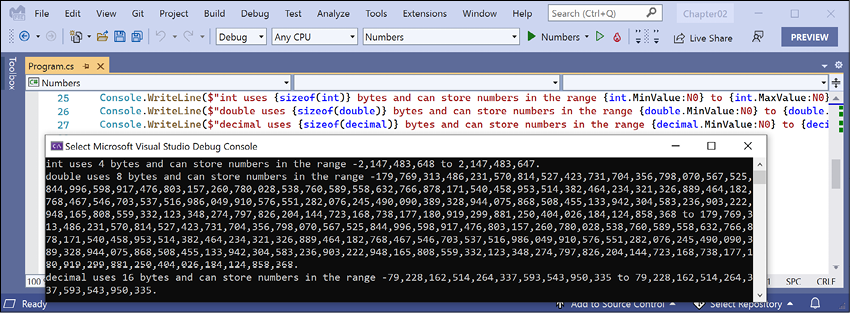
Figure 2.3: Size and range information for common number data types
An int variable uses four bytes of memory and can store positive or negative numbers up to about 2 billion. A double variable uses eight bytes of memory and can store much bigger values! A decimal variable uses 16 bytes of memory and can store big numbers, but not as big as a double type.
But you may be asking yourself, why might a double variable be able to store bigger numbers than a decimal variable, yet it's only using half the space in memory? Well, let's now find out!
Comparing double and decimal types
You will now write some code to compare double and decimal values. Although it isn't hard to follow, don't worry about understanding the syntax right now:
- Type statements to declare two
doublevariables, add them together and compare them to the expected result, and write the result to the console, as shown in the following code:Console.WriteLine("Using doubles:"); double a = 0.1; double b = 0.2; if (a + b == 0.3) { Console.WriteLine($"{a} + {b} equals {0.3}"); } else { Console.WriteLine($"{a} + {b} does NOT equal {0.3}"); } - Run the code and view the result, as shown in the following output:
Using doubles:
0.1 + 0.2 does NOT equal 0.3
In locales that use a comma for the decimal separator the result will look slightly different, as shown in the following output:
0,1 + 0,2 does NOT equal 0,3
The double type is not guaranteed to be accurate because some numbers like 0.1 literally cannot be represented as floating-point values.
As a rule of thumb, you should only use double when accuracy, especially when comparing the equality of two numbers, is not important. An example of this may be when you're measuring a person's height and you will only compare values using greater than or less than, but never equals.
The problem with the preceding code is illustrated by how the computer stores the number 0.1, or multiples of it. To represent 0.1 in binary, the computer stores 1 in the 1/16 column, 1 in the 1/32 column, 1 in the 1/256 column, 1 in the 1/512 column, and so on.
The number 0.1 in decimal is 0.00011001100110011… in binary, repeating forever:
|
4 |
2 |
1 |
. |
½ |
¼ |
1/8 |
1/16 |
1/32 |
1/64 |
1/128 |
1/256 |
1/512 |
1/1024 |
1/2048 |
|
0 |
0 |
0 |
. |
0 |
0 |
0 |
1 |
1 |
0 |
0 |
1 |
1 |
0 |
0 |
Good Practice: Never compare double values using ==. During the First Gulf War, an American Patriot missile battery used double values in its calculations. The inaccuracy caused it to fail to track and intercept an incoming Iraqi Scud missile, and 28 soldiers were killed; you can read about this at https://www.ima.umn.edu/~arnold/disasters/patriot.html.
- Copy and paste the statements that you wrote before (that used the
doublevariables). - Modify the statements to use
decimaland rename the variables tocandd, as shown in the following code:Console.WriteLine("Using decimals:"); decimal c = 0.1M; // M suffix means a decimal literal value decimal d = 0.2M; if (c + d == 0.3M) { Console.WriteLine($"{c} + {d} equals {0.3M}"); } else { Console.WriteLine($"{c} + {d} does NOT equal {0.3M}"); } - Run the code and view the result, as shown in the following output:
Using decimals:
0.1 + 0.2 equals 0.3
The decimal type is accurate because it stores the number as a large integer and shifts the decimal point. For example, 0.1 is stored as 1, with a note to shift the decimal point one place to the left. 12.75 is stored as 1275, with a note to shift the decimal point two places to the left.
Good Practice: Use int for whole numbers. Use double for real numbers that will not be compared for equality to other values; it is okay to compare double values being less than or greater than, and so on. Use decimal for money, CAD drawings, general engineering, and wherever the accuracy of a real number is important.
The double type has some useful special values: double.NaN represents not-a-number (for example, the result of dividing by zero), double.Epsilon represents the smallest positive number that can be stored in a double, and double.PositiveInfinity and double.NegativeInfinity represent infinitely large positive and negative values.
Storing Booleans
Booleans can only contain one of the two literal values true or false, as shown in the following code:
bool happy = true;
bool sad = false;
They are most commonly used to branch and loop. You don't need to fully understand them yet, as they are covered more in Chapter 3, Controlling Flow, Converting Types, and Handling Exceptions.
Storing any type of object
There is a special type named object that can store any type of data, but its flexibility comes at the cost of messier code and possibly poor performance. Because of those two reasons, you should avoid it whenever possible. The following steps show how to use object types if you need to use them:
- Use your preferred code editor to add a new Console Application to the
Chapter02workspace/solution namedVariables. - In Visual Studio Code, select
Variablesas the active OmniSharp project. When you see the pop-up warning message saying that required assets are missing, click Yes to add them. - In
Program.cs, type statements to declare and use some variables using theobjecttype, as shown in the following code:object height = 1.88; // storing a double in an object object name = "Amir"; // storing a string in an object Console.WriteLine($"{name} is {height} metres tall."); int length1 = name.Length; // gives compile error! int length2 = ((string)name).Length; // tell compiler it is a string Console.WriteLine($"{name} has {length2} characters."); - Run the code and note that the fourth statement cannot compile because the data type of the
namevariable is not known by the compiler, as shown in Figure 2.4: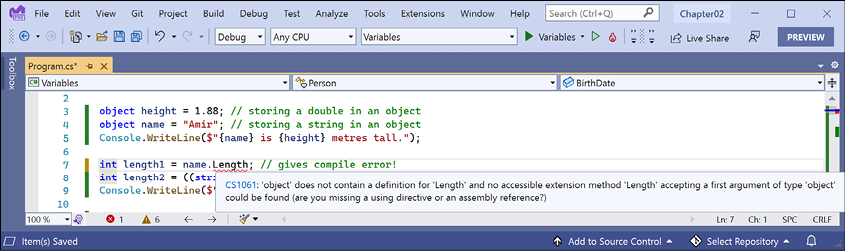
Figure 2.4: The object type does not have a Length property
- Add comment double slashes to the beginning of the statement that cannot compile to "comment out" the statement to make it inactive.
- Run the code again and note that the compiler can access the length of a
stringif the programmer explicitly tells the compiler that theobjectvariable contains astringby prefixing with a cast expression like(string), as shown in the following output:Amir is 1.88 metres tall. Amir has 4 characters.
The object type has been available since the first version of C#, but C# 2.0 and later have a better alternative called generics, which we will cover in Chapter 6, Implementing Interfaces and Inheriting Classes, which will provide us with the flexibility we want, but without the performance overhead.
Storing dynamic types
There is another special type named dynamic that can also store any type of data, but even more than object, its flexibility comes at the cost of performance. The dynamic keyword was introduced in C# 4.0. However, unlike object, the value stored in the variable can have its members invoked without an explicit cast. Let's make use of a dynamic type:
- Add statements to declare a
dynamicvariable and then assign astringliteral value, and then an integer value, and then an array of integer values, as shown in the following code:// storing a string in a dynamic object // string has a Length property dynamic something = "Ahmed"; // int does not have a Length property // something = 12; // an array of any type has a Length property // something = new[] { 3, 5, 7 }; - Add a statement to output the length of the
dynamicvariable, as shown in the following code:// this compiles but would throw an exception at run-time // if you later store a data type that does not have a // property named Length Console.WriteLine($"Length is {something.Length}"); - Run the code and note it works because a
stringvalue does have aLengthproperty, as shown in the following output:Length is 5 - Uncomment the statement that assigns an
intvalue. - Run the code and note the runtime error because
intdoes not have aLengthproperty, as shown in the following output:Unhandled exception. Microsoft.CSharp.RuntimeBinder.RuntimeBinderException: 'int' does not contain a definition for 'Length' - Uncomment the statement that assigns the array.
- Run the code and note the output because an array of three
intvalues does have aLengthproperty, as shown in the following output:Length is 3
One limitation of dynamic is that code editors cannot show IntelliSense to help you write the code. This is because the compiler cannot check what the type is during build time. Instead, the CLR checks for the member at runtime and throws an exception if it is missing.
Exceptions are a way to indicate that something has gone wrong at runtime. You will learn more about them and how to handle them in Chapter 3, Controlling Flow, Converting Types, and Handling Exceptions.
Declaring local variables
Local variables are declared inside methods, and they only exist during the execution of that method, and once the method returns, the memory allocated to any local variables is released.
Strictly speaking, value types are released while reference types must wait for a garbage collection. You will learn about the difference between value types and reference types in Chapter 6, Implementing Interfaces and Inheriting Classes.
Specifying the type of a local variable
Let's explore local variables declared with specific types and using type inference:
- Type statements to declare and assign values to some local variables using specific types, as shown in the following code:
int population = 66_000_000; // 66 million in UK
double weight = 1.88; // in kilograms
decimal price = 4.99M; // in pounds sterling
string fruit = "Apples"; // strings use double-quotes
char letter = 'Z'; // chars use single-quotes
bool happy = true; // Booleans have value of true or false
Depending on your code editor and color scheme, it will show green squiggles under each of the variable names and lighten their text color to warn you that the variable is assigned but its value is never used.
Inferring the type of a local variable
You can use the var keyword to declare local variables. The compiler will infer the type from the value that you assign after the assignment operator, =.
A literal number without a decimal point is inferred as an int variable, that is, unless you add a suffix, as described in the following list:
L: inferslongUL: infersulongM: infersdecimalD: infersdoubleF: infersfloat
A literal number with a decimal point is inferred as double unless you add the M suffix, in which case, it infers a decimal variable, or the F suffix, in which case, it infers a float variable.
Double quotes indicate a string variable, single quotes indicate a char variable, and the true and false values infer a bool type:
- Modify the previous statements to use
var, as shown in the following code:var population = 66_000_000; // 66 million in UK var weight = 1.88; // in kilograms var price = 4.99M; // in pounds sterling var fruit = "Apples"; // strings use double-quotes var letter = 'Z'; // chars use single-quotes var happy = true; // Booleans have value of true or false - Hover your mouse over each of the
varkeywords and note that your code editor shows a tooltip with information about the type that has been inferred. - At the top of the class file, import the namespace for working with XML to enable us to declare some variables using types in that namespace, as shown in the following code:
using System.Xml;Good Practice: If you are using .NET Interactive Notebooks, then add
usingstatements in a separate code cell above the code cell where you write the main code. Then click Execute Cell to ensure the namespaces are imported. They will then be available in subsequent code cells. - Under the previous statements, add statements to create some new objects, as shown in the following code:
// good use of var because it avoids the repeated type
// as shown in the more verbose second statement
var xml1 = new XmlDocument();
XmlDocument xml2 = new XmlDocument();
// bad use of var because we cannot tell the type, so we
// should use a specific type declaration as shown in
// the second statement
var file1 = File.CreateText("something1.txt");
StreamWriter file2 = File.CreateText("something2.txt");
Good Practice: Although using
varis convenient, some developers avoid using it, to make it easier for a code reader to understand the types in use. Personally, I use it only when the type is obvious. For example, in the preceding code statements, the first statement is just as clear as the second in stating what the type of thexmlvariables are, but it is shorter. However, the third statement isn't clear in showing the type of thefilevariable, so the fourth is better because it shows that the type isStreamWriter. If in doubt, spell it out!
Using target-typed new to instantiate objects
With C# 9, Microsoft introduced another syntax for instantiating objects known as target-typed new. When instantiating an object, you can specify the type first and then use new without repeating the type, as shown in the following code:
XmlDocument xml3 = new(); // target-typed new in C# 9 or later
If you have a type with a field or property that needs to be set, then the type can be inferred, as shown in the following code:
class Person
{
  public DateTime BirthDate;
}
Person kim = new();
kim.BirthDate = new(1967, 12, 26); // instead of: new DateTime(1967, 12, 26)
Good Practice: Use target-typed new to instantiate objects unless you must use a pre-version 9 C# compiler. I have used target-typed new throughout the rest of this book. Please let me know if you spot any cases that I missed!
Getting and setting the default values for types
Most of the primitive types except string are value types, which means that they must have a value. You can determine the default value of a type by using the default() operator and passing the type as a parameter. You can assign the default value of a type by using the default keyword.
The string type is a reference type. This means that string variables contain the memory address of a value, not the value itself. A reference type variable can have a null value, which is a literal that indicates that the variable does not reference anything (yet). null is the default for all reference types.
You'll learn more about value types and reference types in Chapter 6, Implementing Interfaces and Inheriting Classes.
Let's explore default values:
- Add statements to show the default values of an
int,bool,DateTime, andstring, as shown in the following code:Console.WriteLine($"default(int) = {default(int)}"); Console.WriteLine($"default(bool) = {default(bool)}"); Console.WriteLine($"default(DateTime) = {default(DateTime)}"); Console.WriteLine($"default(string) = {default(string)}"); - Run the code and view the result, noting that your output for the date and time might be formatted differently if you are not running it in the UK, and that
nullvalues output as an emptystring, as shown in the following output:default(int) = 0 default(bool) = False default(DateTime) = 01/01/0001 00:00:00 default(string) = - Add statements to declare a number, assign a value, and then reset it to its default value, as shown in the following code:
int number = 13; Console.WriteLine($"number has been set to: {number}"); number = default; Console.WriteLine($"number has been reset to its default: {number}"); - Run the code and view the result, as shown in the following output:
number has been set to: 13
number has been reset to its default: 0
Storing multiple values in an array
When you need to store multiple values of the same type, you can declare an array. For example, you may do this when you need to store four names in a string array.
The code that you will write next will allocate memory for an array for storing four string values. It will then store string values at index positions 0 to 3 (arrays usually have a lower bound of zero, so the index of the last item is one less than the length of the array).
Good Practice: Do not assume that all arrays count from zero. The most common type of array in .NET is an szArray, a single-dimension zero-indexed array, and these use the normal [] syntax. But .NET also has mdArray, a multi-dimensional array, and they do not have to have a lower bound of zero. These are rarely used but you should know they exist.
Finally, it will loop through each item in the array using a for statement, something that we will cover in more detail in Chapter 3, Controlling Flow, Converting Types, and Handling Exceptions.
Let's look at how to use an array:
- Type statements to declare and use an array of
stringvalues, as shown in the following code:string[] names; // can reference any size array of strings // allocating memory for four strings in an array names = new string[4]; // storing items at index positions names[0] = "Kate"; names[1] = "Jack"; names[2] = "Rebecca"; names[3] = "Tom"; // looping through the names for (int i = 0; i < names.Length; i++) { // output the item at index position i Console.WriteLine(names[i]); } - Run the code and note the result, as shown in the following output:
Kate
Jack
Rebecca
Tom
Arrays are always of a fixed size at the time of memory allocation, so you need to decide how many items you want to store before instantiating them.
An alternative to defining the array in three steps as above is to use array initializer syntax, as shown in the following code:
string[] names2 = new[] { "Kate", "Jack", "Rebecca", "Tom" };
When you use the new[] syntax to allocate memory for the array, you must have at least one item in the curly braces so that the compiler can infer the data type.
Arrays are useful for temporarily storing multiple items, but collections are a more flexible option when adding and removing items dynamically. You don't need to worry about collections right now, as we will cover them in Chapter 8, Working with Common .NET Types.
Exploring more about console applications
We have already created and used basic console applications, but we're now at a stage where we should delve into them more deeply.
Console applications are text-based and are run at the command line. They typically perform simple tasks that need to be scripted, such as compiling a file or encrypting a section of a configuration file.
Equally, they can also have arguments passed to them to control their behavior.
An example of this would be to create a new console app using the F# language with a specified name instead of using the name of the current folder, as shown in the following command line:
dotnet new console -lang "F#" --name "ExploringConsole"
Displaying output to the user
The two most common tasks that a console application performs are writing and reading data. We have already been using the WriteLine method to output, but if we didn't want a carriage return at the end of the lines, we could have used the Write method.
Formatting using numbered positional arguments
One way of generating formatted strings is to use numbered positional arguments.
This feature is supported by methods like Write and WriteLine, and for methods that do not support the feature, the string parameter can be formatted using the Format method of string.
The first few code examples in this section will work with a .NET Interactive notebook because they are about outputting to the console. Later in this section, you will learn about getting input via the console and sadly notebooks do not support this.
Let's begin formatting:
- Use your preferred code editor to add a new Console Application to the
Chapter02workspace/solution namedFormatting. - In Visual Studio Code, select
Formattingas the active OmniSharp project. - In
Program.cs, type statements to declare some number variables and write them to the console, as shown in the following code:int numberOfApples = 12; decimal pricePerApple = 0.35M; Console.WriteLine( format: "{0} apples costs {1:C}", arg0: numberOfApples, arg1: pricePerApple * numberOfApples); string formatted = string.Format( format: "{0} apples costs {1:C}", arg0: numberOfApples, arg1: pricePerApple * numberOfApples); //WriteToFile(formatted); // writes the string into a file
The WriteToFile method is a nonexistent method used to illustrate the idea.
Good Practice: Once you become more comfortable with formatting strings, you should stop naming the parameters, for example, stop using format:, arg0:, and arg1:. The preceding code uses a non-canonical style to show where the 0 and 1 came from while you are learning.
Formatting using interpolated strings
C# 6.0 and later have a handy feature named interpolated strings. A string prefixed with $ can use curly braces around the name of a variable or expression to output the current value of that variable or expression at that position in the string, as the following shows:
- Enter a statement at the bottom of the
Program.csfile, as shown in the following code:Console.WriteLine($"{numberOfApples} apples costs {pricePerApple * numberOfApples:C}"); - Run the code and view the result, as shown in the following partial output:
12 apples costs £4.20
For short, formatted string values, an interpolated string can be easier for people to read. But for code examples in a book, where lines need to wrap over multiple lines, this can be tricky. For many of the code examples in this book, I will use numbered positional arguments.
Another reason to avoid interpolated strings is that they can't be read from resource files to be localized.
Before C# 10, string constants could only be combined by using concatenation, as shown in the following code:
private const string firstname = "Omar";
private const string lastname = "Rudberg";
private const string fullname = firstname + " " + lastname;
With C# 10, interpolated strings can now be used, as shown in the following code:
private const string fullname = "{firstname} {lastname}";
This only works for combining string constant values. It cannot work with other types like numbers that would require runtime data type conversions.
Understanding format strings
A variable or expression can be formatted using a format string after a comma or colon.
An N0 format string means a number with a thousand separators and no decimal places, while a C format string means currency. The currency format will be determined by the current thread.
For instance, if you run this code on a PC in the UK, you'll get pounds sterling with commas as the thousand separators, but if you run this code on a PC in Germany, you will get euros with dots as the thousand separators.
The full syntax of a format item is:
{ index [, alignment ] [ : formatString ] }
Each format item can have an alignment, which is useful when outputting tables of values, some of which might need to be left- or right-aligned within a width of characters. Alignment values are integers. Positive integers mean right-aligned and negative integers mean left-aligned.
For example, to output a table of fruit and how many of each there are, we might want to left-align the names within a column of 10 characters and right-align the counts formatted as numbers with zero decimal places within a column of six characters:
- At the bottom of
Program.cs, enter the following statements:string applesText = "Apples"; int applesCount = 1234; string bananasText = "Bananas"; int bananasCount = 56789; Console.WriteLine( format: "{0,-10} {1,6:N0}", arg0: "Name", arg1: "Count"); Console.WriteLine( format: "{0,-10} {1,6:N0}", arg0: applesText, arg1: applesCount); Console.WriteLine( format: "{0,-10} {1,6:N0}", arg0: bananasText, arg1: bananasCount); - Run the code and note the effect of the alignment and number format, as shown in the following output:
Name          Count
Apples        1,234
Bananas      56,789
Getting text input from the user
We can get text input from the user using the ReadLine method. This method waits for the user to type some text, then as soon as the user presses Enter, whatever the user has typed is returned as a string value.
Good Practice: If you are using a .NET Interactive notebook for this section, then note that it does not support reading input from the console using Console.ReadLine(). Instead, you must set literal values, as shown in the following code: string? firstName = "Gary";. This is often quicker to experiment with because you can simply change the literal string value and click the Execute Cell button instead of having to restart a console app each time you want to enter a different string value.
Let's get input from the user:
- Type statements to ask the user for their name and age and then output what they entered, as shown in the following code:
Console.Write("Type your first name and press ENTER: "); string? firstName = Console.ReadLine(); Console.Write("Type your age and press ENTER: "); string? age = Console.ReadLine(); Console.WriteLine( $"Hello {firstName}, you look good for {age}."); - Run the code, and then enter a name and age, as shown in the following output:
Type your name and press ENTER: Gary
Type your age and press ENTER: 34
Hello Gary, you look good for 34.
The question marks at the end of the string? data type declaration indicate that we acknowledge that a null (empty) value could be returned from the call to ReadLine. You will learn more about this in Chapter 6, Implementing Interfaces and Inheriting Classes.
Simplifying the usage of the console
In C# 6.0 and later, the using statement can be used not only to import a namespace but also to further simplify our code by importing a static class. Then, we won't need to enter the Console type name throughout our code. You can use your code editor's find and replace feature to remove the times we have previously written Console:
- At the top of the
Program.csfile, add a statement to statically import theSystem.Consoleclass, as shown in the following code:using static System.Console; - Select the first
Console.in your code, ensuring that you select the dot after the wordConsoletoo. - In Visual Studio, navigate to Edit | Find and Replace | Quick Replace, or in Visual Studio Code, navigate to Edit | Replace, and note that an overlay dialog appears ready for you to enter what you would like to replace Console. with, as shown in Figure 2.5:
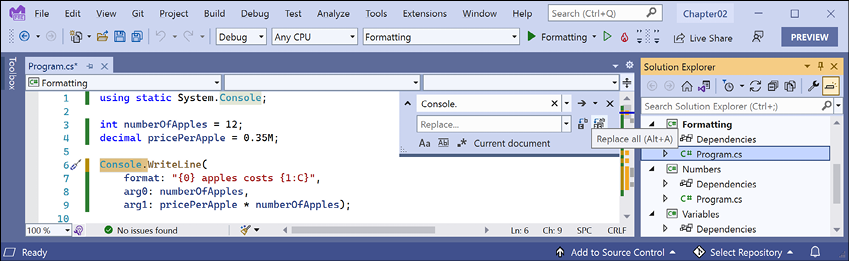
Figure 2.5: Using the Replace feature in Visual Studio to simplify your code
- Leave the replace box empty, click on the Replace all button (the second of the two buttons to the right of the replace box), and then close the replace box by clicking on the cross in its top-right corner.
Getting key input from the user
We can get key input from the user using the ReadKey method. This method waits for the user to press a key or key combination that is then returned as a ConsoleKeyInfo value.
You will not be able to execute the call to the ReadKey method using a .NET Interactive notebook, but if you have created a console application, then let's explore reading key presses:
- Type statements to ask the user to press any key combination and then output information about it, as shown in the following code:
Write("Press any key combination: "); ConsoleKeyInfo key = ReadKey(); WriteLine(); WriteLine("Key: {0}, Char: {1}, Modifiers: {2}", arg0: key.Key, arg1: key.KeyChar, arg2: key.Modifiers); - Run the code, press the K key, and note the result, as shown in the following output:
Press any key combination: k Key: K, Char: k, Modifiers: 0 - Run the code, hold down Shift and press the K key, and note the result, as shown in the following output:
Press any key combination: K Key: K, Char: K, Modifiers: Shift - Run the code, press the F12 key, and note the result, as shown in the following output:
Press any key combination:
Key: F12, Char: , Modifiers: 0
When running a console application in a terminal within Visual Studio Code, some keyboard combinations will be captured by the code editor or operating system before they can be processed by your app.
Passing arguments to a console app
You might have been wondering how to get any arguments that might be passed to a console application.
In every version of .NET prior to version 6.0, the console application project template made it obvious, as shown in the following code:
using System;
namespace Arguments
{
  class Program
  {
    static void Main(string[] args)
    {
      Console.WriteLine("Hello World!");
    }
  }
}
The string[] args arguments are declared and passed in the Main method of the Program class. They're an array used to pass arguments into a console application. But in top-level programs, as used by the console application project template in .NET 6.0 and later, the Program class and its Main method are hidden, along with the declaration of the args string array. The trick is that you must know it still exists.
Command-line arguments are separated by spaces. Other characters like hyphens and colons are treated as part of an argument value.
To include spaces in an argument value, enclose the argument value in single or double quotes.
Imagine that we want to be able to enter the names of some colors for the foreground and background, and the dimensions of the terminal window at the command line. We would be able to read the colors and numbers by reading them from the args array, which is always passed into the Main method aka the entry point of a console application:
- Use your preferred code editor to add a new Console Application to the
Chapter02workspace/solution namedArguments. You will not be able to use a .NET Interactive notebook because you cannot pass arguments to a notebook. - In Visual Studio Code, select
Argumentsas the active OmniSharp project. - Add a statement to statically import the
System.Consoletype and a statement to output the number of arguments passed to the application, as shown in the following code:using static System.Console; WriteLine($"There are {args.Length} arguments.");Good Practice: Remember to statically import the
System.Consoletype in all future projects to simplify your code, as these instructions will not be repeated every time. - Run the code and view the result, as shown in the following output:
There are 0 arguments. - If you are using Visual Studio, then navigate to Project | Arguments Properties, select the Debug tab, and in the Application arguments box, enter some arguments, save the changes, and then run the console application, as shown in Figure 2.6:
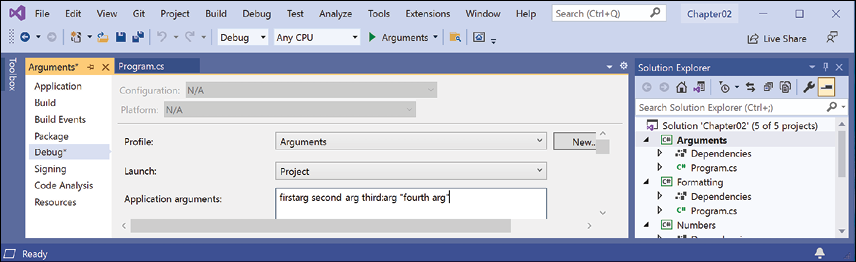
Figure 2.6: Entering application arguments in Visual Studio project properties
- If you are using Visual Studio Code, then in a terminal, enter some arguments after the
dotnet runcommand, as shown in the following command line:dotnet run firstarg second-arg third:arg "fourth arg" - Note the result indicates four arguments, as shown in the following output:
There are 4 arguments. - To enumerate or iterate (that is, loop through) the values of those four arguments, add the following statements after outputting the length of the array:
foreach (string arg in args) { WriteLine(arg); } - Run the code again and note the result shows the details of the four arguments, as shown in the following output:
There are 4 arguments.
firstarg
second-arg
third:arg
fourth arg
Setting options with arguments
We will now use these arguments to allow the user to pick a color for the background, foreground, and cursor size of the output window. The cursor size can be an integer value from 1, meaning a line at the bottom of the cursor cell, up to 100, meaning a percentage of the height of the cursor cell.
The System namespace is already imported so that the compiler knows about the ConsoleColor and Enum types:
- Add statements to warn the user if they do not enter three arguments and then parse those arguments and use them to set the color and dimensions of the console window, as shown in the following code:
if (args.Length < 3)
{
  WriteLine("You must specify two colors and cursor size, e.g.");
  WriteLine("dotnet run red yellow 50");
  return; // stop running
}
ForegroundColor = (ConsoleColor)Enum.Parse(
  enumType: typeof(ConsoleColor),
  value: args[0],
  ignoreCase: true);
BackgroundColor = (ConsoleColor)Enum.Parse(
  enumType: typeof(ConsoleColor),
  value: args[1],
  ignoreCase: true);
CursorSize = int.Parse(args[2]);
Setting the
CursorSizeis only supported on Windows. - In Visual Studio, navigate to Project | Arguments Properties, and change the arguments to:
red yellow 50, run the console app, and note the cursor is half the size and the colors have changed in the window, as shown in Figure 2.7: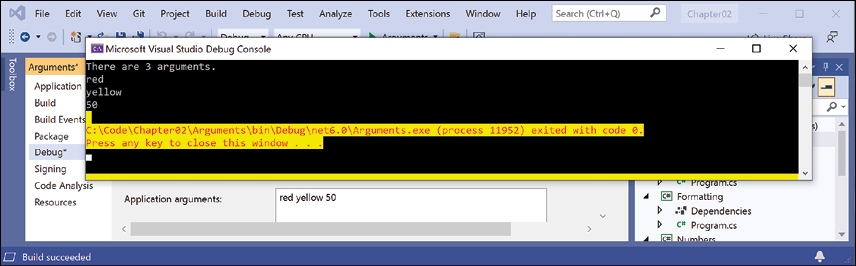
Figure 2.7: Setting colors and cursor size on Windows
- In Visual Studio Code, run the code with arguments to set the foreground color to red, the background color to yellow, and the cursor size to 50%, as shown in the following command:
dotnet run red yellow 50On macOS, you'll see an unhandled exception, as shown in Figure 2.8:
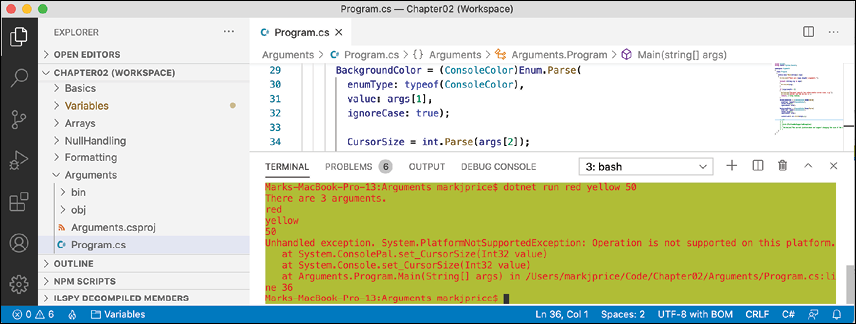
Figure 2.8: An unhandled exception on unsupported macOS
Although the compiler did not give an error or warning, at runtime some API calls may fail on some platforms. Although a console application running on Windows can change its cursor size, on macOS, it cannot, and complains if you try.
Handling platforms that do not support an API
So how do we solve this problem? We can solve this by using an exception handler. You will learn more details about the try-catch statement in Chapter 3, Controlling Flow, Converting Types, and Handling Exceptions, so for now, just enter the code:
- Modify the code to wrap the lines that change the cursor size in a
trystatement, as shown in the following code:try { CursorSize = int.Parse(args[2]); } catch (PlatformNotSupportedException) { WriteLine("The current platform does not support changing the size of the cursor."); } - If you were to run the code on macOS then you would see the exception is caught, and a friendlier message is shown to the user.
Another way to handle differences in operating systems is to use the OperatingSystem class in the System namespace, as shown in the following code:
if (OperatingSystem.IsWindows())
{
  // execute code that only works on Windows
}
else if (OperatingSystem.IsWindowsVersionAtLeast(major: 10))
{
  // execute code that only works on Windows 10 or later
}
else if (OperatingSystem.IsIOSVersionAtLeast(major: 14, minor: 5))
{
  // execute code that only works on iOS 14.5 or later
}
else if (OperatingSystem.IsBrowser())
{
  // execute code that only works in the browser with Blazor
}
The OperatingSystem class has equivalent methods for other common operating systems like Android, iOS, Linux, macOS, and even the browser, which is useful for Blazor web components.
A third way to handle different platforms is to use conditional compilation statements.
There are four preprocessor directives that control conditional compilation: #if, #elif, #else, and #endif.
You define symbols using #define, as shown in the following code:
#define MYSYMBOL
Many symbols are automatically defined for you, as shown in the following table:
|
Target Framework |
Symbols |
|
.NET Standard |
|
|
Modern .NET |
|
You can then write statements that will compile only for the specified platforms, as shown in the following code:
#if NET6_0_ANDROID
// compile statements that only works on Android
#elif NET6_0_IOS
// compile statements that only works on iOS
#else
// compile statements that work everywhere else
#endif
Practicing and exploring
Test your knowledge and understanding by answering some questions, get some hands-on practice, and explore the topics covered in this chapter with deeper research.
Exercise 2.1 – Test your knowledge
To get the best answer to some of these questions, you will need to do your own research. I want you to "think outside the book" so I have deliberately not provided all the answers in the book.
I want to encourage you to get in to the good habit of looking for help elsewhere, following the principle of "teach a person to fish."
- What statement can you type in a C# file to discover the compiler and language version?
- What are the two types of comments in C#?
- What is the difference between a verbatim string and an interpolated string?
- Why should you be careful when using
floatanddoublevalues? - How can you determine how many bytes a type like
doubleuses in memory? - When should you use the
varkeyword? - What is the newest way to create an instance of a class like
XmlDocument? - Why should you be careful when using the
dynamictype? - How do you right-align a format string?
- What character separates arguments for a console application?
Appendix, Answers to the Test Your Knowledge Questions is available to download from a link in the README on the GitHub repository: https://github.com/markjprice/cs10dotnet6.
Exercise 2.2 – Test your knowledge of number types
What type would you choose for the following "numbers"?
- A person's telephone number
- A person's height
- A person's age
- A person's salary
- A book's ISBN
- A book's price
- A book's shipping weight
- A country's population
- The number of stars in the universe
- The number of employees in each of the small or medium businesses in the United Kingdom (up to about 50,000 employees per business)
Exercise 2.3 – Practice number sizes and ranges
In the Chapter02 solution/workspace, create a console application project named Exercise02 that outputs the number of bytes in memory that each of the following number types uses and the minimum and maximum values they can have: sbyte, byte, short, ushort, int, uint, long, ulong, float, double, and decimal.
The result of running your console application should look something like Figure 2.9:
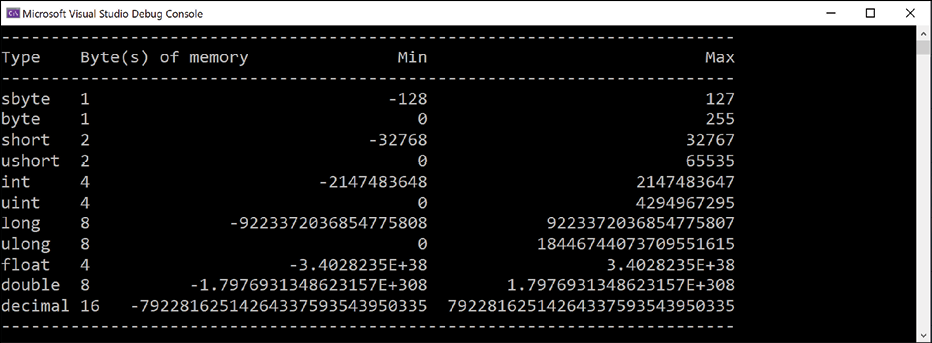
Figure 2.9: The result of outputting number type sizes
Code solutions for all exercises are available to download or clone from the GitHub repository at the following link: https://github.com/markjprice/cs10dotnet6.
Exercise 2.4 – Explore topics
Use the links on the following page to learn more detail about the topics covered in this chapter:
https://github.com/markjprice/cs10dotnet6/blob/main/book-links.md#chapter-2---speaking-c
Summary
In this chapter, you learned how to:
- Declare variables with a specified or an inferred type.
- Use some of the built-in types for numbers, text, and Booleans.
- Choose between number types.
- Control output formatting in console apps.
In the next chapter, you will learn about operators, branching, looping, converting between types, and how to handle exceptions.