01
Hello, C#! Welcome, .NET!
In this first chapter, the goals are setting up your development environment, understanding the similarities and differences between modern .NET, .NET Core, .NET Framework, Mono, Xamarin, and .NET Standard, creating the simplest application possible with C# 10 and .NET 6 using various code editors, and then discovering good places to look for help.
The GitHub repository for this book has solutions using full application projects for all code tasks and notebooks when possible:
https://github.com/markjprice/cs10dotnet6
Simply press the . (dot) key or change .com to .dev in the link above to change the GitHub repository into a live editor using Visual Studio Code for the Web, as shown in Figure 1.1:
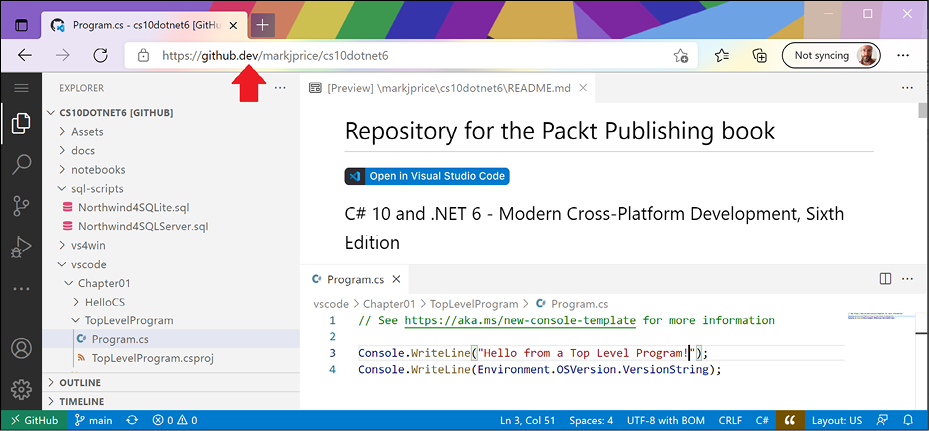
Figure 1.1: Visual Studio Code for the Web live editing the book's GitHub repository
This is great to run alongside your chosen code editor as you work through the book's coding tasks. You can compare your code to the solution code and easily copy and paste parts if needed.
Throughout this book, I use the term modern .NET to refer to .NET 6 and its predecessors like .NET 5 that come from .NET Core. I use the term legacy .NET to refer to .NET Framework, Mono, Xamarin, and .NET Standard. Modern .NET is a unification of those legacy platforms and standards.
After this first chapter, the book can be divided into three parts: first, the grammar and vocabulary of the C# language; second, the types available in .NET for building app features; and third, examples of common cross-platform apps you can build using C# and .NET.
Most people learn complex topics best by imitation and repetition rather than reading a detailed explanation of the theory; therefore, I will not overload you with detailed explanations of every step throughout this book. The idea is to get you to write some code and see it run.
You don't need to know all the nitty-gritty details immediately. That will be something that comes with time as you build your own apps and go beyond what any book can teach you.
In the words of Samuel Johnson, author of the English dictionary in 1755, I have committed "a few wild blunders, and risible absurdities, from which no work of such multiplicity is free." I take sole responsibility for these and hope you appreciate the challenge of my attempt to lash the wind by writing this book about rapidly evolving technologies like C# and .NET, and the apps that you can build with them.
This first chapter covers the following topics:
- Setting up your development environment
- Understanding .NET
- Building console apps using Visual Studio 2022
- Building console apps using Visual Studio Code
- Exploring code using .NET Interactive Notebooks
- Reviewing the folders and files for projects
- Making good use of the GitHub repository for this book
- Looking for help
Setting up your development environment
Before you start programming, you'll need a code editor for C#. Microsoft has a family of code editors and Integrated Development Environments (IDEs), which include:
- Visual Studio 2022 for Windows
- Visual Studio 2022 for Mac
- Visual Studio Code for Windows, Mac, or Linux
- GitHub Codespaces
Third parties have created their own C# code editors, for example, JetBrains Rider.
Choosing the appropriate tool and application type for learning
What is the best tool and application type for learning C# and .NET?
When learning, the best tool is one that helps you write code and configuration but does not hide what is really happening. IDEs provide graphical user interfaces that are friendly to use, but what are they doing for you underneath? A more basic code editor that is closer to the action while providing help to write your code is better while you are learning.
Having said that, you can make the argument that the best tool is the one you are already familiar with or that you or your team will use as your daily development tool. For that reason, I want you to be free to choose any C# code editor or IDE to complete the coding tasks in this book, including Visual Studio Code, Visual Studio for Windows, Visual Studio for Mac, or even JetBrains Rider.
In the third edition of this book, I gave detailed step-by-step instructions for both Visual Studio for Windows and Visual Studio Code for all coding tasks. Unfortunately, that got messy and confusing quickly. In this sixth edition, I give detailed step-by-step instructions for how to create multiple projects in both Visual Studio 2022 for Windows and Visual Studio Code only in Chapter 1. After that, I give names of projects and general instructions that work with all tools so you can use whichever tool you prefer.
The best application type for learning the C# language constructs and many of the .NET libraries is one that does not distract with unnecessary application code. For example, there is no need to create an entire Windows desktop application or a website just to learn how to write a switch statement.
For that reason, I believe the best method for learning the C# and .NET topics in Chapters 1 to 12 is to build console applications. Then, in Chapter 13 to 19 onward, you will build websites, services, and graphical desktop and mobile apps.
Pros and cons of the .NET Interactive Notebooks extension
Another benefit of Visual Studio Code is the .NET Interactive Notebooks extension. This extension provides an easy and safe place to write simple code snippets. It enables you to create a single notebook file that mixes "cells" of Markdown (richly formatted text) and code using C# and other related languages, such as PowerShell, F#, and SQL (for databases).
However, .NET Interactive Notebooks does have some limitations:
- They cannot read input from the user, for example, you cannot use
ReadLineorReadKey. - They cannot have arguments passed to them.
- They do not allow you to define your own namespaces.
- They do not have any debugging tools (but these are coming in the future).
Using Visual Studio Code for cross-platform development
The most modern and lightweight code editor to choose from, and the only one from Microsoft that is cross-platform, is Microsoft Visual Studio Code. It can run on all common operating systems, including Windows, macOS, and many varieties of Linux, including Red Hat Enterprise Linux (RHEL) and Ubuntu.
Visual Studio Code is a good choice for modern cross-platform development because it has an extensive and growing set of extensions to support many languages beyond C#.
Being cross-platform and lightweight, it can be installed on all platforms that your apps will be deployed to for quick bug fixes and so on. Choosing Visual Studio Code means a developer can use a cross-platform code editor to develop cross-platform apps.
Visual Studio Code has strong support for web development, although it currently has weak support for mobile and desktop development.
Visual Studio Code is supported on ARM processors so that you can develop on Apple Silicon computers and Raspberry Pi.
Visual Studio Code is by far the most popular integrated development environment, with over 70% of professional developers selecting it in the Stack Overflow 2021 survey.
Using GitHub Codespaces for development in the cloud
GitHub Codespaces is a fully configured development environment based on Visual Studio Code that can be spun up in an environment hosted in the cloud and accessed through any web browser. It supports Git repos, extensions, and a built-in command-line interface so you can edit, run, and test from any device.
Using Visual Studio for Mac for general development
Microsoft Visual Studio 2022 for Mac can create most types of applications, including console apps, websites, web services, desktop, and mobile apps.
To compile apps for Apple operating systems like iOS to run on devices like the iPhone and iPad, you must have Xcode, which only runs on macOS.
Using Visual Studio for Windows for general development
Microsoft Visual Studio 2022 for Windows can create most types of applications, including console apps, websites, web services, desktop, and mobile apps. Although you can use Visual Studio 2022 for Windows with its Xamarin extensions to write a cross-platform mobile app, you still need macOS and Xcode to compile it.
It only runs on Windows, version 7 SP1 or later. You must run it on Windows 10 or Windows 11 to create Universal Windows Platform (UWP) apps that are installed from the Microsoft Store and run in a sandbox to protect your computer.
What I used
To write and test the code for this book, I used the following hardware:
- HP Spectre (Intel) laptop
- Apple Silicon Mac mini (M1) desktop
- Raspberry Pi 400 (ARM v8) desktop
And I used the following software:
- Visual Studio Code on:
- macOS on an Apple Silicon Mac mini (M1) desktop
- Windows 10 on an HP Spectre (Intel) laptop
- Ubuntu 64 on a Raspberry Pi 400
- Visual Studio 2022 for Windows on:
- Windows 10 on an HP Spectre (Intel) laptop
- Visual Studio 2022 for Mac on:
- macOS on an Apple Silicon Mac mini (M1) desktop
I hope that you have access to a variety of hardware and software too, because seeing the differences in platforms deepens your understanding of development challenges, although any one of the above combinations is enough to learn the fundamentals of C# and .NET and how to build practical apps and websites.
More Information: You can learn how to write code with C# and .NET using a Raspberry Pi 400 with Ubuntu Desktop 64-bit by reading an extra article that I wrote at the following link: https://github.com/markjprice/cs9dotnet5-extras/blob/main/raspberry-pi-ubuntu64/README.md.
Deploying cross-platform
Your choice of code editor and operating system for development does not limit where your code gets deployed.
.NET 6 supports the following platforms for deployment:
- Windows: Windows 7 SP1, or later. Windows 10 version 1607, or later, including Windows 11. Windows Server 2012 R2 SP1, or later. Nano Server version 1809, or later.
- Mac: macOS Mojave (version 10.14), or later.
- Linux: Alpine Linux 3.13, or later. CentOS 7, or later. Debian 10, or later. Fedora 32, or later. openSUSE 15, or later. Red Hat Enterprise Linux (RHEL) 7, or later. SUSE Enterprise Linux 12 SP2, or later. Ubuntu 16.04, 18.04, 20.04, or later.
- Android: API 21, or later.
- iOS: 10, or later.
Windows ARM64 support in .NET 5 and later means you can develop on, and deploy to, Windows ARM devices like Microsoft Surface Pro X. But developing on an Apple M1 Mac using Parallels and a Windows 10 ARM virtual machine is apparently twice as fast!
Downloading and installing Visual Studio 2022 for Windows
Many professional Microsoft developers use Visual Studio 2022 for Windows in their day-to-day development work. Even if you choose to use Visual Studio Code to complete the coding tasks in this book, you might want to familiarize yourself with Visual Studio 2022 for Windows too.
If you do not have a Windows computer, then you can skip this section and continue to the next section where you will download and install Visual Studio Code on macOS or Linux.
Since October 2014, Microsoft has made a professional quality edition of Visual Studio for Windows available to students, open source contributors, and individuals for free. It is called Community Edition. Any of the editions are suitable for this book. If you have not already installed it, let's do so now:
- Download Microsoft Visual Studio 2022 version 17.0 or later for Windows from the following link: https://visualstudio.microsoft.com/downloads/.
- Start the installer.
- On the Workloads tab, select the following:
- ASP.NET and web development
- Azure development
- .NET desktop development
- Desktop development with C++
- Universal Windows Platform development
- Mobile development with .NET
- On the Individual components tab, in the Code tools section, select the following:
- Class Designer
- Git for Windows
- PreEmptive Protection - Dotfuscator
- Click Install and wait for the installer to acquire the selected software and install it.
- When the installation is complete, click Launch.
- The first time that you run Visual Studio, you will be prompted to sign in. If you have a Microsoft account, you can use that account. If you don't, then register for a new one at the following link: https://signup.live.com/.
- The first time that you run Visual Studio, you will be prompted to configure your environment. For Development Settings, choose Visual C#. For the color theme, I chose Blue, but you can choose whatever tickles your fancy.
- If you want to customize your keyboard shortcuts, navigate to Tools | Options…, and then select the Keyboard section.
Microsoft Visual Studio for Windows keyboard shortcuts
In this book, I will avoid showing keyboard shortcuts since they are often customized. Where they are consistent across code editors and commonly used, I will try to show them. If you want to identify and customize your keyboard shortcuts, then you can, as shown at the following link: https://docs.microsoft.com/en-us/visualstudio/ide/identifying-and-customizing-keyboard-shortcuts-in-visual-studio.
Downloading and installing Visual Studio Code
Visual Studio Code has rapidly improved over the past couple of years and has pleasantly surprised Microsoft with its popularity. If you are brave and like to live on the bleeding edge, then there is an Insiders edition, which is a daily build of the next version.
Even if you plan to only use Visual Studio 2022 for Windows for development, I recommend that you download and install Visual Studio Code and try the coding tasks in this chapter using it, and then decide if you want to stick with just using Visual Studio 2022 for the rest of the book.
Let's now download and install Visual Studio Code, the .NET SDK, and the C# and .NET Interactive Notebooks extensions:
- Download and install either the Stable build or the Insiders edition of Visual Studio Code from the following link: https://code.visualstudio.com/.
More Information: If you need more help installing Visual Studio Code, you can read the official setup guide at the following link: https://code.visualstudio.com/docs/setup/setup-overview.
- Download and install the .NET SDKs for versions 3.1, 5.0, and 6.0 from the following link: https://www.microsoft.com/net/download.
To fully learn how to control .NET SDKs, we need multiple versions installed. .NET Core 3.1, .NET 5.0, and .NET 6.0 are the three currently supported versions. You can safely install multiple ones side by side. You will learn how to target the one you want throughout this book.
- To install the C# extension, you must first launch the Visual Studio Code application.
- In Visual Studio Code, click the Extensions icon or navigate to View | Extensions.
- C# is one of the most popular extensions available, so you should see it at the top of the list, or you can enter
C#in the search box. - Click Install and wait for supporting packages to download and install.
- Enter
.NET Interactivein the search box to find the .NET Interactive Notebooks extension. - Click Install and wait for it to install.
Installing other extensions
In later chapters of this book, you will use more extensions. If you want to install them now, all the extensions that we will use are shown in the following table:
|
Extension name and identifier |
Description |
|
C# for Visual Studio Code (powered by OmniSharp)
|
C# editing support, including syntax highlighting, IntelliSense, Go to Definition, Find All References, debugging support for .NET, and support for |
|
.NET Interactive Notebooks
|
This extension adds support for using .NET Interactive in a Visual Studio Code notebook. It has a dependency on the Jupyter extension ( |
|
MSBuild project tools
|
Provides IntelliSense for MSBuild project files, including autocomplete for |
|
REST Client
|
Send an HTTP request and view the response directly in Visual Studio Code. |
|
ILSpy .NET Decompiler
|
Decompile MSIL assemblies – support for modern .NET, .NET Framework, .NET Core, and .NET Standard. |
|
Azure Functions for Visual Studio Code
|
Create, debug, manage, and deploy serverless apps directly from VS Code. It has dependencies on Azure Account ( |
|
GitHub Repositories
|
Browse, search, edit, and commit to any remote GitHub repository directly from within Visual Studio Code. |
|
SQL Server (mssql) for Visual Studio Code
|
For developing Microsoft SQL Server, Azure SQL Database, and SQL Data Warehouse everywhere with a rich set of functionalities. |
|
Protobuf 3 support for Visual Studio Code
|
Syntax highlighting, syntax validation, code snippets, code completion, code formatting, brace matching, and line and block commenting. |
Understanding Microsoft Visual Studio Code versions
Microsoft releases a new feature version of Visual Studio Code (almost) every month and bug fix versions more frequently. For example:
- Version 1.59, August 2021 feature release
- Version 1.59.1, August 2021 bug fix release
The version used in this book is 1.59, but the version of Microsoft Visual Studio Code is less important than the version of the C# for Visual Studio Code extension that you installed.
While the C# extension is not required, it provides IntelliSense as you type, code navigation, and debugging features, so it's something that's very handy to install and keep updated to support the latest C# language features.
Microsoft Visual Studio Code keyboard shortcuts
In this book, I will avoid showing keyboard shortcuts used for tasks like creating a new file since they are often different on different operating systems. The situations where I will show keyboard shortcuts are when you need to repeatedly press the key, for example, while debugging. These are also more likely to be consistent across operating systems.
If you want to customize your keyboard shortcuts for Visual Studio Code, then you can, as shown at the following link: https://code.visualstudio.com/docs/getstarted/keybindings.
I recommend that you download a PDF of keyboard shortcuts for your operating system from the following list:
- Windows: https://code.visualstudio.com/shortcuts/keyboard-shortcuts-windows.pdf
- macOS: https://code.visualstudio.com/shortcuts/keyboard-shortcuts-macos.pdf
- Linux: https://code.visualstudio.com/shortcuts/keyboard-shortcuts-linux.pdf
Understanding .NET
.NET 6, .NET Core, .NET Framework, and Xamarin are related and overlapping platforms for developers used to build applications and services. In this section, I'm going to introduce you to each of these .NET concepts.
Understanding .NET Framework
.NET Framework is a development platform that includes a Common Language Runtime (CLR), which manages the execution of code, and a Base Class Library (BCL), which provides a rich library of classes to build applications from.
Microsoft originally designed .NET Framework to have the possibility of being cross-platform, but Microsoft put their implementation effort into making it work best with Windows.
Since .NET Framework 4.5.2, it has been an official component of the Windows operating system. Components have the same support as their parent products, so 4.5.2 and later follow the life cycle policy of the Windows OS on which it is installed. .NET Framework is installed on over one billion computers, so it must change as little as possible. Even bug fixes can cause problems, so it is updated infrequently.
For .NET Framework 4.0 or later, all of the apps on a computer written for .NET Framework share the same version of the CLR and libraries stored in the Global Assembly Cache (GAC), which can lead to issues if some of them need a specific version for compatibility.
Good Practice: Practically speaking, .NET Framework is Windows-only and a legacy platform. Do not create new apps using it.
Understanding the Mono, Xamarin, and Unity projects
Third parties developed a .NET Framework implementation named the Mono project. Mono is cross-platform, but it fell well behind the official implementation of .NET Framework.
Mono has found a niche as the foundation of the Xamarin mobile platform as well as cross-platform game development platforms like Unity.
Microsoft purchased Xamarin in 2016 and now gives away what used to be an expensive Xamarin extension for free with Visual Studio. Microsoft renamed the Xamarin Studio development tool, which could only create mobile apps, to Visual Studio for Mac and gave it the ability to create other types of projects like console apps and web services. With Visual Studio 2022 for Mac, Microsoft has replaced parts of the Xamarin Studio editor with parts from Visual Studio 2022 for Windows to provide closer parity of experience and performance. Visual Studio 2022 for Mac was also rewritten to be a truly native macOS UI app to improve reliability and work with macOS's built-in assistive technologies.
Understanding .NET Core
Today, we live in a truly cross-platform world where modern mobile and cloud development have made Windows, as an operating system, much less important. Because of that, Microsoft has been working on an effort to decouple .NET from its close ties with Windows. While rewriting .NET Framework to be truly cross-platform, they've taken the opportunity to refactor and remove major parts that are no longer considered core.
This new product was branded .NET Core and includes a cross-platform implementation of the CLR known as CoreCLR and a streamlined BCL known as CoreFX.
Scott Hunter, Microsoft Partner Director Program Manager for .NET, has said that "Forty percent of our .NET Core customers are brand-new developers to the platform, which is what we want with .NET Core. We want to bring new people in."
.NET Core is fast-moving, and because it can be deployed side by side with an app, it can change frequently, knowing those changes will not affect other .NET Core apps on the same machine. Most improvements that Microsoft makes to .NET Core and modern .NET cannot be easily added to .NET Framework.
Understanding the journey to one .NET
At the Microsoft Build developer conference in May 2020, the .NET team announced that their plans for the unification of .NET had been delayed. They said that .NET 5 would be released on November 10, 2020, and it would unify all the various .NET platforms except mobile. It would not be until .NET 6 in November 2021 that mobile will also be supported by the unified .NET platform.
.NET Core has been renamed .NET and the major version number has skipped the number four to avoid confusion with .NET Framework 4.x. Microsoft plans on annual major version releases every November, rather like Apple does major version number releases of iOS every September.
The following table shows when the key versions of modern .NET were released, when future releases are planned, and which version is used by the various editions of this book:
|
Version |
Released |
Edition |
Published |
|
.NET Core RC1 |
November 2015 |
First |
March 2016 |
|
.NET Core 1.0 |
June 2016 |
||
|
.NET Core 1.1 |
November 2016 |
||
|
.NET Core 1.0.4 and .NET Core 1.1.1 |
March 2017 |
Second |
March 2017 |
|
.NET Core 2.0 |
August 2017 |
||
|
.NET Core for UWP in Windows 10 Fall Creators Update |
October 2017 |
Third |
November 2017 |
|
.NET Core 2.1 (LTS) |
May 2018 |
||
|
.NET Core 2.2 (Current) |
December 2018 |
||
|
.NET Core 3.0 (Current) |
September 2019 |
Fourth |
October 2019 |
|
.NET Core 3.1 (LTS) |
December 2019 |
||
|
Blazor WebAssembly 3.2 (Current) |
May 2020 |
||
|
.NET 5.0 (Current) |
November 2020 |
Fifth |
November 2020 |
|
.NET 6.0 (LTS) |
November 2021 |
Sixth |
November 2021 |
|
.NET 7.0 (Current) |
November 2022 |
Seventh |
November 2022 |
|
.NET 8.0 (LTS) |
November 2023 |
Eighth |
November 2023 |
.NET Core 3.1 included Blazor Server for building web components. Microsoft had also planned to include Blazor WebAssembly in that release, but it was delayed. Blazor WebAssembly was later released as an optional add-on for .NET Core 3.1. I include it in the table above because it was versioned as 3.2 to exclude it from the LTS of .NET Core 3.1.
Understanding .NET support
.NET versions are either Long Term Support (LTS) or Current, as described in the following list:
- LTS releases are stable and require fewer updates over their lifetime. These are a good choice for applications that you do not intend to update frequently. LTS releases will be supported for 3 years after general availability, or 1 year after the next LTS release ships, whichever is longer.
- Current releases include features that may change based on feedback. These are a good choice for applications that you are actively developing because they provide access to the latest improvements. After a 6-month maintenance period, or 18 months after general availability, the previous minor version will no longer be supported.
Both receive critical fixes throughout their lifetime for security and reliability. You must stay up to date with the latest patches to get support. For example, if a system is running 1.0 and 1.0.1 has been released, 1.0.1 will need to be installed to get support.
To better understand your choices of Current and LTS releases, it is helpful to see it visually, with 3-year-long black bars for LTS releases, and variable-length gray bars for Current releases that end with cross-hatching for the 6 months after a new major or minor release that they retain support for, as shown in Figure 1.2:

Figure 1.2: Support for various versions
For example, if you had created a project using .NET Core 3.0, then when Microsoft released .NET Core 3.1 in December 2019, you had to upgrade your project to .NET Core 3.1 by March 2020. (Before .NET 5, the maintenance period for Current releases was only three months.)
If you need long-term support from Microsoft, then choose .NET 6.0 today and stick with it until .NET 8.0, even once Microsoft releases .NET 7.0. This is because .NET 7.0 will be a current release and it will therefore lose support before .NET 6.0 does. Just remember that even with LTS releases you must upgrade to bug fix releases like 6.0.1.
All versions of .NET Core and modern .NET have reached their end of life except those shown in the following list:
- .NET 5.0 will reach end of life in May 2022.
- .NET Core 3.1 will reach end of life on December 3, 2022.
- .NET 6.0 will reach end of life in November 2024.
Understanding .NET Runtime and .NET SDK versions
.NET Runtime versioning follows semantic versioning, that is, a major increment indicates breaking changes, minor increments indicate new features, and patch increments indicate bug fixes.
.NET SDK versioning does not follow semantic versioning. The major and minor version numbers are tied to the runtime version it is matched with. The patch number follows a convention that indicates the major and minor versions of the SDK.
You can see an example of this in the following table:
|
Change |
Runtime |
SDK |
|
Initial release |
6.0.0 |
6.0.100 |
|
SDK bug fix |
6.0.0 |
6.0.101 |
|
Runtime and SDK bug fix |
6.0.1 |
6.0.102 |
|
SDK new feature |
6.0.1 |
6.0.200 |
Removing old versions of .NET
.NET Runtime updates are compatible with a major version such as 6.x, and updated releases of the .NET SDK maintain the ability to build applications that target previous versions of the runtime, which enables the safe removal of older versions.
You can see which SDKs and runtimes are currently installed using the following commands:
dotnet --list-sdksdotnet --list-runtimes
On Windows, use the App & features section to remove .NET SDKs. On macOS or Windows, use the dotnet-core-uninstall tool. This tool is not installed by default.
For example, while writing the fourth edition, I used the following command every month:
dotnet-core-uninstall remove --all-previews-but-latest --sdk
What is different about modern .NET?
Modern .NET is modularized compared to the legacy .NET Framework, which is monolithic. It is open source and Microsoft makes decisions about improvements and changes in the open. Microsoft has put particular effort into improving the performance of modern .NET.
It is smaller than the last version of .NET Framework due to the removal of legacy and non-cross-platform technologies. For example, workloads such as Windows Forms and Windows Presentation Foundation (WPF) can be used to build graphical user interface (GUI) applications, but they are tightly bound to the Windows ecosystem, so they are not included with .NET on macOS and Linux.
Windows development
One of the features of modern .NET is support for running old Windows Forms and WPF applications using the Windows Desktop Pack that is included with the Windows version of .NET Core 3.1 or later, which is why it is bigger than the SDKs for macOS and Linux. You can make some small changes to your legacy Windows app if necessary, and then rebuild it for .NET 6 to take advantage of new features and performance improvements.
Web development
ASP.NET Web Forms and Windows Communication Foundation (WCF) are old web application and service technologies that fewer developers are choosing to use for new development projects today, so they have also been removed from modern .NET. Instead, developers prefer to use ASP.NET MVC, ASP.NET Web API, SignalR, and gRPC. These technologies have been refactored and combined into a platform that runs on modern .NET, named ASP.NET Core. You'll learn about the technologies in Chapter 14, Building Websites Using ASP.NET Core Razor Pages, Chapter 15, Building Websites Using the Model-View-Controller Pattern, Chapter 16, Building and Consuming Web Services, and Chapter 18, Building and Consuming Specialized Services.
More Information: Some .NET Framework developers are upset that ASP.NET Web Forms, WCF, and Windows Workflow (WF) are missing from modern .NET and would like Microsoft to change their minds. There are open source projects to enable WCF and WF to migrate to modern .NET. You can read more at the following link: https://devblogs.microsoft.com/dotnet/supporting-the-community-with-wf-and-wcf-oss-projects/. There is an open source project for Blazor Web Forms components at the following link: https://github.com/FritzAndFriends/BlazorWebFormsComponents.
Database development
Entity Framework (EF) 6 is an object-relational mapping technology that is designed to work with data that is stored in relational databases such as Oracle and Microsoft SQL Server. It has gained baggage over the years, so the cross-platform API has been slimmed down, has been given support for non-relational databases like Microsoft Azure Cosmos DB, and has been renamed Entity Framework Core. You will learn about it in Chapter 10, Working with Data Using Entity Framework Core.
If you have existing apps that use the old EF, then version 6.3 is supported on .NET Core 3.0 or later.
Themes of modern .NET
Microsoft has created a website using Blazor that shows the major themes of modern .NET: https://themesof.net/.
Understanding .NET Standard
The situation with .NET in 2019 was that there were three forked .NET platforms controlled by Microsoft, as shown in the following list:
- .NET Core: For cross-platform and new apps
- .NET Framework: For legacy apps
- Xamarin: For mobile apps
Each had strengths and weaknesses because they were all designed for different scenarios. This led to the problem that a developer had to learn three platforms, each with annoying quirks and limitations.
Because of that, Microsoft defined .NET Standard – a specification for a set of APIs that all .NET platforms could implement to indicate what level of compatibility they have. For example, basic support is indicated by a platform being compliant with .NET Standard 1.4.
With .NET Standard 2.0 and later, Microsoft made all three platforms converge on a modern minimum standard, which made it much easier for developers to share code between any flavor of .NET.
For .NET Core 2.0 and later, this added most of the missing APIs that developers need to port old code written for .NET Framework to the cross-platform .NET Core. However, some APIs are implemented but throw an exception to indicate to a developer that they should not actually be used! This is usually due to differences in the operating system on which you run .NET. You'll learn how to handle these exceptions in Chapter 2, Speaking C#.
It is important to understand that .NET Standard is just a standard. You are not able to install .NET Standard in the same way that you cannot install HTML5. To use HTML5, you must install a web browser that implements the HTML5 standard.
To use .NET Standard, you must install a .NET platform that implements the .NET Standard specification. The last .NET Standard, version 2.1, is implemented by .NET Core 3.0, Mono, and Xamarin. Some features of C# 8.0 require .NET Standard 2.1. .NET Standard 2.1 is not implemented by .NET Framework 4.8, so we should treat .NET Framework as legacy.
With the release of .NET 6 in November 2021, the need for .NET Standard has reduced significantly because there is now a single .NET for all platforms, including mobile. .NET 6 has a single BCL and two CLRs: CoreCLR is optimized for server or desktop scenarios like websites and Windows desktop apps, and the Mono runtime is optimized for mobile and web browser apps that have limited resources.
Even now, apps and websites created for .NET Framework will need to be supported, so it is important to understand that you can create .NET Standard 2.0 class libraries that are backward compatible with legacy .NET platforms.
.NET platforms and tools used by the book editions
For the first edition of this book, which was written in March 2016, I focused on .NET Core functionality but used .NET Framework when important or useful features had not yet been implemented in .NET Core because that was before the final release of .NET Core 1.0. Visual Studio 2015 was used for most examples, with Visual Studio Code shown only briefly.
The second edition was (almost) completely purged of all .NET Framework code examples so that readers were able to focus on .NET Core examples that truly run cross-platform.
The third edition completed the switch. It was rewritten so that all of the code was pure .NET Core. But giving step-by-step instructions for both Visual Studio Code and Visual Studio 2017 for all tasks added complexity.
The fourth edition continued the trend by only showing coding examples using Visual Studio Code for all but the last two chapters. In Chapter 20, Building Windows Desktop Apps, it used Visual Studio running on Windows 10, and in Chapter 21, Building Cross-Platform Mobile Apps, it used Visual Studio for Mac.
In the fifth edition, Chapter 20, Building Windows Desktop Apps, was moved to Appendix B to make space for a new Chapter 20, Building Web User Interfaces Using Blazor. Blazor projects can be created using Visual Studio Code.
In this sixth edition, Chapter 19, Building Mobile and Desktop Apps Using .NET MAUI, was updated to show how mobile and desktop cross-platform apps can be created using Visual Studio 2022 and .NET MAUI (Multi-platform App UI).
By the seventh edition and the release of .NET 7, Visual Studio Code will have an extension to support .NET MAUI. At that point, readers will be able to use Visual Studio Code for all examples in the book.
Understanding intermediate language
The C# compiler (named Roslyn) used by the dotnet CLI tool converts your C# source code into intermediate language (IL) code and stores the IL in an assembly (a DLL or EXE file). IL code statements are like assembly language instructions, which are executed by .NET's virtual machine, known as CoreCLR.
At runtime, CoreCLR loads the IL code from the assembly, the just-in-time (JIT) compiler compiles it into native CPU instructions, and then it is executed by the CPU on your machine.
The benefit of this two-step compilation process is that Microsoft can create CLRs for Linux and macOS, as well as for Windows. The same IL code runs everywhere because of the second compilation step, which generates code for the native operating system and CPU instruction set.
Regardless of which language the source code is written in, for example, C#, Visual Basic, or F#, all .NET applications use IL code for their instructions stored in an assembly. Microsoft and others provide disassembler tools that can open an assembly and reveal this IL code, such as the ILSpy .NET Decompiler extension.
Comparing .NET technologies
We can summarize and compare .NET technologies today, as shown in the following table:
|
Technology |
Description |
Host operating systems |
|
Modern .NET |
A modern feature set, full C# 8, 9, and 10 support, used to port existing apps or create new desktop, mobile, and web apps and services |
Windows, macOS, Linux, Android, iOS |
|
.NET Framework |
A legacy feature set, limited C# 8 support, no C# 9 or 10 support, used to maintain existing applications only |
Windows only |
|
Xamarin |
Mobile and desktop apps only |
Android, iOS, macOS |
Building console apps using Visual Studio 2022
The goal of this section is to showcase how to build a console app using Visual Studio 2022 for Windows.
If you do not have a Windows computer or you want to use Visual Studio Code, then you can skip this section since the code will be the same, just the tooling experience is different.
Managing multiple projects using Visual Studio 2022
Visual Studio 2022 has a concept named a solution that allows you to open and manage multiple projects simultaneously. We will use a solution to manage the two projects that you will create in this chapter.
Writing code using Visual Studio 2022
Let's get started writing code!
- Start Visual Studio 2022.
- In the Start window, click Create a new project.
- In the Create a new project dialog, enter
consolein the Search for templates box, and select Console Application, making sure that you have chosen the C# project template rather than another language, such as F# or Visual Basic, as shown in Figure 1.3: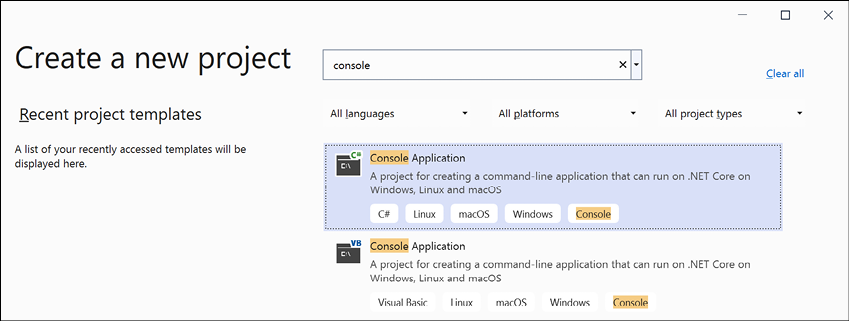
Figure 1.3: Selecting the Console Application project template
- Click Next.
- In the Configure your new project dialog, enter
HelloCSfor the project name, enterC:\Codefor the location, and enterChapter01for the solution name, as shown in Figure 1.4: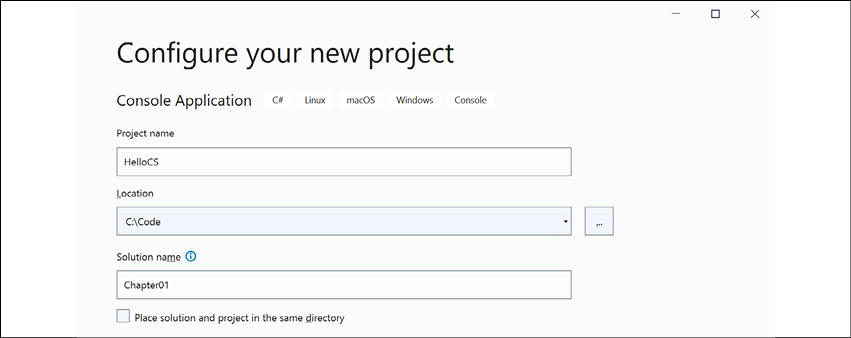
Figure 1.4: Configuring names and locations for your new project
- Click Next.
We are deliberately going to use the older project template for .NET 5.0 to see what a full console application looks like. In the next section, you will create a console application using .NET 6.0 and see what has changed.
- In the Additional information dialog, in the Target Framework drop-down list, note the choices of Current and long-term support versions of .NET, and then select .NET 5.0 (Current) and click Create.
- In Solution Explorer, double-click to open the file named
Program.cs, and note that Solution Explorer shows the HelloCS project, as shown in Figure 1.5: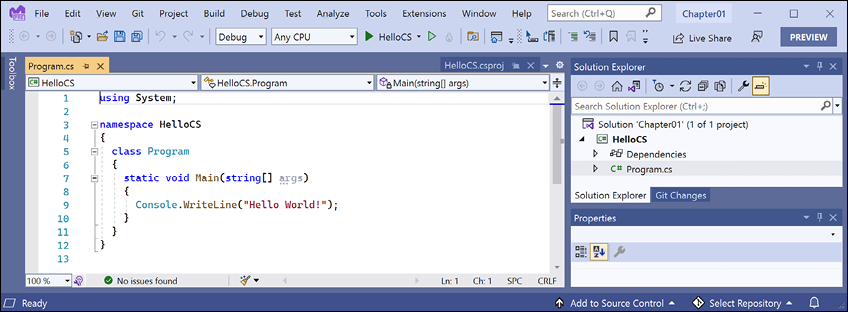
Figure 1.5: Editing Program.cs in Visual Studio 2022
- In
Program.cs, modify line 9 so that the text that is being written to the console saysHello, C#!
Compiling and running code using Visual Studio
The next task is to compile and run the code.
- In Visual Studio, navigate to Debug | Start Without Debugging.
- The output in the console window will show the result of running your application, as shown in Figure 1.6:
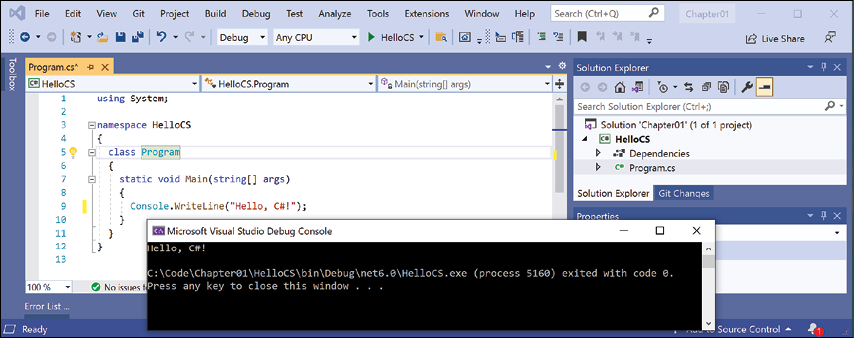
Figure 1.6: Running the console app on Windows
- Press any key to close the console window and return to Visual Studio.
- Select the HelloCS project and then, in the Solution Explorer toolbar, toggle on the Show All Files button, and note that the compiler-generated
binandobjfolders are visible, as shown in Figure 1.7: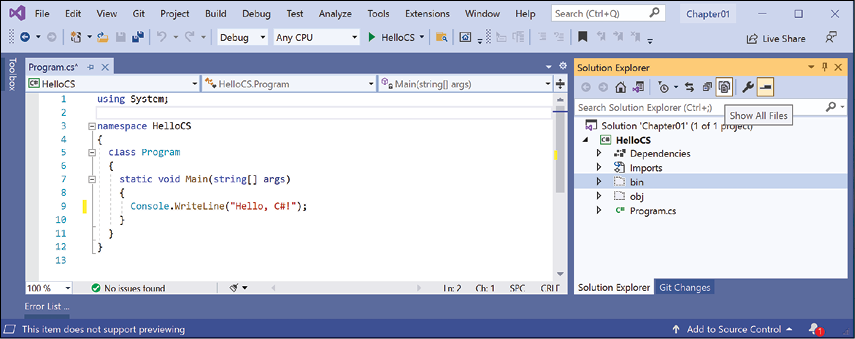
Figure 1.7: Showing the compiler-generated folders and files
Understanding the compiler-generated folders and files
Two compiler-generated folders were created, named obj and bin. You do not need to look inside these folders or understand their files yet. Just be aware that the compiler needs to create temporary folders and files to do its work. You could delete these folders and their files, and they can be recreated later. Developers often do this to "clean" a project. Visual Studio even has a command on the Build menu named Clean Solution that deletes some of these temporary files for you. The equivalent command with Visual Studio Code is dotnet clean.
- The
objfolder contains one compiled object file for each source code file. These objects haven't been linked together into a final executable yet. - The
binfolder contains the binary executable for the application or class library. We will look at this in more detail in Chapter 7, Packaging and Distributing .NET Types.
Writing top-level programs
You might be thinking that was a lot of code just to output Hello, C#!.
Although the boilerplate code is written for you by the project template, is there a simpler way?
Well, in C# 9 or later, there is, and it is known as top-level programs.
Let's compare the console app created by the project template, as shown in the following code:
using System;
namespace HelloCS
{
  class Program
  {
    static void Main(string[] args)
    {
      Console.WriteLine("Hello World!");
    }
  }
}
To the new top-level program minimum console app, as shown in the following code:
using System;
Console.WriteLine("Hello World!");
That is a lot simpler, right? If you had to start with a blank file and write all the statements yourself, this is better. But how does it work?
During compilation, all the boilerplate code to define a namespace, the Program class, and its Main method, is generated and wrapped around the statements you write.
Key points to remember about top-level programs include the following list:
- Any
usingstatements still must to go at the top of the file. - There can be only one file like this in a project.
The using System; statement at the top of the file imports the System namespace. This enables the Console.WriteLine statement to work. You will learn more about namespaces in the next chapter.
Adding a second project using Visual Studio 2022
Let's add a second project to our solution to explore top-level programs:
- In Visual Studio, navigate to File | Add | New Project.
- In the Add a new project dialog, in Recent project templates, select Console Application [C#] and then click Next.
- In the Configure your new project dialog, for the Project name, enter
TopLevelProgram, leave the location asC:\Code\Chapter01, and then click Next. - In the Additional information dialog, select .NET 6.0 (Long-term support), and then click Create.
- In Solution Explorer, in the
TopLevelProgramproject, double-clickProgram.csto open it. - In
Program.cs, note the code consists of only a comment and a single statement because it uses the top-level program feature introduced in C# 9, as shown in the following code:// See https://aka.ms/new-console-template for more information Console.WriteLine("Hello, World!");
But when I introduced the concept of top-level programs earlier, we needed a using System; statement. Why don't we need that here?
Implicitly imported namespaces
The trick is that we do still need to import the System namespace, but it is now done for us using a feature introduced in C# 10. Let's see how:
- In Solution Explorer, select the
TopLevelProgramproject and toggle on the Show All Files button, and note that the compiler-generatedbinandobjfolders are visible. - Expand the
objfolder, expand theDebugfolder, expand thenet6.0folder, and open the file namedTopLevelProgram.GlobalUsings.g.cs. - Note that this file is automatically created by the compiler for projects that target .NET 6, and that it uses a feature introduced in C# 10 called global imports that imports some commonly used namespaces like
Systemfor use in all code files, as shown in the following code:// <autogenerated /> global using global::System; global using global::System.Collections.Generic; global using global::System.IO; global using global::System.Linq; global using global::System.Net.Http; global using global::System.Threading; global using global::System.Threading.Tasks;I will explain more about this feature in the next chapter. For now, just note that a significant change between .NET 5 and .NET 6 is that many of the project templates, like the one for console applications, use new language features to hide what is really happening.
- In the
TopLevelProgramproject, inProgram.cs, modify the statement to output a different message and the version of the operating system, as shown in the following code:Console.WriteLine("Hello from a Top Level Program!"); Console.WriteLine(Environment.OSVersion.VersionString); - In Solution Explorer, right-click the Chapter01 solution, select Set Startup Projects…, set Current selection, and then click OK.
- In Solution Explorer, click the TopLevelProgram project (or any file or folder within it), and note that Visual Studio indicates that TopLevelProgram is now the startup project by making the project name bold.
- Navigate to Debug | Start Without Debugging to run the TopLevelProgram project, and note the result, as shown in Figure 1.8:
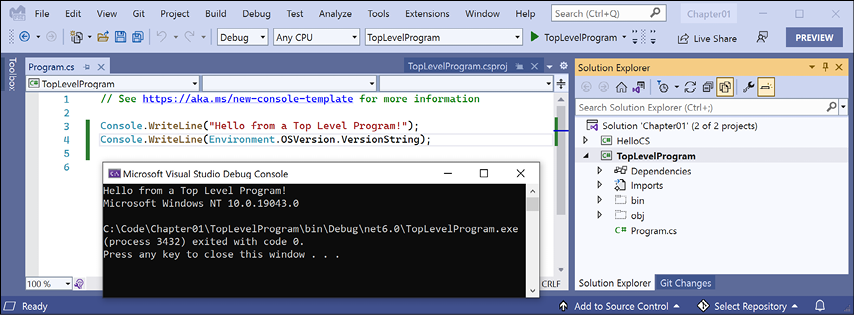
Figure 1.8: Running a top-level program in a Visual Studio solution with two projects on Windows
Building console apps using Visual Studio Code
The goal of this section is to showcase how to build a console app using Visual Studio Code.
If you never want to try Visual Studio Code or .NET Interactive Notebooks, then please feel free to skip this section and the next, and then continue with the Reviewing the folders and files for projects section.
Both the instructions and screenshots in this section are for Windows, but the same actions will work with Visual Studio Code on the macOS and Linux variants.
The main differences will be native command-line actions such as deleting a file: both the command and the path are likely to be different on Windows or macOS and Linux. Luckily, the dotnet command-line tool will be identical on all platforms.
Managing multiple projects using Visual Studio Code
Visual Studio Code has a concept named a workspace that allows you to open and manage multiple projects simultaneously. We will use a workspace to manage the two projects that you will create in this chapter.
Writing code using Visual Studio Code
Let's get started writing code!
- Start Visual Studio Code.
- Make sure that you do not have any open files, folders, or workspaces.
- Navigate to File | Save Workspace As….
- In the dialog box, navigate to your user folder on macOS (mine is named
markjprice), yourDocumentsfolder on Windows, or any directory or drive in which you want to save your projects. - Click the New Folder button and name the folder
Code. (If you completed the section for Visual Studio 2022, then this folder will already exist.) - In the
Codefolder, create a new folder namedChapter01-vscode. - In the
Chapter01-vscodefolder, save the workspace asChapter01.code-workspace. - Navigate to File | Add Folder to Workspace… or click the Add Folder button.
- In the
Chapter01-vscodefolder, create a new folder namedHelloCS. - Select the
HelloCSfolder and click the Add button. - Navigate to View | Terminal.
We are deliberately going to use the older project template for .NET 5.0 to see what a full console application looks like. In the next section, you will create a console application using .NET 6.0 and see what has changed.
- In TERMINAL, make sure that you are in the
HelloCSfolder, and then use thedotnetcommand-line tool to create a new console app that targets .NET 5.0, as shown in the following command:dotnet new console -f net5.0 - You will see that the
dotnetcommand-line tool creates a new Console Application project for you in the current folder, and the EXPLORER window shows the two files created,HelloCS.csprojandProgram.cs, and theobjfolder, as shown in Figure 1.9: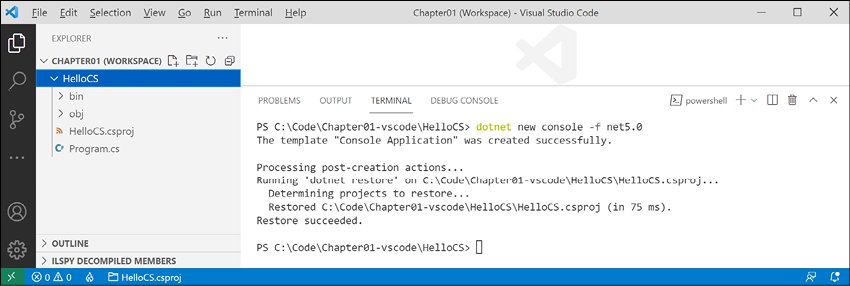
Figure 1.9: The EXPLORER window will show that two files and a folder have been created
- In EXPLORER, click on the file named
Program.csto open it in the editor window. The first time that you do this, Visual Studio Code may have to download and install C# dependencies like OmniSharp, .NET Core Debugger, and Razor Language Server, if it did not do this when you installed the C# extension or if they need updating. Visual Studio Code will show progress in the Output window and eventually the messageFinished, as shown in the following output:Installing C# dependencies... Platform: win32, x86_64 Downloading package 'OmniSharp for Windows (.NET 4.6 / x64)' (36150 KB).................... Done! Validating download... Integrity Check succeeded. Installing package 'OmniSharp for Windows (.NET 4.6 / x64)' Downloading package '.NET Core Debugger (Windows / x64)' (45048 KB).................... Done! Validating download... Integrity Check succeeded. Installing package '.NET Core Debugger (Windows / x64)' Downloading package 'Razor Language Server (Windows / x64)' (52344 KB).................... Done! Installing package 'Razor Language Server (Windows / x64)' FinishedThe preceding output is from Visual Studio Code on Windows. When run on macOS or Linux, the output will look slightly different, but the equivalent components for your operating system will be downloaded and installed.
- Folders named
objandbinwill have been created and when you see a notification saying that required assets are missing, click Yes, as shown in Figure 1.10: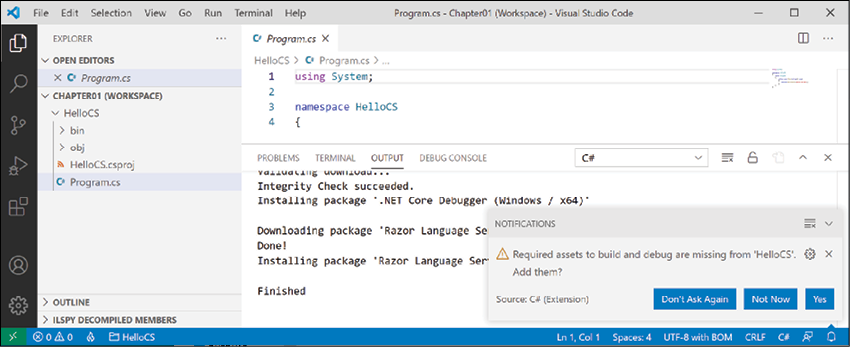
Figure 1.10: Warning message to add required build and debug assets
- If the notification disappears before you can interact with it, then you can click the bell icon in the far-right corner of the status bar to show it again.
- After a few seconds, another folder named
.vscodewill be created with some files that are used by Visual Studio Code to provide features like IntelliSense during debugging, which you will learn more about in Chapter 4, Writing, Debugging, and Testing Functions. - In
Program.cs, modify line 9 so that the text that is being written to the console saysHello, C#!Good Practice: Navigate to File | Auto Save. This toggle will save the annoyance of remembering to save before rebuilding your application each time.
Compiling and running code using the dotnet CLI
The next task is to compile and run the code:
- Navigate to View | Terminal and enter the following command:
dotnet run - The output in the TERMINAL window will show the result of running your application, as shown in Figure 1.11:
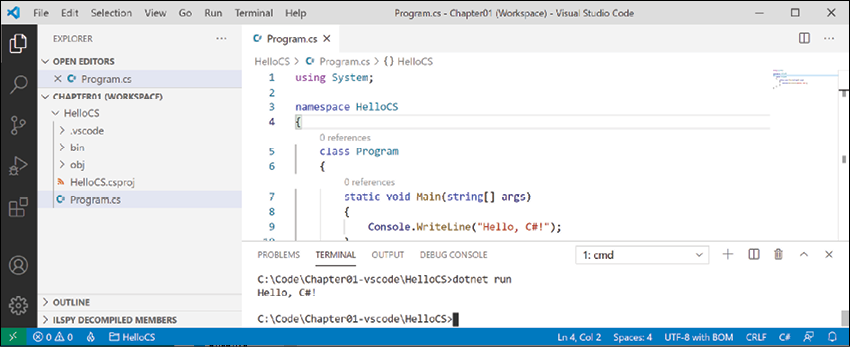
Figure 1.11: The output of running your first console application
Adding a second project using Visual Studio Code
Let's add a second project to our workspace to explore top-level programs:
- In Visual Studio Code, navigate to File | Add Folder to Workspace….
- In the
Chapter01-vscodefolder, use the New Folder button to create a new folder namedTopLevelProgram, select it, and click Add. - Navigate to Terminal | New Terminal, and in the drop-down list that appears, select TopLevelProgram. Alternatively, in EXPLORER, right-click the
TopLevelProgramfolder and then select Open in Integrated Terminal. - In TERMINAL, confirm that you are in the
TopLevelProgramfolder, and then enter the command to create a new console application, as shown in the following command:dotnet new consoleGood Practice: When using workspaces, be careful when entering commands in TERMINAL. Be sure that you are in the correct folder before entering potentially destructive commands! That is why I got you to create a new terminal for
TopLevelProgrambefore issuing the command to create a new console app. - Navigate to View | Command Palette.
- Enter
omni, and then, in the drop-down list that appears, select OmniSharp: Select Project. - In the drop-down list of two projects, select the TopLevelProgram project, and when prompted, click Yes to add required assets to debug.
Good Practice: To enable debugging and other useful features, like code formatting and Go to Definition, you must tell OmniSharp which project you are actively working on in Visual Studio Code. You can quickly toggle active projects by clicking the project/folder to the right of the flame icon on the left side of the status bar.
- In EXPLORER, in the
TopLevelProgramfolder, selectProgram.cs, and then change the existing statement to output a different message and also output the operating system version string, as shown in the following code:Console.WriteLine("Hello from a Top Level Program!"); Console.WriteLine(Environment.OSVersion.VersionString); - In TERMINAL, enter the command to run a program, as shown in the following command:
dotnet run - Note the output in the TERMINAL window, as shown in Figure 1.12:
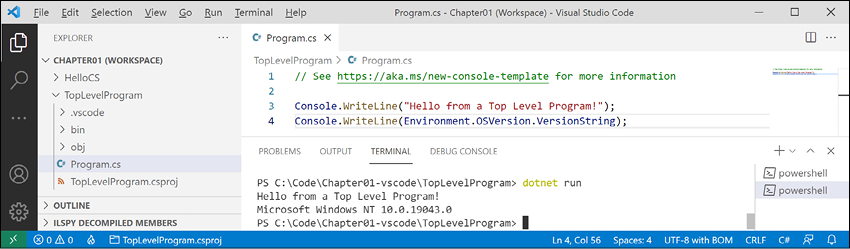
Figure 1.12: Running a top-level program in a Visual Studio Code workspace with two projects on Windows
If you were to run the program on macOS Big Sur, the environment operating system would be different, as shown in the following output:
Hello from a Top Level Program!
Unix 11.2.3
Managing multiple files using Visual Studio Code
If you have multiple files that you want to work with at the same time, then you can put them side by side as you edit them:
- In EXPLORER, expand the two projects.
- Open both
Program.csfiles from the two projects. - Click, hold, and drag the edit window tab for one of your open files to arrange them so that you can see both files at the same time.
Exploring code using .NET Interactive Notebooks
.NET Interactive Notebooks makes writing code even easier than top-level programs. It requires Visual Studio Code, so if you did not install it earlier, please install it now.
Creating a notebook
First, we need to create a notebook:
- In Visual Studio Code, close any open workspaces or folders.
- Navigate to View | Command Palette.
- Type
.net inter, and then select .NET Interactive: Create new blank notebook, as shown in Figure 1.13: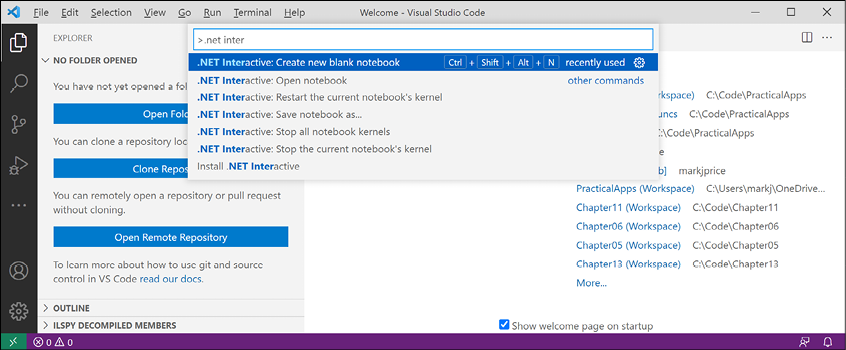
Figure 1.13: Creating a new blank .NET notebook
- When prompted to select the file extension, choose Create as '.dib'.
.dibis an experimental file format defined by Microsoft to avoid confusion and compatibility issues with the .ipynbformat used by Python interactive notebooks. The file extension was historically only for Jupyter notebooks that can contain an interactive (I) mix of data, Python code (PY), and output in a notebook file (NB). With .NET Interactive Notebooks, the concept has expanded to allow a mix of C#, F#, SQL, HTML, JavaScript, Markdown, and other languages..dibis polyglot, meaning it supports mixed languages. Conversion between the.diband.ipynbfile formats is supported. - Select C# for the default language for code cells in the notebook.
- If a newer version of .NET Interactive is available, you might have to wait for it to uninstall the older version and install the newer one. Navigate to View | Output and select .NET Interactive : diagnostics in the drop-down list. Please be patient. It can take a few minutes for the notebook to appear because it has to start up a hosting environment for .NET. If nothing happens after a few minutes, then close Visual Studio Code and restart it.
- Once the .NET Interactive Notebooks extension is downloaded and installed, the OUTPUT window diagnostics will show that a Kernel process has started (your process and port number will be different from the output below), as shown in the following output, which has been edited to save space:
Extension started for VS Code Stable.
...
Kernel process 12516 Port 59565 is using tunnel uri http://localhost:59565/
Writing and running code in a notebook
Next, we can write code in the notebook cells:
- The first cell should already be set to C# (.NET Interactive), but if it is set to anything else, then click the language selector in the bottom-right corner of the code cell and then select C# (.NET Interactive) as the language mode for that cell, and note your other choices of language for a code cell, as shown in Figure 1.14:
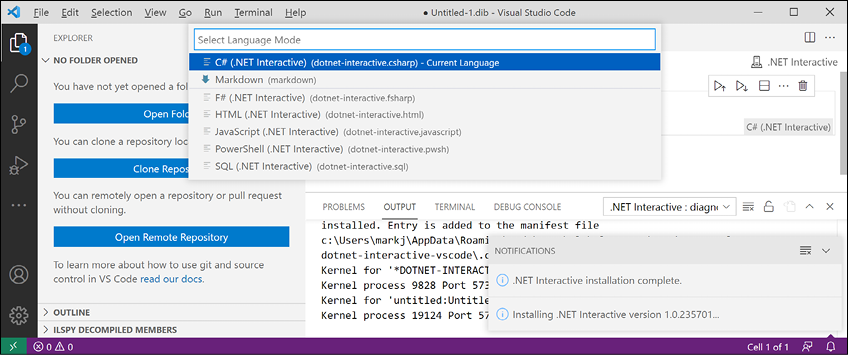
Figure 1.14: Changing the language for a code cell in a .NET Interactive notebook
- Inside the C# (.NET Interactive) code cell, enter a statement to output a message to the console, and note that you do not need to end the statement with a semicolon, as you normally would in a full application, as shown in the following code:
Console.WriteLine("Hello, .NET Interactive!") - Click the Execute Cell button to the left of the code cell and note the output that appears in the gray box under the code cell, as shown in Figure 1.15:
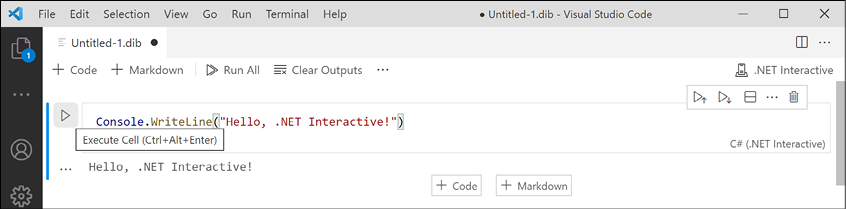
Figure 1.15: Running code in a notebook and seeing the output below
Saving a notebook
Like any other file, we should save the notebook before continuing further:
- Navigate to File | Save As….
- Change to the
Chapter01-vscodefolder and save the notebook asChapter01.dib. - Close the
Chapter01.dibeditor tab.
Adding Markdown and special commands to a notebook
We can mix and match cells containing Markdown and code with special commands:
- Navigate to File | Open File…, and select the
Chapter01.dibfile. - If you are prompted with
Do youtrust the authors of these files?, click Open. - Hover your mouse above the code block and click + Markup to add a Markdown cell.
- Type a heading level 1, as shown in the following Markdown:
# Chapter 1 - Hello, C#! Welcome, .NET! Mixing *rich* **text** and code is cool! - Click the tick in the top-right corner of the cell to stop editing the cell and view the processed Markdown.
If your cells are in the wrong order, then you can drag and drop to rearrange them.
- Hover between the Markdown cell and the code cell and click + Code.
- Type a special command to output version information about .NET Interactive, as shown in the following code:
#!about - Click the Execute Cell button and note the output, as shown in Figure 1.16:
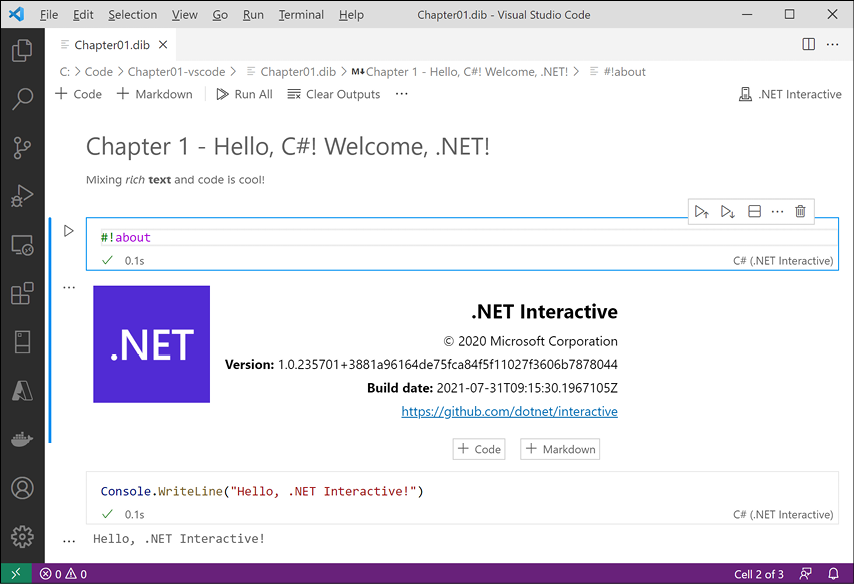
Figure 1.16: Mixing Markdown, code, and special commands in a .NET Interactive notebook
Executing code in multiple cells
When you have multiple code cells in a notebook, you must execute the preceding code cells before their context becomes available in subsequent code cells:
- At the bottom of the notebook, add a new code cell, and then type a statement to declare a variable and assign an integer value, as shown in the following code:
int number = 8; - At the bottom of the notebook, add a new code cell, and then type a statement to output the
numbervariable, as shown in the following code:Console.WriteLine(number); - Note the second code cell does not know about the
numbervariable because it was defined and assigned in another code cell, aka context, as shown in Figure 1.17: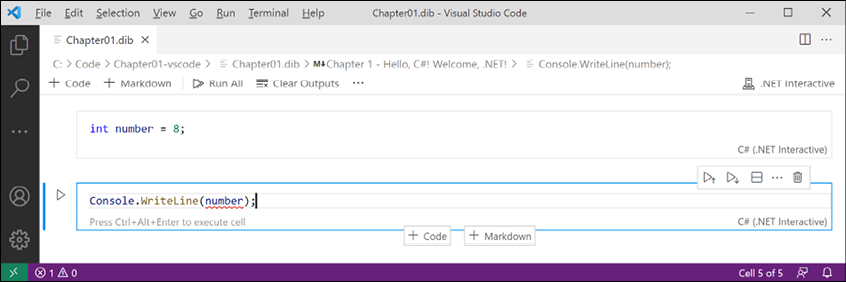
Figure 1.17: The number variable does not exist in the current cell or context
- In the first cell, click the Execute Cell button to declare and assign a value to the variable, and then in the second cell, click the Execute Cell button to output the
numbervariable, and note that this works. (Alternatively, in the first cell, you can click the Execute Cell and Below button.)Good Practice: If you have related code split between two cells, remember to execute the preceding cell before executing the subsequent cell. At the top of the notebook, there are the following buttons – Clear Outputs and Run All. These are very handy because you can click one and then the other to ensure that all code cells are executed properly, as long as they are in the correct order.
Using .NET Interactive Notebooks for the code in this book
Throughout the rest of the chapters, I will not give explicit instructions to use notebooks, but the GitHub repository for the book has solution notebooks when appropriate. I expect many readers will want to run my pre-created notebooks for language and library features covered in Chapters 2 to 12, which they want to see in action and learn about without having to write a complete application, even if it is just a console app:
https://github.com/markjprice/cs10dotnet6/tree/main/notebooks
Reviewing the folders and files for projects
In this chapter, you created two projects named HelloCS and TopLevelProgram.
Visual Studio Code uses a workspace file to manage multiple projects. Visual Studio 2022 uses a solution file to manage multiple projects. You also created a .NET Interactive notebook.
The result is a folder structure and files that will be repeated in subsequent chapters, although with more than just two projects, as shown in Figure 1.18:
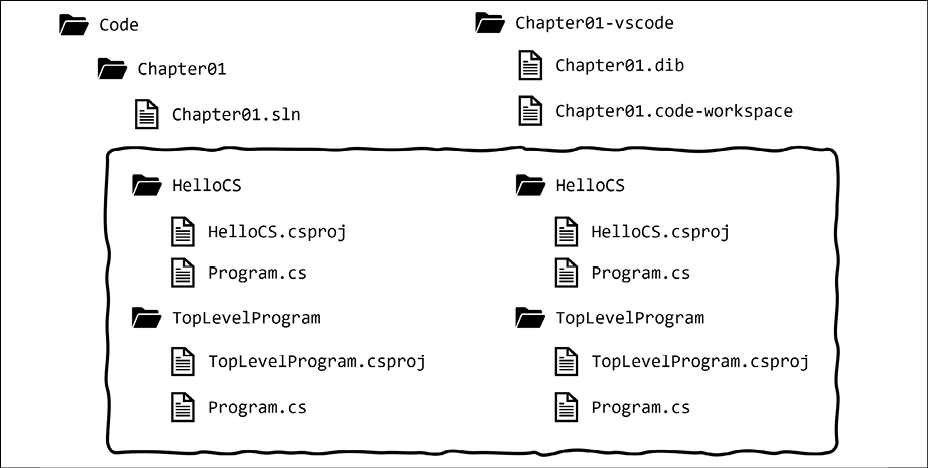
Figure 1.18: Folder structure and files for the two projects in this chapter
Understanding the common folders and files
Although .code-workspace and .sln files are different, the project folders and files such as HelloCS and TopLevelProgram are identical for Visual Studio 2022 and Visual Studio Code. This means that you can mix and match between both code editors if you like:
- In Visual Studio 2022, with a solution open, navigate to File | Add Existing Project… to add a project file created by another tool.
- In Visual Studio Code, with a workspace open, navigate to File | Add Folder to Workspace… to add a project folder created by another tool.
Good Practice: Although the source code, like the
.csprojand.csfiles, is identical, thebinandobjfolders that are automatically generated by the compiler could have mismatched file versions that give errors. If you want to open the same project in both Visual Studio 2022 and Visual Studio Code, delete the temporarybinandobjfolders before opening the project in the other code editor. This is why I asked you to create a different folder for the Visual Studio Code solutions in this chapter.
Understanding the solution code on GitHub
The solution code in the GitHub repository for this book includes separate folders for Visual Studio Code, Visual Studio 2022, and .NET Interactive notebook files, as shown in the following list:
- Visual Studio 2022 solutions: https://github.com/markjprice/cs10dotnet6/tree/main/vs4win
- Visual Studio Code solutions: https://github.com/markjprice/cs10dotnet6/tree/main/vscode
- .NET Interactive Notebook solutions: https://github.com/markjprice/cs10dotnet6/tree/main/notebooks
Good Practice: If you need to, return to this chapter to remind yourself how to create and manage multiple projects in the code editor of your choice. The GitHub repository has step-by-step instructions for four code editors (Visual Studio 2022 for Windows, Visual Studio Code, Visual Studio 2022 for Mac, and JetBrains Rider), along with additional screenshots: https://github.com/markjprice/cs10dotnet6/blob/main/docs/code-editors/.
Making good use of the GitHub repository for this book
Git is a commonly used source code management system. GitHub is a company, website, and desktop application that makes it easier to manage Git. Microsoft purchased GitHub in 2018, so it will continue to get closer integration with Microsoft tools.
I created a GitHub repository for this book, and I use it for the following:
- To store the solution code for the book that can be maintained after the print publication date.
- To provide extra materials that extend the book, like errata fixes, small improvements, lists of useful links, and longer articles that cannot fit in the printed book.
- To provide a place for readers to get in touch with me if they have issues with the book.
Raising issues with the book
If you get stuck following any of the instructions in this book, or if you spot a mistake in the text or the code in the solutions, please raise an issue in the GitHub repository:
- Use your favorite browser to navigate to the following link: https://github.com/markjprice/cs10dotnet6/issues.
- Click New Issue.
- Enter as much detail as possible that will help me to diagnose the issue. For example:
- Your operating system, for example, Windows 11 64-bit, or macOS Big Sur version 11.2.3.
- Your hardware, for example, Intel, Apple Silicon, or ARM CPU.
- Your code editor, for example, Visual Studio 2022, Visual Studio Code, or something else, including the version number.
- As much of your code and configuration that you feel is relevant and necessary.
- Description of expected behavior and the behavior experienced.
- Screenshots (if possible).
Writing this book is a side hustle for me. I have a full-time job, so I mostly work on the book at weekends. This means that I cannot always respond immediately to issues. But I want all my readers to be successful with my book, so if I can help you (and others) without too much trouble, then I will gladly do so.
Giving me feedback
If you'd like to give me more general feedback about the book, then the GitHub repository README.md page has links to some surveys. You can provide the feedback anonymously, or if you would like a response from me, then you can supply an email address. I will only use this email address to answer your feedback.
I love to hear from my readers about what they like about my book, as well as suggestions for improvements and how they are working with C# and .NET, so don't be shy. Please get in touch!
Thank you in advance for your thoughtful and constructive feedback.
Downloading solution code from the GitHub repository
I use GitHub to store solutions to all the hands-on, step-by-step coding examples throughout chapters and the practical exercises that are featured at the end of each chapter. You will find the repository at the following link: https://github.com/markjprice/cs10dotnet6.
If you just want to download all the solution files without using Git, click the green Code button and then select Download ZIP, as shown in Figure 1.19:
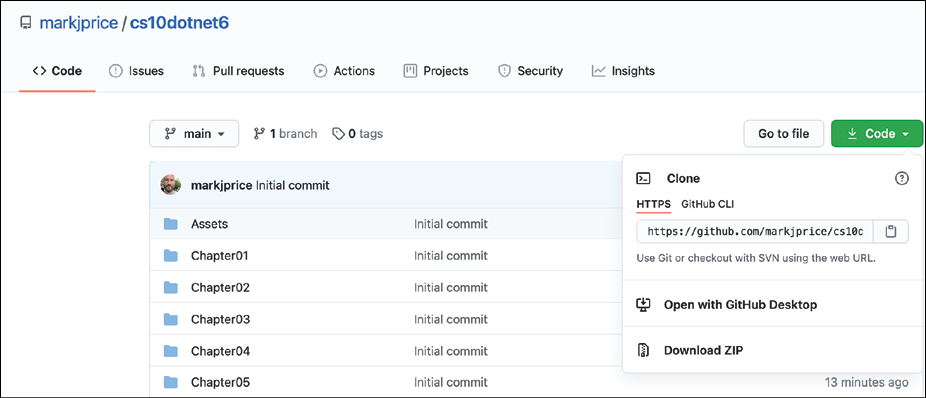
Figure 1.19: Downloading the repository as a ZIP file
I recommend that you add the preceding link to your favorite bookmarks because I also use the GitHub repository for this book for publishing errata (corrections) and other useful links.
Using Git with Visual Studio Code and the command line
Visual Studio Code has support for Git, but it will use your operating system's Git installation, so you must install Git 2.0 or later first before you get these features.
You can install Git from the following link: https://git-scm.com/download.
If you like to use a GUI, you can download GitHub Desktop from the following link: https://desktop.github.com.
Cloning the book solution code repository
Let's clone the book solution code repository. In the steps that follow, you will use the Visual Studio Code terminal, but you could enter the commands at any command prompt or terminal window:
- Create a folder named
Repos-vscodein your user orDocumentsfolder, or wherever you want to store your Git repositories. - In Visual Studio Code, open the
Repos-vscodefolder. - Navigate to View | Terminal, and enter the following command:
git clone https://github.com/markjprice/cs10dotnet6.git - Note that cloning all the solutions for all of the chapters will take a minute or so, as shown in Figure 1.20:
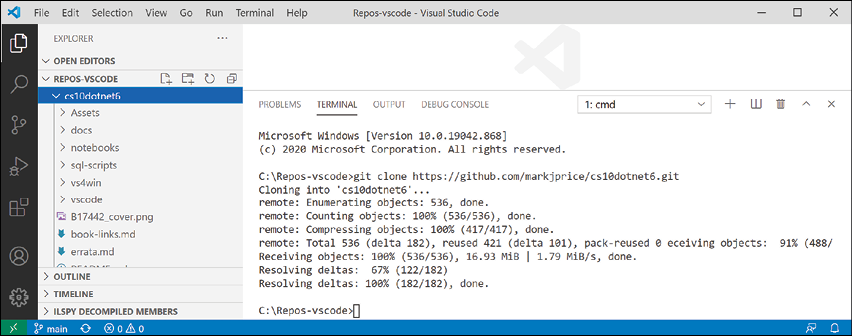
Figure 1.20: Cloning the book solution code using Visual Studio Code
Looking for help
This section is all about how to find quality information about programming on the web.
Reading Microsoft documentation
The definitive resource for getting help with Microsoft developer tools and platforms is Microsoft Docs, and you can find it at the following link: https://docs.microsoft.com/.
Getting help for the dotnet tool
At the command line, you can ask the dotnet tool for help with its commands:
- To open the official documentation in a browser window for the
dotnet newcommand, enter the following at the command line or in the Visual Studio Code terminal:dotnet help new - To get help output at the command line, use the
-hor--helpflag, as shown in the following command:dotnet new console -h - You will see the following partial output:
Console Application (C#)
Author: Microsoft
Description: A project for creating a command-line application that can run on .NET Core on Windows, Linux and macOS
Options:
  -f|--framework. The target framework for the project.
                      net6.0           - Target net6.0
                      net5.0           - Target net5.0
                      netcoreapp3.1.   - Target netcoreapp3.1
                      netcoreapp3.0.   - Target netcoreapp3.0
                  Default: net6.0
--langVersion    Sets langVersion in the created project file text – Optional
Getting definitions of types and their members
One of the most useful features of a code editor is Go To Definition. It is available in Visual Studio Code and Visual Studio 2022. It will show what the public definition of the type or member looks like by reading the metadata in the compiled assembly.
Some tools, such as ILSpy .NET Decompiler, will even reverse-engineer from the metadata and IL code back into C# for you.
Let's see how to use the Go To Definition feature:
- In Visual Studio 2022 or Visual Studio Code, open the solution/workspace named
Chapter01. - In the
HelloCSproject, inProgram.cs, inMain, enter the following statement to declare an integer variable namedz:int z; - Click inside
intand then right-click and choose Go To Definition. - In the code window that appears, you can see how the
intdata type is defined, as shown in Figure 1.21: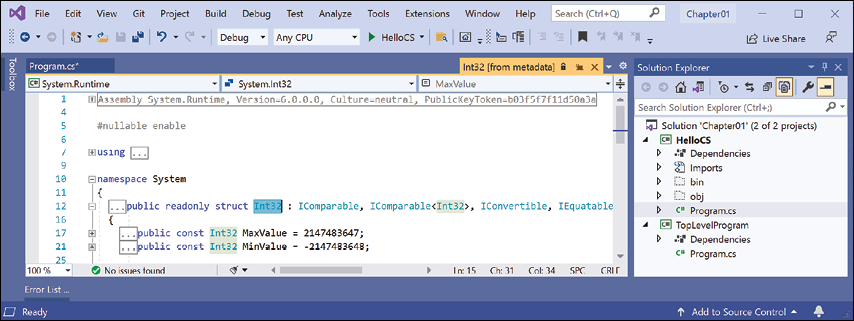
Figure 1.21: The int data type metadata
You can see that
int:- Is defined using the
structkeyword - Is in the
System.Runtimeassembly - Is in the
Systemnamespace - Is named
Int32 - Is therefore an alias for the
System.Int32type - Implements interfaces such as
IComparable - Has constant values for its maximum and minimum values
- Has methods such as
Parse
Good Practice: When you try to use Go To Definition in Visual Studio Code, you will sometimes see an error saying No definition found. This is because the C# extension does not know about the current project. To fix this issue, navigate to View | Command Palette, enter
omni, select OmniSharp: Select Project, and then select the project that you want to work with.Right now, the Go To Definition feature is not that useful to you because you do not yet know what all of this information means.
By the end of the first part of this book, which consists of Chapters 2 to 6, and which teaches you about C#, you will know enough for this feature to become very handy.
- Is defined using the
- In the code editor window, scroll down to find the
Parsemethod with a singlestringparameter on line 106, and the comments that document it on lines 86 to 105, as shown in Figure 1.22: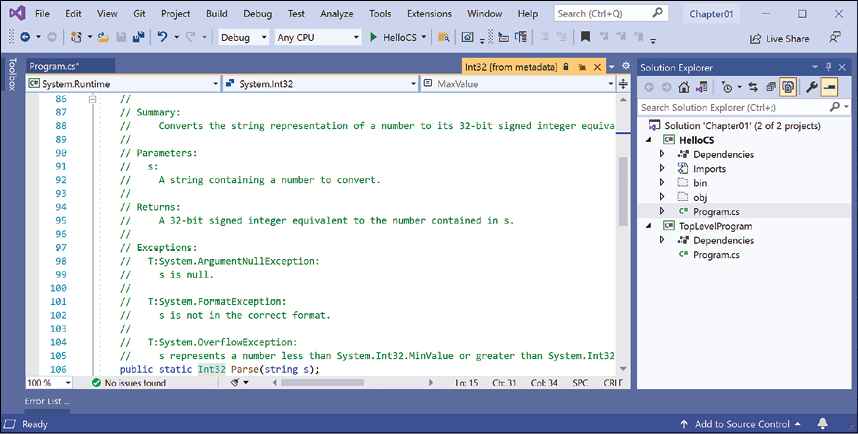
Figure 1.22: The comments for the Parse method with a string parameter
In the comments, you will see that Microsoft has documented the following:
- A summary that describes the method.
- Parameters like the
stringvalue that can be passed to the method. - The return value of the method, including its data type.
- Three exceptions that might occur if you call this method, including
ArgumentNullException,FormatException, andOverflowException. Now, we know that we could choose to wrap a call to this method in atrystatement and which exceptions to catch.
Hopefully, you are getting impatient to learn what all this means!
Be patient for a little longer. You are almost at the end of this chapter, and in the next chapter, you will dive into the details of the C# language. But first, let's see where else you can look for help.
Looking for answers on Stack Overflow
Stack Overflow is the most popular third-party website for getting answers to difficult programming questions. It's so popular that search engines such as DuckDuckGo have a special way to write a query to search the site:
- Start your favorite web browser.
- Navigate to DuckDuckGo.com, enter the following query, and note the search results, which are also shown in Figure 1.23:
!so securestring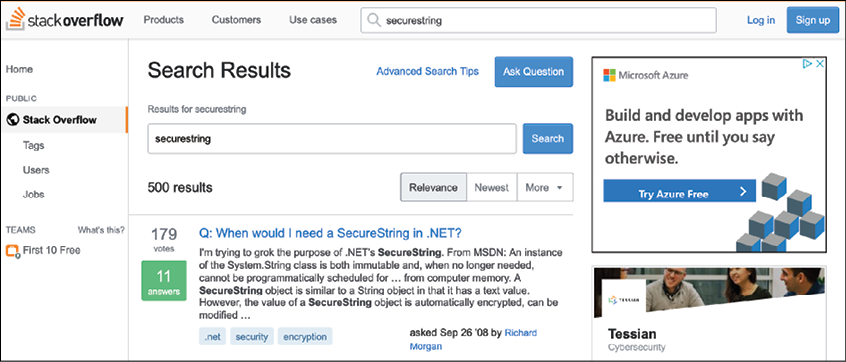
Figure 1.23: Stack Overflow search results for securestring
Searching for answers using Google
You can search Google with advanced search options to increase the likelihood of finding what you need:
- Navigate to Google.
- Search for information about
garbage collectionusing a simple Google query, and note that you will probably see a lot of ads for garbage collection services in your local area before you see the Wikipedia definition of garbage collection in computer science. - Improve the search by restricting it to a useful site such as Stack Overflow, and by removing languages that we might not care about, such as C++, Rust, and Python, or by adding C# and .NET explicitly, as shown in the following search query:
garbage collection site:stackoverflow.com +C# -Java
Subscribing to the official .NET blog
To keep up to date with .NET, an excellent blog to subscribe to is the official .NET Blog, written by the .NET engineering teams, and you can find it at the following link: https://devblogs.microsoft.com/dotnet/.
Watching Scott Hanselman's videos
Scott Hanselman from Microsoft has an excellent YouTube channel about computer stuff they didn't teach you: http://computerstufftheydidntteachyou.com/.
I recommend it to everyone working with computers.
Practicing and exploring
Let's now test your knowledge and understanding by trying to answer some questions, getting some hands-on practice, and going into the topics covered throughout this chapter in greater detail.
Exercise 1.1 – Test your knowledge
Try to answer the following questions, remembering that although most answers can be found in this chapter, you should do some online research or code writing to answer others:
- Is Visual Studio 2022 better than Visual Studio Code?
- Is .NET 6 better than .NET Framework?
- What is .NET Standard and why is it still important?
- Why can a programmer use different languages, for example, C# and F#, to write applications that run on .NET?
- What is the name of the entry point method of a .NET console application and how should it be declared?
- What is a top-level program and how do you access any command-line arguments?
- What do you type at the prompt to build and execute C# source code?
- What are some benefits of using .NET Interactive Notebooks to write C# code?
- Where would you look for help for a C# keyword?
- Where would you look for solutions to common programming problems?
Appendix, Answers to the Test Your Knowledge Questions, is available to download from a link in the README on the GitHub repository: https://github.com/markjprice/cs10dotnet6.
Exercise 1.2 – Practice C# anywhere
You don't need Visual Studio Code or even Visual Studio 2022 for Windows or Mac to write C#. You can go to .NET Fiddle – https://dotnetfiddle.net/ – and start coding online.
Exercise 1.3 – Explore topics
A book is a curated experience. I have tried to find the right balance of topics to include in the printed book. Other content that I have written can be found in the GitHub repository for this book.
I believe that this book covers all the fundamental knowledge and skills a C# and .NET developer should have or be aware of. Some longer examples are best included as links to Microsoft documentation or third-party article authors.
Use the links on the following page to learn more details about the topics covered in this chapter:
https://github.com/markjprice/cs10dotnet6/blob/main/book-links.md#chapter-1---hello-c-welcome-net
Summary
In this chapter, we:
- Set up your development environment.
- Discussed the similarities and differences between modern .NET, .NET Core, .NET Framework, Xamarin, and .NET Standard.
- Used Visual Studio Code with the .NET SDK and Visual Studio 2022 for Windows to create some simple console applications.
- Used .NET Interactive Notebooks to execute snippets of code for learning.
- Learned how to download the solution code for this book from a GitHub repository.
- And, most importantly, learned how to find help.
In the next chapter, you will learn how to "speak" C#.